iCloud's no-default-mail-client message can appear even when classic Outlook is installed and receives mail. Check that classic Outlook opens its normal profile, then check the default mail app before changing the Office installation.
In a 2019 case, an owner fixed this by switching from 64-bit Office to 32-bit Office. That doesn't mean your current setup needs the same switch. Check the Outlook edition and any separate default-profile error first.
In this guide
1. Open classic Outlook before retrying iCloud setup
Close the iCloud setup prompt and open Outlook (classic) from Start. Check that your usual mailbox opens without an unfinished account setup. Outlook's mail profile, which holds your account setup, needs to work too.
The reported message begins Either there is no default mail client or the current mail client cannot fulfill the messaging request. The original owner also saw Outlook isn't Configured to have a Default Profile when applying iCloud sync.
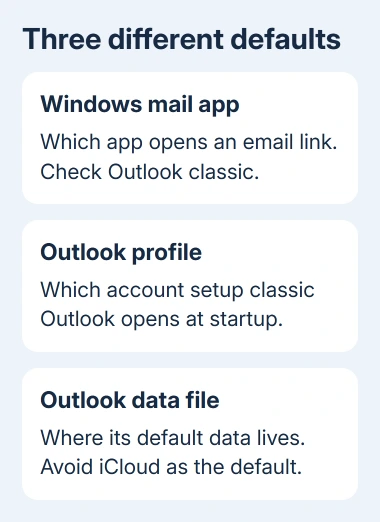
Record both messages if both appear. They point to different settings: Windows' choice of mail app, and the Outlook configuration iCloud is trying to use. Changing your default sending address won't fix either setting.
If Outlook itself won't open, fix that first with the Outlook startup guide. Retrying iCloud repeatedly won't complete a classic Outlook profile that isn't working yet.
These checks concern iCloud for Windows integration with classic Outlook. The new Outlook app has a separate account setup and doesn't load the classic iCloud COM add-in, the extra component used for the connection to classic Outlook.
2. Confirm which app handles email links
In classic Outlook, open File > Options > General. Under Start up options, look for Make Outlook the default program for E-mail, Contacts, and Calendar and select it if available. Confirm with OK.
Then check Windows' default apps. In Windows 11, open Settings > Apps > Default apps and search for Outlook. Select the classic Outlook entry and check that MAILTO opens with that app.
In Windows 10, open Settings > Apps > Default apps and check the Email choice. Select classic Outlook if that is the desktop app you're using for iCloud integration.
MAILTO controls the app that opens email links. It doesn't check iCloud's desktop connection to Outlook. Reopen iCloud afterward and see whether setup finishes; the important result is whether iCloud setup now finishes.
If the error remains, note that the default app is correct and move on. The usual default-client fixes hadn't helped the original owner, so repeatedly changing the same default isn't useful.
3. Give classic Outlook a working default profile
Close classic Outlook. Open Control Panel, search for Mail, and open Mail (Microsoft Outlook). Select Show Profiles to see the existing classic Outlook profiles.
If the normal working profile is listed, select Always use this profile and choose it from the list. Select Apply, then OK. Start Outlook again to check it opens that account without a profile chooser.
Keep your existing profiles along with their local-only contacts, calendars, or messages that have no server copy. Choosing a working default doesn't require deleting the other profiles.
If the list has no configured profile, use Add to create one and finish configuring the mailbox before reopening iCloud. On a managed work computer, have IT set up the required mailbox rather than guessing its server details.
Return to iCloud for Windows after classic Outlook opens normally. Apply the Contacts and Calendars setup again and check whether the error stays the same or changes to another message.
4. Keep the iCloud data file from becoming Outlook's default
Once Outlook opens, select File > Info > Account Settings > Data Files. Look at the Comments column to see which data file is the default. This is separate from the Windows default-app setting.
If iCloud is the default entry there, select the normal non-iCloud data file and choose Set as Default. Restart the computer after correcting it, then check calendar and contact syncing again.
Apple's Outlook integration checks explain that iCloud set as the default Data Files account prevents syncing between devices. The same page covers a different unsupported-version message that affects some Office installations.
Don't change the default sending address just to follow this step. The account used in the From field and the default entry on Data Files serve different purposes, even though both settings use the word default.
If setup succeeds but the calendar tab stays absent, use the iCloud Outlook add-in repair. That guide covers loading the add-in and reconnecting Contacts and Calendars after setup.
5. Treat the 32-bit Office fix as a version-specific result
Open classic Outlook and choose File > Office Account > About Outlook. Note the full build number and its 32-bit or 64-bit label. Also record the iCloud for Windows version for support.
In the original 2019 iCloud case, the owner reported that installing 32-bit Office restored syncing after 64-bit Office stopped working with their setup.
That worked for their installation. It doesn't mean 64-bit Outlook is unsupported today, and the thread doesn't name a current iCloud version with the same limitation.
I'd give support the version details before switching between 32-bit and 64-bit Office. A switch affects the whole Office installation and its add-ins, not just the iCloud calendar connection.
Switching between 32-bit and 64-bit Office requires uninstalling the existing version first. Protect local Outlook data and check required add-ins with IT before planning it. Avoid old packages from download mirrors.
An unsupported-Outlook-version error needs its own report. That wording differs from the default-client prompt. The installation repair for it isn't a general requirement to use 32-bit Office.
What to give support when setup still fails
Ask Apple Support about iCloud integration with your recorded Outlook version. Provide both errors, whether the normal profile opens, and the results for Windows defaults and Outlook Data Files.
For managed Office, involve the Microsoft 365 administrator before reinstalling. Ask them to check which Office installation and iCloud components your versions support before trying the 2019 switch to 32-bit Office.
The Short Version
Open classic Outlook, verify the default mail app and working profile, then check the default data file. The 32-bit Office repair was confirmed for an older setup. Get version-specific support before changing the whole Office installation.
Checked November 17, 2026.
 If you have any business, I can build it online