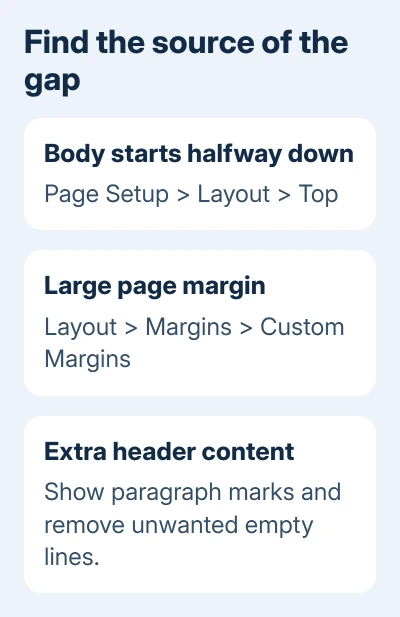
A Word header area that's too large can be body text centered vertically. Set Page Setup > Layout > Vertical alignment to Top first. If the gap remains, check the page margins and empty header paragraphs.
Those settings can leave similar-looking blank space for different reasons. A cursor halfway down a mostly empty page points toward vertical alignment; a header containing empty lines or a large object needs its own cleanup.
In this guide
1. Set the affected section's vertical alignment to Top
Click in the document body on a page with the unwanted gap. In Windows desktop Word, select Layout and open the Page Setup dialog using its corner launcher. Choose the dialog's Layout tab.
Word 2007 and 2010 call the ribbon tab Page Layout. The important setting is still Vertical alignment in the Page Setup dialog, not the Home tab's paragraph-alignment buttons.
Change Vertical alignment to Top. Check Apply to before choosing OK. Use the affected section when the rest of the document needs its current arrangement, or the whole document when every section should start at the top.
The page-alignment controls position text between the page's top and bottom margins. A centered section can therefore resemble an enormous header even when the header itself contains very little.
Click back into the body. The first line should start near the usual position for body text on that page. If it still sits far down, move to the margin check instead of setting the header position to zero.
The saved owner discussion includes a Word for Mac 2016 route: Format > Document, then the layout controls for vertical alignment. Choose Top there. Check other affected sections separately if only one changes.
2. Correct a large top margin without shrinking everything
Open Layout > Margins > Custom Margins in current Windows Word. Word 2007 and 2010 put Margins on Page Layout. Inspect Top and Bottom rather than assuming that all the blank area belongs to a header.
Compare the values with the document's requirements. A letter, thesis or form can need specific margins. For an ordinary document without those requirements, try the Normal preset in your saved copy.
An owner in the oversized-header discussion reports that switching custom margins to Normal restored the page after a vertical-alignment change wasn't enough. Their document came from a PDF conversion.
If the page still has extra space, inspect Gutter in Page Setup too. A gutter reserves binding space; when positioned at the top, it can enlarge that gap. One owner fixed their file by setting an unwanted gutter back to zero.
After correcting the top margin, inspect the last line too. A large bottom margin can leave another gap. Correct the values that are wrong instead of shifting empty space from one end of the page to the other.
In Word for Mac, inspect the document margin controls through Layout > Margins, or Format > Document in versions using that dialog. For a file using several layouts, apply the change only to the section that needs it.
For an existing header's content and editing controls, the header setup guide explains how to enter and leave the header. Margins control the space available for body text; editing the header changes what fills that top space.
3. Show the empty paragraphs inside the header
Double-click within the header to edit it. On Home, turn on Show/Hide, the paragraph-mark button. Empty lines that looked like blank space should now display paragraph marks.
Select and remove unwanted empty paragraphs one at a time. Keep the required header text, page number and final paragraph intact. Then close header editing and see whether the body has moved to the intended position.
A header can grow to fit its content, so reducing Header from Top alone won't remove a stack of empty paragraphs. That setting changes the header's starting distance from the page edge, not the amount of content it contains.
Inspect paragraph spacing too. Click in the header paragraph and open the Paragraph dialog from Home. Look at Before, After and line spacing. A large space after one short line can create a gap even without many empty paragraphs.
If the header contains a table or picture, check whether its size explains the space. If you aren't sure why a logo or form table is there, work in a copy before removing it. Its white area may blend into the page.
4. Check sections and alternate headers
Scroll to another affected page and repeat the check there. Word documents can use a different first-page header and separate odd- and even-page headers, so one clean page doesn't mean every header is empty.
While editing a header, look for its section label and whether Different First Page or Different Odd & Even Pages is active. Edit the header shown on the problem page. Otherwise, you could keep changing a header that page doesn't use.
If the layout changes partway through the file, turn on Show/Hide in the body and look for section breaks. A section can have its own margins and vertical alignment, which explains why changing an earlier page doesn't fix a later one.
I'd keep section breaks in place while checking those settings. Removing one can change more of the document's layout than intended, especially in files mixing portrait and landscape pages.
When the page looks right but the printed header disappears, use the header and footer printing checks. Those checks help when content is missing from the printout. The checks here address blank space you can see while editing.
Does the gap also affect a fresh document?
In a new blank document, type one line of ordinary body text. If the text starts normally, focus on the original document's sections and header content. Reinstalling Word won't remove empty paragraphs or correct a file's margin choices.
If new blank documents also start halfway down, check their vertical alignment and margins. A shared template can carry formatting into every new file. Keep an untouched copy of any custom template before asking its author to correct it.
For a persistent problem in a supported Word version, use Help > Contact Support. Provide a short sample, About Word version details, and whether the fault affects a fresh document or only one converted file.
Show the page with paragraph marks visible and explain which section is affected. That lets support check the affected layout without asking for your entire report or having you reinstall Word.
The Short Version
Set vertical alignment to Top, inspect the top and bottom margins, then remove unwanted empty header paragraphs. Check the affected section and header variant. Keep section breaks until you've understood which layout settings they separate.
Checked November 17, 2026.