Word 2008 can hide its Standard toolbar on Lion even when View > Toolbars shows it selected. Restoring its saved visibility setting fixed this for several owners. Back up Word's preference file and quit Word before changing it.
This fix is for Word 2008 on OS X 10.7. A missing ribbon in current Word, or a toolbar that disappears only after Save As, needs different checks.
In this guide
1. Match the fault to Word 2008 and Lion
Choose Word > About Word to check the application version. Use Apple menu > About This Mac to check OS X. The confirmed repair concerns Word 2008 running under Lion, including Macs upgraded from Snow Leopard.
In Word, open View > Toolbars and look for Standard. If it isn't selected, select it first. If it is selected but the toolbar is invisible, check Word's saved setting for showing toolbars in the window next.
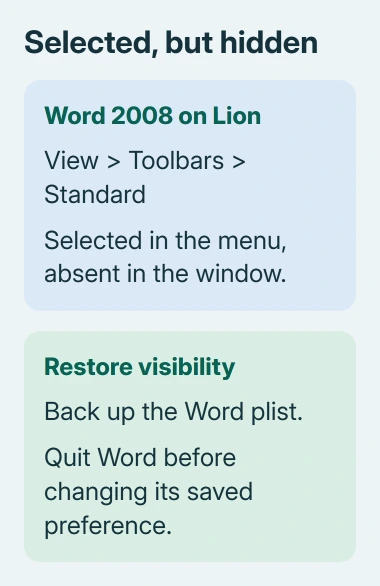
On Leopard or Snow Leopard, an oval control in the document window's upper-right corner shows or hides the toolbars. Lion removed it, so looking for the oval on a Lion window won't restore anything.
Microsoft's forum describes this preference repair. An owner confirmed that changing it restored the toolbar when the menu and window disagreed. It changes whether the toolbar is shown without rebuilding all of Word's toolbar buttons.
For a missing Save button inside Word's Save As dialog, use the Mac Save dialog resizing steps. That's a separate window with a different confirmed workaround.
2. Copy the preference file before changing it
Save your open documents, then choose Word > Quit Word or press Command + Q. Closing a document window alone doesn't quit the application. Word needs to be closed while its saved preferences are changed.
In Finder, choose Go > Go to Folder and enter this path:
~/Library/Preferences/The tilde (~) tells Finder to start in your home folder. Keep it in the path. Lion hides the user's Library folder from ordinary browsing, which explains why some owners couldn't find the file by opening visible folders.
Locate com.microsoft.Word.plist. Hold Option while dragging it to the Desktop to make a copy. Keep that copy unchanged so you can restore your previous settings if the repair doesn't help.
The file holds Word preferences, not document text. The backup keeps your old settings safe while you change one value. Don't move it into a Microsoft subfolder; the original belongs directly in the Preferences folder you opened.
If the Library folder itself is the obstacle, the hidden-file viewing instructions explain Finder's visibility controls. Using Go to Folder is enough for this particular path.
3. Set the exact Word 2008 visibility preference
Open Terminal from Applications > Utilities. The Terminal opening instructions identify the app if it isn't already familiar. Enter this as one line:
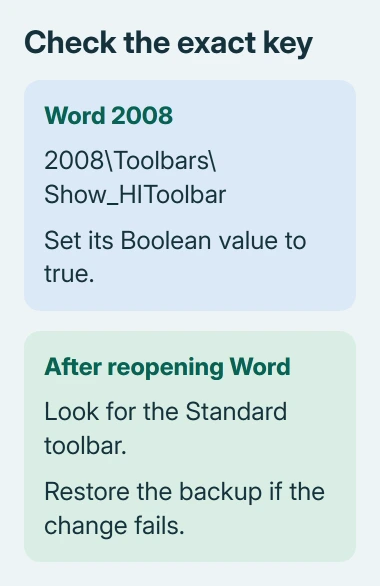
defaults write com.microsoft.Word '2008\Toolbars\Show_HIToolbar' -boolean TRUEPress Return, then quit Terminal and reopen Word 2008. Open a document and check whether the Standard toolbar is visible. The command changes a Boolean preference, a setting with a true or false value.
Keep the straight single quotes around the preference name. They preserve the backslashes as part of the key. The exact setting name, also called a key, is 2008\Toolbars\Show_HIToolbar, not a shorter entry with the separators missing.
A later owner found both a similar-looking entry and the correct key with backslashes in the preference file. Changing that key's true-or-false value restored the toolbars. That's why the exact name matters here.
Keep 2008 at the start; Word 2011 instructions use another prefix. Replies about that version refer to a different preference key. Match the key to Word 2008 rather than treating the commands as interchangeable.
If the toolbar appears, restart Word and check whether the visibility choice survived. If nothing changes, use the file-editor check next rather than reentering an unchanged command.
4. Check the Boolean directly in a plist editor
Quit Word again, then open the original com.microsoft.Word.plist in an editor that can read and save property-list files. The successful reports used TextWrangler, BBEdit or an existing Xcode property-list editor.
Those historical reports aren't a reason to hunt for an old TextWrangler download. Without a suitable editor already installed, have your Mac administrator inspect this preference.
Find 2008\Toolbars\Show_HIToolbar and change its Boolean value from false to true. In a structured editor this may be a checkbox or a YES/NO choice. Save the file and quit the editor before reopening Word.
In a readable XML version of the plist, the relevant pair looks like this:
<key>2008\Toolbars\Show_HIToolbar</key>
<true/>
If the file looks like unreadable data in a text editor, stop editing it there. Use a property-list editor instead. Guessing which text to replace in that unreadable file can damage your preferences without fixing the setting.
Search by the key name rather than a line number. Owners posted different line numbers and version prefixes, so a numbered line from another Mac isn't a reliable target in your file.
I'd check that exact Boolean before resetting every preference. It addresses the value owners confirmed and keeps unrelated Word settings available.
5. Restore the backup if the toolbar stays hidden
Quit Word again. Copy the unchanged com.microsoft.Word.plist from the Desktop back into ~/Library/Preferences/, replacing the edited file when Finder asks. Reopen Word to use your previous settings again.
The fix didn't hold for every owner. One saw the value return to false after reopening Word. Another, using Word 2011, already had true set and lost the toolbar only after Save As. That was a different fault.
If the value reverts or the toolbar stays hidden, ask your Mac administrator to inspect this preference and Word's version. Report whether Standard stays selected and whether it vanishes immediately or only after another command.
When replacing this older Office setup, keep your document files and compare how they look in the replacement app before you stop using Office. A toolbar repair doesn't resolve an old application's compatibility limits.
The Short Version
Check Standard in View > Toolbars, back up Word's plist, and quit Word. Set the exact Word 2008 Show_HIToolbar key to true, then reopen Word. If it fails or reverts, restore the backup and report the version and visibility behavior.
Checked November 17, 2026.