
Classic Outlook can open tasks in Microsoft To Do when Open tasks in the To Do app is enabled. Clear that checkbox in File > Options > Tasks to restore the classic editor.
That setting applies to classic Outlook on Windows. If the app has no File tab, it's a different Outlook interface, so don't spend time looking for an Options window it doesn't have. First check which app you're using.
In this guide
1. Turn off the task-opening preference
In classic Outlook, select File, then Options. Choose Tasks in the left pane. Find Open tasks in the To Do app, clear its checkbox, and choose OK to save the change.
Return to the place where the problem happened and open the same task again. That might be the To-Do Bar beside your mail, a reminder, or the daily task list in Calendar. Check the task window itself, not just the app's navigation button.
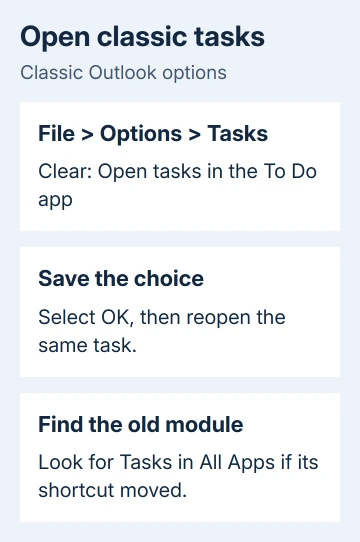
Microsoft's task preference instructions say you can return to Outlook tasks by clearing this setting. That changes which editor opens your tasks. You can keep your existing tasks and account.
An owner in Microsoft's forum discovered that this preference had been switched on and confirmed they could turn it off. Their problem happened when opening a task from the To-Do Bar, without choosing To Do themselves.
If the same task now opens in the classic window, the preference was the cause. Keep working with that task and check its details before making wider changes to Office or your account.
2. Find classic Tasks when the button moved
The preference also changes navigation. Classic Tasks can move from the sidebar into All Apps, while To Do stays visible. A missing shortcut doesn't mean the older task module was deleted.
Open All Apps on the navigation bar and look for Tasks. Choose it to open classic Tasks. Double-click an existing task there and compare that editor with the previous To-Do Bar result.
Selecting To Do directly still opens To Do. Clearing the task-opening preference doesn't turn that app button into the classic Tasks button. Use the Tasks entry when you want the older module.
The names are easy to confuse: To-Do Bar is a classic Outlook pane, while To Do is the integrated task app. A task clicked in the first can be sent to the second when the preference is enabled.
That explains why a task opened normally in one place but differently from a reminder. After changing the preference, try opening the task from the same place that gave you trouble. The task buttons don't all do the same thing.
3. Check New Items and reminders separately
With the To Do preference enabled, New Items > Task opens To Do instead of the classic task experience. Tasks opened from the To-Do Bar, Reminders window and Calendar's Daily Task List also open in To Do.
After clearing the checkbox, select Home > New Items > Task in classic Outlook. Check whether it opens the task editor you expected. Close that unsaved test window once you've identified which editor appeared.
Reopen an existing task from the troublesome location. If new-task creation works but one saved item fails, record that difference. One task that won't open needs different help from a setting that sends every task to To Do.
If the old editor opens but particular notes or attachments remain unavailable, keep the original task. Record whether one item fails or several do and whether the details are visible in the classic Tasks module.
I'd make that comparison before reinstalling Office. A correct new-task window and one failing old task tell support something useful; another installation repair won't explain which task or way of opening it still fails.
4. Use the classic app when File is missing
The File > Options > Tasks preference belongs to classic Outlook. New Outlook uses To Do for tasks. Browser Outlook has different controls too; its settings can't change this Windows desktop preference.
On Windows, open Start and search for Outlook (classic). If it's installed, open it and use the File menu there. Confirm you're in the mailbox that holds the tasks before judging whether the older task details are available.
The two Outlook shortcuts can look similar. File > Office Account > About Outlook identifies the classic app. On either Windows release (10 or 11), change this preference inside Outlook.
If classic Outlook is absent, check whether your subscription or workplace deployment includes it. Ask for the desktop classic app when you need its editor, rather than installing unrelated task utilities.
For app startup trouble after finding the correct shortcut, use the Outlook opening checks. Startup failures need repairing separately from task redirection in an app that already opens.
5. Check the version if the preference is absent
If File > Options > Tasks exists but the checkbox doesn't, record the version under File > Office Account > About Outlook. Then choose Update Options > Update Now from Office Account, following the updater's instructions.
Restart Outlook when updating finishes, then check Tasks options. An organization may control its update channel. If the menu is missing, send IT the version and ask whether that release offers the task-opening preference.
Check this setting before changing the navigation bar. The direct setting controls task openings; moving Outlook's app bar is a different choice. The owner fixed their problem with the task checkbox, without resetting the whole interface.
If Office's updater or Options dialog itself fails, the Office repair choices can help with that program failure. Tell support whether those controls fail or you're using an app that doesn't have them.
Ask support about the exact task that still fails
Use Help > Contact Support where available, or get help from your Microsoft 365 administrator. Send the Outlook version, whether the checkbox is present and cleared, and where you opened the task.
Include whether New Items > Task and the classic Tasks module work, and whether only tasks with particular notes or attachments fail. Ask for help with that remaining opening failure instead of reporting only that To Do is installed.
The Short Version
Clear Open tasks in the To Do app in classic Outlook's File > Options > Tasks. Look in All Apps for a moved Tasks shortcut. Without a File tab, open Outlook (classic); new Outlook doesn't offer that preference.
Checked November 17, 2026.





