Word 2010's PDF export error can affect every document or just one file. For a single failing file, check embedded content in a copy first. Replacing an equation inside a text box with a picture has fixed this error for an owner.
Advice to undo a TrueType security workaround applies to a specific Windows problem from 2011. That fix doesn't cover every cause of this message, and later owners reported that it didn't fix their files.
In this guide
1. Find out whether the failure follows the document
Save your document, then make another copy with File > Save As. Keep your Word-format original so its equations, text boxes and other objects stay editable.
Create a blank document with Ctrl + N, type a short sentence, then choose File > Save As. Select PDF in Save as type, choose an ordinary writable folder on the PC, and click Save.
If that PDF opens, Word can export a simple document. Continue with the failing copy in the next section. Reinstalling Office before checking the document would leave its troublesome content in place.
If even the short document fails, move to the Office and Windows checks. Note whether Excel can save a small spreadsheet as PDF too. Failure across both programs points toward a shared problem rather than one Word document.
Check that you're dealing with the same export error. A PDF that saves but has shifted pictures or different page breaks needs the PDF layout checks. This page deals with export stopping before a usable PDF is created.
Owners reported failures with files of different sizes and page counts. Those reports don't tell us a maximum size that Word can export, so don't assume your document has crossed a fixed limit.
2. Replace the troublesome object in a copy
An owner in the original export-error discussion got PDF creation working after converting an equation inside a text box to a picture. They used Word 2007. Try it for a similar object in your file; it isn't a general Word 2010 repair.
Start with recently added equations, text boxes, charts and other embedded objects. In the working copy, temporarily remove one suspect item and try saving as PDF again. Undo that change when the error remains, then test the next item.
For a long document, test copies containing different portions. Keep splitting the part that fails until you reach the object that stops export. The last page Word displayed isn't necessarily the one causing the error.
When an equation inside a text box is responsible, copy the equation and use Home > Paste > Paste Special. Choose a picture format offered by Word, then replace the editable equation in the export copy with that picture.
Keep the equation in your original document. A picture won't let you edit the mathematical expression as an equation afterward, so check that it looks right and is accessible in the finished PDF.
Export the working copy again. Open the PDF and inspect that equation at a useful zoom level, along with its surrounding text. If conversion still fails, restore the object and continue checking the rest of the document.
I'd take this route before changing Windows permissions. It keeps the changes inside a disposable document copy and directly tests the content that stops exporting.
3. Check add-ins when simple documents fail too
Close Word. Press Windows + R, type winword /safe, then press Enter. Create another short test document and try the same PDF save operation. This starts Word without its usual add-ins and customizations.
If export works in Safe Mode, exit Word and start it in normal mode. Go to File > Options > Add-Ins. Select COM Add-ins beside Manage, click Go, and temporarily clear one enabled add-in at a time.
Restart Word after each change and repeat the short export. When one change restores PDF saving, keep that add-in turned off and ask its maker for a version that works with your Office installation. Restore unrelated add-ins afterward.
Safe Mode didn't fix the error for several owners in the original thread. If your test fails there too, don't keep disabling random add-ins. Next, check whether the old Windows security workaround applies to this PC.
Use the ordinary Word-to-PDF steps to check the save controls if the PDF choice or destination is the confusing part. Changing export options repeatedly won't repair an object that crashes conversion.
4. Handle the 2011 security workaround as a legacy case
The old fix changed access to T2EMBED.DLL, a Windows font-embedding component. Several owners confirmed that undoing a temporary security workaround restored PDF saving, while others still had the error afterward.
Microsoft's security advisory 2639658 was later updated to point to security update MS11-087. The workaround was a temporary response to that security flaw, so undoing it isn't a routine Word repair.
On an old managed PC, ask the administrator whether that workaround was applied and whether the replacement security update is installed. Ask them to check the archived rollback instructions rather than use a copied permission command.
Don't download an old Fix It executable from an unofficial mirror or remove security protections just to finish an export. With an unknown PC history, make the PDF on a supported computer while this installation is checked.
If export still fails, give the person repairing Office the Word version, Windows version, the exact error, and the blank-document and Safe Mode results. Include a small failing sample with private information removed.
Ask them whether document objects or this PC's Office installation stop export. Your sample and test results give them a specific problem to reproduce. Support for Office 2010 has ended. Discuss a supported replacement.
The Short Version
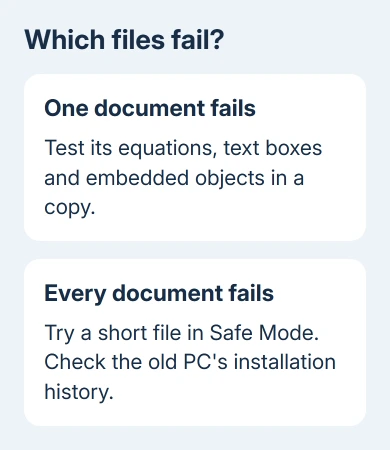
Try exporting a plain test file alongside the troublesome document. Check objects in a copy when only one file fails. Check Safe Mode and the PC's security history when every file fails. An old Fix It isn't a general export repair.
Checked November 17, 2026.