Word 2016 can fail to save on Windows 10 when security software blocks it. Check security alerts first: removing Trusteer Rapport fixed the original case, while allowing Word through antivirus protection helped another owner.
A failure in every folder suggests something different from a failure on one network share. Leave Word open until you have a usable copy, then work through the checks matching your symptoms.
In this guide
1. Check whether security software blocked Word
Open your security program's recent alerts or protection history. Check events recorded when you pressed Save, especially one naming Word, WINWORD.EXE, or ransomware protection.
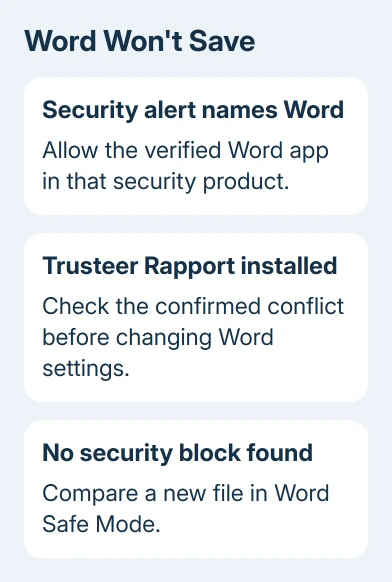
Look for an alert naming Word. Security software can stop Word from saving and trigger a file permission message, even when the document belongs to your own Windows account.
An owner in the Microsoft discussion discovered Bitdefender was blocking their Office documents as a ransomware threat. Trusting Word and Excel in that program restored saving. Their file wasn't the cause; the security block was.
If the alert names your installed copy of Word, use the security program's option to allow it. Don't turn off all protection or trust an unfamiliar executable just because it has Word in its name.
Save a short test document. Reopen that saved file after closing its Word window. Check that the text is still there. A disappearing Save dialog doesn't confirm the file contains your changes.
No matching alert? Check whether IBM Trusteer Rapport is installed before changing Word settings.
2. Remove a confirmed Trusteer Rapport conflict
Open Start > Settings > Apps > Apps & features in Windows 10. Search the installed-app list for Trusteer Rapport. If it isn't installed, skip to the next section.
Uninstalling Rapport restored saving for the original asker and a later owner. Another participant removed it without success. Removing it won't fix every Word save error.
If the symptoms match and Rapport is on your personal PC, select it in Apps & features and choose Uninstall. Follow its removal instructions and restart Windows if prompted. Have IT remove it on an organization-managed PC.
Afterward, open Word normally and save a disposable document to your local Documents folder. Close and reopen that file. Then try saving a copy of the document that originally failed, using a new filename.
If saving now works, ask the bank or software provider that supplied Rapport about a compatible current version before installing it again. If nothing changes, move to Word's startup test rather than removing more security software.
3. Test Word without its usual add-ins
Save or copy any open work first. Close Word, press Windows+R, enter winword /safe, and press Enter. Confirm Safe Mode if asked. Word should open with Safe Mode identified in its title bar.
Type a test sentence in the new document and save it to your local folder. Reopen the saved file. This checks whether Word can save when it starts without its usual add-ins and other extras.
When the test saves correctly, open File > Options > Add-ins. At the bottom, choose COM Add-ins in the Manage menu, then click Go. Note which entries are checked before clearing them.
Exit Safe Mode and launch Word normally. Retest saving, then enable add-ins individually, restarting Word between attempts. When one brings the failure back, update or remove that add-in.
The original discussion mentioned a Send to Bluetooth add-in as a possible blocker. Check for it if it's listed, but don't search for or install an add-in you don't have.
Word can also load extra features from templates in its Startup folder. The vendor's Word troubleshooting steps explain checking both COM add-ins and Startup-folder add-ins.
If the short test document still won't save in Safe Mode, continue with the destination and file checks. Turning add-ins off and on again won't tell you anything more at that point.
4. Separate one bad document from a blocked destination
Save a blank document to a familiar local folder as SaveTest.docx. Next, put a separately named copy of the troublesome file in that folder.
A new file that saves successfully narrows the problem to the older document or its original location. If saving fails only on a network share, ask its owner or your IT team to check your access permissions.
If Word keeps reopening Save As instead of saving the file, follow the separate Save As loop checks. That behavior includes document-content and background-save causes that aren't the same as a security alert.
For one damaged document, try File > Save As > Browse and save a separate Rich Text Format (.rtf) copy. An owner also used this workaround. Inspect it carefully, since some document features won't survive.
Keep the original file. Reopen the RTF copy and save it as a new Word Document (.docx) if its contents are usable. Take extra care with macros or complex formatting when choosing another format.
If Word has already closed and the changes are missing, use the unsaved-document recovery options before creating more versions with the same name.
5. Repair Word when every local save still fails
On Windows 10, open Settings > Apps > Apps & features, click the installed Office entry, then Modify. For a Click-to-Run installation, try Quick Repair first. Use Online Repair if the failure remains.
Windows Installer editions can show a different repair dialog. Follow that installation's Repair option rather than expecting the two Click-to-Run choices. Test a new local document after the repair finishes.
I'd record the precise error message, the destination folder, and whether Safe Mode worked. Those details help IT work out why Word still can't save files.
Microsoft retired support for Office 2016 on October 14, 2025. If that edition still fails, send IT your security alerts and test results and ask about opening the document in a supported Office release.
The Short Version
Check Word-related security alerts, then an installed Rapport conflict. Use Safe Mode to test add-ins, and compare a blank local document with the affected file before repairing Office.
Checked November 17, 2026.
 If you have any business, I can build it online