

An Add device button that freezes Windows 11 Settings needs a Windows service check before another printer search. Open Services and check Device Association Service, then restart Print Spooler if the printer page still hangs.
These checks address a page that stops responding or never finishes loading its printers. If Settings stays responsive and simply can't find the printer, use the printer's connection or network address instead. That is a different failure.
In this guide
1. Start Device Association Service
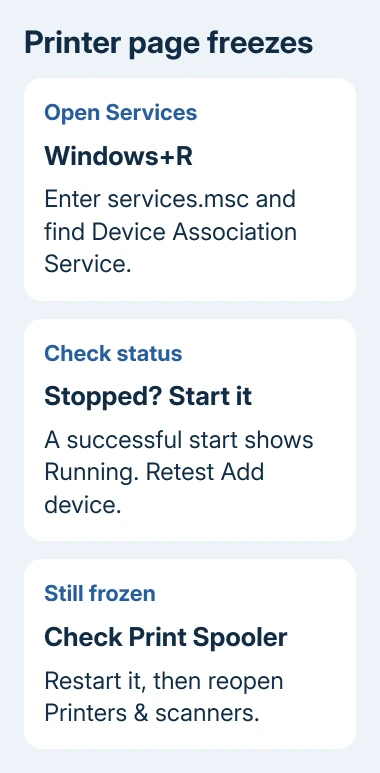
Save any open work, close Settings, and press Windows+R. Type services.msc and press Enter. Allow the administrator permission request if it appears.
Find Device Association Service and double-click it. Record its current Startup type before changing anything, then read Service status. If it is stopped, choose Start and wait for the status to show Running.
This service enables pairing with wired and wireless devices. Leave a working Manual startup setting unchanged. If Disabled prevents starting it, ask IT or Windows support to restore the right configuration for this PC.
Try Settings > Bluetooth & devices > Printers & scanners > Add device again. The page should respond and search for devices, even if your printer doesn't appear immediately.
If its status already reads Running, skip changing its startup type and continue to the spooler check. If Start gives an error, copy the error number and message. That failure gives support something specific to repair.
On an employer's PC, ask IT whether company policy keeps the service disabled. A change in this dropdown won't necessarily survive the next policy update.
2. Restart the service that handles print jobs
In the same Services window, find Print Spooler. Right-click it and select Restart. If it is stopped and Restart isn't available, open its properties and choose Start instead.
Print Spooler handles Windows print jobs. A stalled spooler can affect printer recognition across several apps. Microsoft recommends its printer troubleshooter, with service and driver checks for continuing problems.
After the restart finishes, reopen Settings and try the printer page once. If the list loads, add the printer and print a small test document. The list checks that the page responds; the document checks that the printer can print.
If the service stops again, record whether this happens immediately or only when you open the page or send a document. Note what makes it stop before restarting it again; a driver or queued job may need attention next.
Leave the spooler running when the test ends. Turning it off can make a printing-related hang disappear, but it also stops normal printing. That points to a printing problem, but you still need to fix it so you can print.
I'd check these two services before trying a PowerShell command that re-registers every Windows app. The change is easier to understand, and the original thread contains failed app-registration attempts.
3. Run the printer troubleshooter outside the frozen page
Open Start > Get Help, search for printer troubleshooting, and follow the printer troubleshooter. Starting there avoids relying on a button inside a Settings page that already isn't responding.
When asked how your printer connects, choose the connection you use: USB, your Wi-Fi network, or sharing through another PC. Keep the printer powered on while the tool checks it, and record the result or error it returns.
For USB, confirm the cable reaches the computer directly while testing. For Wi-Fi, check that the PC and printer use the same network. A guest network or a second router can leave them separated despite internet access working on each.
If the tool gets Settings working but the device remains absent, follow the manual printer connection steps. Adding by address is useful when discovery fails; it can't repair a Settings window that freezes before reaching the manual option.
On PCs that use an ARM processor, a manufacturer's installer can have a separate compatibility problem. Use Windows' own add-printer method when the maker's installer fails, once the Settings page responds again.
If Get Help also freezes, note that in your support request. Several frozen Windows apps call for a wider Windows check than a printer that doesn't answer on the network.
4. Repair system files when other Windows apps also fail
The original report included Task Manager trouble as well as printer Settings. That combination is a reason to check Windows files rather than repeatedly removing a printer that hasn't been added successfully.
Search Start for Command Prompt, choose Run as administrator, then run the two commands separately:
DISM.exe /Online /Cleanup-image /Restorehealth
sfc /scannow
Let each command finish and save its final message. DISM fixes the image Windows uses for repairs; SFC then checks its protected files. Restart afterward and compare the printer page with the other app that was failing.
If Windows reports files repaired and both apps work, continue with a normal printer installation. If the commands can't finish or the freeze returns, send those results to support instead of repeating the scans indefinitely.
A Device Manager error code on an installed printer needs its own driver check. Write down the code separately from a Settings hang so the two problems don't get mixed together.
When the page still freezes
The original asker said app-registration commands didn't help. Another owner reported no improvement after an in-place Windows upgrade. Those reports don't give you a reliable reason to try either procedure next.
Open Get Help and describe the frozen Printers & scanners page to Windows support. Include the printer model, connection type, Windows version from winver, both service results and whether other Windows apps hang.
Ask support to check the print driver and device-association failure before a Windows reinstall. Include the exact error if a service won't start. On a managed PC, give IT the same details so they can review policy too.
The Short Version
Check Device Association Service, then restart Print Spooler. Use Get Help's printer troubleshooter and check Windows files if other apps also fail. A responsive page with no printer listed needs connection troubleshooting instead.
Checked November 17, 2026.






