The CanoScan 8800F can work on Windows 11 using its Windows 8.1 driver. An owner confirmed that workaround after downloading the wrong model's driver first, so start by matching the package to the 8800F on your desk.
That doesn't mean every old Canon device will work. A scanner that isn't detected at all, an installer that won't run, and missing scanning features need different checks.
In this guide
1. Match the driver to the scanner on your desk
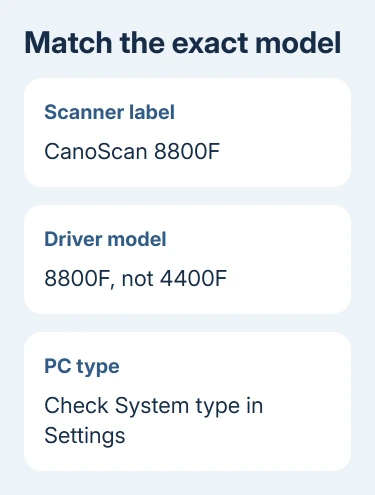
Check the scanner's printed model name before searching for software. 8800F, 4400F and 9000F are different products. A similar-looking name isn't enough for a driver, the software that lets Windows talk to that device.
The owner in Microsoft's forum first chose the 4400F package by mistake. They then got the 8800F Windows 8.1 driver working. The model mix-up matters here; the general printer advice in the replies wasn't what fixed it.
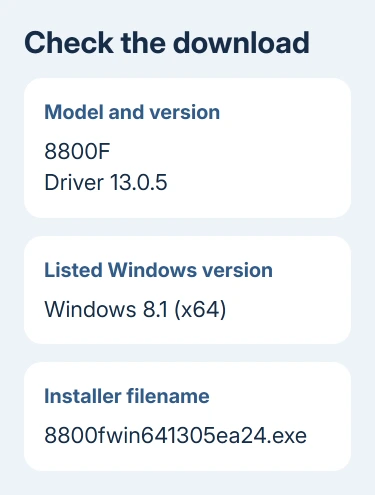
Canon still lists 8800F Driver Ver.13.0.5 for Windows 8.1 x64. Windows 11 isn't on its list of supported systems. You're trying an older driver, rather than installing a new Windows 11 release.
Don't get an executable from an unofficial driver-download site just because it promises Windows 11 support. If the original package isn't available, stop at the download stage and ask Canon about archived software for this model.
Save the installer in a clearly named folder. You'll have it ready if you need to repair the setup later, and won't mix it up with a separate scanning app.
2. Check the PC type before running an old package
Open Settings > System > About and read System type. An older package marked x64 is intended for 64-bit Intel or AMD Windows. The separate 32-bit 8800F download isn't the package to choose for that PC.
An ARM-based PC needs a different driver. Windows can run some older apps through emulation, but that doesn't supply the ARM64 driver the scanner needs. Don't treat the owner's Windows 11 success as confirmation for a Snapdragon laptop.
The x64 page names 8800fwin641305ea24.exe. Confirm that filename and model before downloading. The package includes a TWAIN driver, which lets scanning apps that support TWAIN talk to the scanner.
If your PC and package don't match, installing repeatedly won't resolve that mismatch. Ask for software that supports your PC's processor, or use the scanner on a compatible computer instead.
For a newer Canon printer rather than this USB flatbed scanner, use the model's current software. The wireless-printer setup checks apply to network discovery; they don't replace an 8800F driver.
3. Install the correct package and try an ordinary scan
Close scanning programs, then run the Canon installer. Follow its USB connection instructions rather than plugging and unplugging the scanner throughout setup. For this check, replace a hub connection with a direct PC connection.
Turn on the scanner and try a small document in your usual scanning app. Save the scan, then open that file. If the saved file opens and you can read it, the scan worked. Seeing the scanner's name in Windows isn't enough to check that.
Check Device Manager if the application can't find it. Right-click Start, select Device Manager, and look for the scanner or an unrecognized device that appears when it's connected. Write down any warning and its error code.
A warning beside the device points toward its driver or connection. When only one scanning feature fails, check that feature separately: scanner buttons, film and document scans use different controls.
I'd scan a plain document before trying film or shortcut buttons. If it works, keep that driver installed and test the extra feature in its own app. You don't need to remove working scan software because one button doesn't respond.
4. Handle an installer problem separately
If the old setup program won't run, Microsoft's older-program compatibility guidance is the next route for the installer itself.
Look for Program Compatibility Troubleshooter under Settings > System > Troubleshoot > Other troubleshooters. Run it if offered; some Windows builds use Get Help for troubleshooting instead.
Compatibility settings can help an old setup application run. They can't turn an unavailable hardware driver into a supported Windows 11 driver, so judge the result by whether the scanner actually completes a scan afterward.
The owner got the older driver working and didn't report needing compatibility settings. Run its normal setup first. When installation already succeeds, compatibility changes don't address a failure to scan.
For a scanner that appears in Windows but still won't complete a job, the Windows scanning checks cover the app and scanning service. Those app checks won't supply an absent model driver.
5. Check what changed if scanning stops after an update
The owner also reported concern that Windows updates would replace the working driver. They didn't provide a lasting confirmed repair for that behavior. Don't disable all Windows updates to preserve a scanner installation.
If scanning stops immediately after an update, open the scanner's Properties > Driver tab in Device Manager. Note the driver provider, date and version, then compare them with any details you saved from the working installation.
Once you've compared the driver details, check which scanner your app has selected. If it has switched to another device, correct that selection before changing the Windows installation.
Ask Canon about the 8800F and identify your processor and Windows release. Include the installed driver's details and any error from Device Manager. On a work PC, send that report to IT before a driver change.
If no suitable software remains available, use a compatible computer for the scanner or replace it with a model that supports your current PC. I wouldn't rebuild Windows just to work around a missing driver for an older scanner.
The Short Version
Use the CanoScan 8800F's own older package, check the PC architecture, and test a saved scan. The Windows 8.1 driver worked for the reported owner; it isn't a promise for every Canon model or ARM-based PC.
Checked November 17, 2026.