Classic Outlook's Ctrl+Function category shortcuts broke in version 1901, build 11231.20130. Office updates fixed that bug. On a current build, check the assigned shortcut and the account's category support.
The historical fix arrived in version 1902, build 11328.20146. Use the update available to your Office installation today, rather than searching for that 2019 installer or changing update channels using an old forum command.
In this guide
1. Update classic Outlook before rebuilding anything
Open File > Office Account > About Outlook and record the version plus its build number. Compare those details against the release with the known problem, instead of guessing from the date the shortcut stopped working.
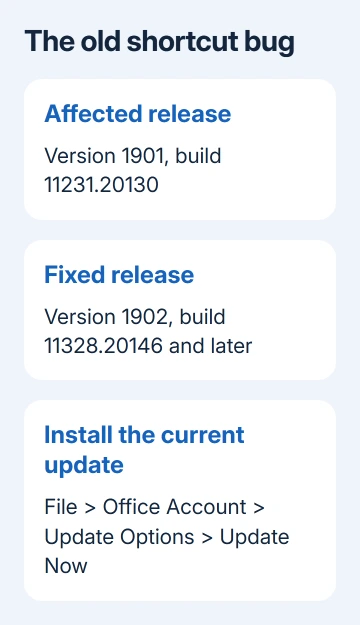
Return to Office Account and choose Update Options > Update Now. Allow the update to finish, then reopen Outlook and test one message with a category shortcut you already use.
Microsoft's category-shortcut fix lists version 1902, build 11328.20146 and later as fixed. That update fixed the old shortcut bug. It won't fix every keyboard problem on a current build.
For a managed installation with no update menu, send IT the build and known-issue link. Ask for the organization's approved current build rather than changing its update channel to copy a historical workaround.
If your build already includes that fix, check the shortcut assignment next. More updates won't assign a missing shortcut or add categories to an unsupported account.
2. Confirm that a category still has its shortcut
Select an email in classic Outlook's main window. On the ribbon, find Tags > Categorize > All Categories. Select the category you expect the key combination to apply.
Look at Shortcut Key in the Color Categories window. Choose the combination you want from that list, then confirm your choice. A category's color and name don't automatically assign a keyboard shortcut.
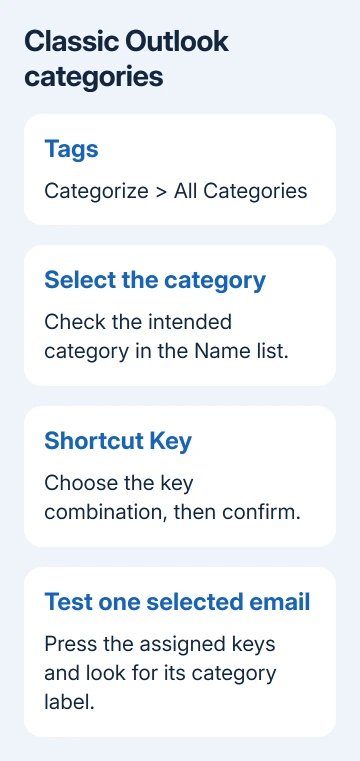
Select one email in the message list again before pressing the combination. Check whether the category name or color appears on that message. Test one item first so a mistaken assignment doesn't label a large selection.
Use the same mailbox and category for the comparison. Switching to another account or a different kind of Outlook item changes what you're testing, particularly when several accounts are open in the folder pane.
If the intended category isn't in the short Categorize menu, choose All Categories. The shorter menu shows recently used categories and isn't a complete list of every category you've created.
The current category instructions place keyboard assignment in classic Outlook. Don't assume that the same category name in new Outlook carries classic Outlook's custom Ctrl+Function assignment.
3. Apply the category with the mouse as a comparison
Right-click the same email, choose Categorize and select the category. If that applies it, the category itself works and you can continue sorting mail by category while checking the shortcut.
If right-clicking gives only flag options, click in a blank area to the right of the sender's name and try again. Clicking the flag area can produce a different menu from the message's full context menu.
From an open message or its Reading Pane, the ribbon's Tags > Categorize menu provides another route. Use All Categories when the category you want isn't among the recent choices.
If neither route applies a category, go to the account check next. If the mouse can't apply a category either, the problem goes beyond the shortcut. A replacement keyboard isn't the next step.
If Outlook actually closes when you right-click, follow the right-click crash checks. A crashing menu and a menu that works while Ctrl+F2 fails are different faults.
4. Check the account and Outlook app
The IMAP account type doesn't support Outlook categories. If only one mailbox lacks them, check which account owns the selected folder. A Gmail or other IMAP folder doesn't gain category support by assigning a function key.
In classic Outlook, File > Account Settings > Account Settings lists configured email accounts and their types. Review that information without removing the account or changing its server settings for this check.
For a mailbox that supports categories in new Outlook, right-click an email and choose Categorize, or select Categorize on the open message's ribbon. These commands don't require classic Outlook's shortcut dialog.
For an account that supports categories on the web, use the message's Categorize menu. Browser shortcuts and classic Outlook's category-key assignments are separate features, even when category names match.
If the shortcuts stopped working when you switched apps, this difference can explain why. Use the new app's category menu or return to an available classic installation. Rebuilding the mailbox won't add classic shortcuts to the new app.
5. Compare the function key with the laptop's media action
Select a message, then try the category combination with Fn held as well. On some laptops, the top row controls brightness and volume unless you hold Fn. A screen brightness change tells you the laptop intercepted that key.
If adding Fn makes the shortcut work, check your laptop's function-key lock setting. Use the model's labeled Fn-lock combination or its maker's settings rather than changing Outlook's category list again.
If F1 opens Help and Ctrl+C works in Outlook but Ctrl+Function categories fail, the individual keys are responding. That was the pattern in the historical report, so a keyboard replacement shouldn't be the first response.
An external keyboard can help compare the laptop's top-row behavior, but it won't fix an unassigned shortcut or the old Outlook build. Keep the selected message and assigned category the same during that comparison.
When assigned shortcuts still do nothing
Give your help desk the Outlook build, account type and assigned key combination. Tell them whether you can apply that same category with the mouse. Say whether Fn changes the result and whether one or all assigned categories fail.
Owners reported failed repairs, driver reinstalls and profile replacement. I'd compare the app, assignment and account before rebuilding a profile. Have support review a repeatable shortcut failure on your current build.
The Short Version
Update past the old version 1901 bug, confirm the category's Shortcut Key in classic Outlook and compare the mouse command. Then check the account type and laptop Fn behavior before considering deeper repairs.
Checked November 17, 2026.
 If you have any business, I can build it online