

An Edge print preview that keeps spinning is often stuck waiting on the selected printer, not the page. In the print panel, open the Printer list and choose Save as PDF: if the preview then appears, that printer or its driver is the holdup.
When the preview hangs for every printer, the trouble is inside Edge: a damaged profile, an extension, a recent update, or a block list on a work PC. Ctrl+Shift+P prints through the Windows dialog while you sort it out.
In this guide
1. Switch the printer to Save as PDF
This test splits the problem in two. I'd start here every time: it takes ten seconds and tells you which fixes you can skip.
- Press Ctrl+P on any web page.
- In the print panel, open the Printer menu at the top.
- Choose Save as PDF, or Microsoft Print to PDF if that's listed.
- Give the preview a few seconds to draw.
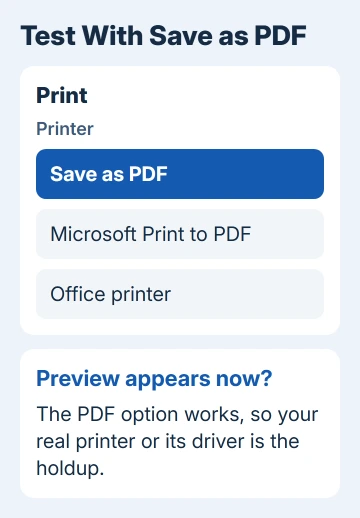
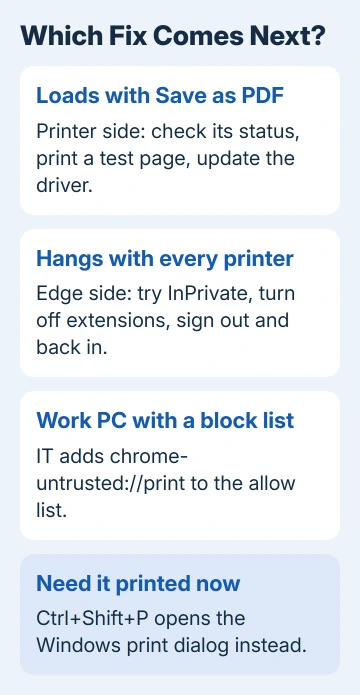
If the preview shows up once a PDF option is picked, Edge itself is fine. Pick your real printer again from the same menu, because a printer that was asleep or briefly offline may answer on the second try. If it hangs again, go to fix 4.
If the preview still spins with Save as PDF, the printer isn't the issue. Skip to fix 5.
2. Print right now with Ctrl+Shift+P
Ctrl+Shift+P skips Edge's preview and opens the Windows print dialog instead. It doesn't repair the preview, but it gets the page on paper while you work through the rest.
Microsoft's forum moderators suggest it for exactly this hang, and the Windows dialog still gives you its own page range and printer options.
3. Restart Edge and update it
Close every Edge window, open Edge again and press Ctrl+P on the page you wanted. It sounds too simple, but a fresh start is one of the fixes in the Edge print troubleshooting steps, and it clears a one-off hang.
Then type edge://settings/help into the address bar. Edge checks for updates as soon as that page opens and shows a Restart button once it has installed one.
Print bugs come and go with versions. Back in 2021, one owner found this exact hang already fixed in a newer test build of Edge, and the Microsoft Print to PDF failure in Edge 154 was cleared by a later update.
4. Only your printer hangs? Check it in Windows
Edge prints through the printer's driver, the software Windows uses to talk to it, and a driver can trip up Edge even when other apps print fine. Open Settings > Bluetooth & devices > Printers & scanners and select your printer.
If the status says Offline or Error, Windows can't reach it either, so fix that first: restart the printer and check its cable or Wi-Fi connection. Once it reads Idle, select Print test page on the same screen.
If the test page prints but Edge still hangs on that printer, install the newest driver from the printer brand's own support pages.
On the same Settings page, check that Windows hasn't moved your default to an old printer. If it keeps doing that, see why the default printer keeps changing and how to stop it.
5. Every printer hangs? Try an InPrivate window
Press Ctrl+Shift+N to open an InPrivate window, load the same page and press Ctrl+P. Extensions stay off in InPrivate unless you've allowed them there, and the window starts without your profile's cookies and cache.
If the preview works in InPrivate, an extension or your profile's data is to blame. Go to edge://extensions and switch every extension off, then switch the extensions back on in turn, pressing Ctrl+P after each, until the hang comes back.
Watch for an extension you added just before the trouble started. The asker in the original thread first saw the hang right after installing one, and removing it didn't bring the preview back by itself, which leads to the next fix.
6. Sign out of Edge, clear the data, sign back in
Signing out with the clear-data box ticked wipes your profile's data from this PC, and signing back in pulls it down again from your Microsoft account. The asker accepted this fix, and more than 30 people marked it helpful.
Check that sync is on before you start, in Settings > Profiles > Sync, because the box deletes anything that isn't synced.
- Go to Settings > Profiles and select Sign out next to your account.
- Tick the box that also clears browsing data from this device, then confirm.
- Close Edge, open it again, return to Settings > Profiles and sign back in.
- Turn sync back on if Edge asks, wait a minute for your favorites to return, then try Ctrl+P.
7. On a work PC, the block list may stop the preview
Some companies lock Edge down with a URLBlocklist policy that blocks every address IT hasn't allowed. After the Edge 149 update in June 2026, that setup also blocked the preview page itself, on every site.
Two admins fixed it by adding chrome-untrusted://print to the URLAllowlist policy, and a third fixed it with the broader chrome-untrusted://.
Open edge://policy to see whether URLBlocklist is set. If it is, pass this fix to IT, since you can't change a policy from your own account.
When nothing works
Reset Edge from Settings > Reset settings: pick the option that restores settings to their default values, then confirm with Reset. It didn't help the original asker, but it's quick and keeps your favorites, history and saved passwords.
After that, send a report from Settings and more (the three dots) > Help and feedback > Send feedback, with the printer model, the page you were printing and what you tried.
If other apps can't print either, it's a Windows printing problem, not an Edge one, and a printer that says offline is the place to start.
The Short Version
Pick Save as PDF in Edge's print panel. If the preview loads, fix the printer or its driver; if not, test InPrivate, turn off extensions, then sign out with the clear-data box ticked and sign back in. Ctrl+Shift+P prints meanwhile.
Checked November 19, 2026.
 If you have any business, I can build it online






