

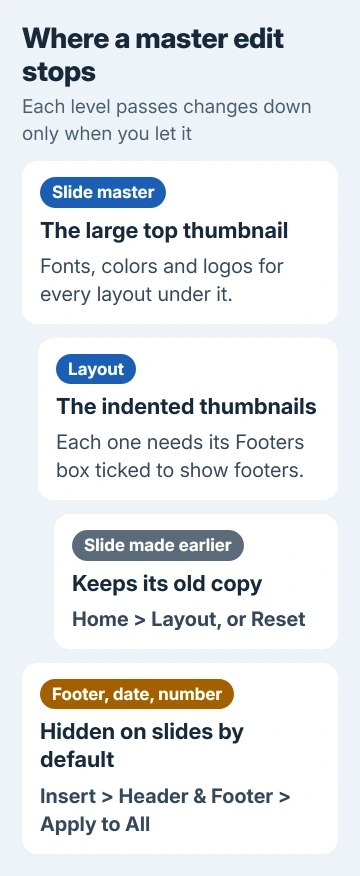
Slides pick up Slide Master edits through their layout, and slides made before the edit often hang on to the old look. Reapply the layout from the Home tab and they catch up with your changes.
Footer text, the date and slide numbers work differently. Typing them on the master only sets how they look; they stay hidden on your slides until you switch them on in Insert > Header & Footer.
So start with what's missing. If a logo, font or color change didn't show up, the layout needs reapplying. If a footer didn't show up, it's that Header & Footer switch.
In this guide
1. Reapply the layout to slides made before the edit
Every slide uses a layout, and every layout sits under a slide master. Change the master after the slides exist and new slides get the change right away. Older ones can go on showing the earlier design.
Microsoft's page on slide masters says that when you edit the master after creating slides, you need to reapply the changed layouts to those slides in Normal view. It's the step that gets skipped.
- Close Master View so you're back in Normal view.
- In the thumbnail pane, select the slides that didn't change. Ctrl+A selects them all.
- On the Home tab, open Layout and click the layout those slides already use.
- Text still in the old spot or style? Click Reset in the same group. It returns the placeholders to the layout's position, size and formatting.
If the slides now match the master, they were holding an old copy of the layout. If nothing changes, they belong to a different layout or a different master, which section 4 sorts out.
Reset also moves any placeholder you dragged by hand back to its default spot, so look over slides where you placed text carefully. The same reapply step finishes the job when you change the font on every slide through the master.
2. Switch footers on with Insert > Header & Footer
Footers are the classic case. Text typed into the master's footer box sets its font and position, but a slide shows no footer, date or slide number until you turn them on for the slides themselves.
- Close Master View.
- Go to Insert > Header & Footer.
- On the Slide tab, tick Date and time, Slide number or Footer, and type your footer text in its box.
- Tick Don't show on title slide if the cover should stay clean, then click Apply to All.
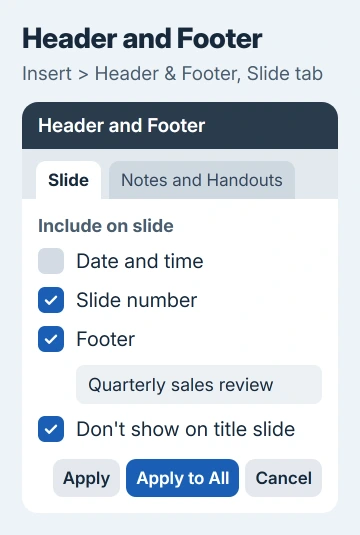
Several owners got their footer back this way. One saw it appear as soon as they inserted it from this dialog, and another, on PowerPoint 2010, filled in the master, clicked Apply to All and had it on every slide.
A theme carries the footer's formatting but not its text. If you want new presentations to open with the footer already filled in, save the finished file as a PowerPoint template (.potx), not just as a theme.
Slide numbers follow the same rule, and the slide number steps cover leaving the cover unnumbered and starting the count later.
PowerPoint for Mac keeps these commands on the same tabs, so the same steps work on a Mac too.
3. Check that the layout's footers are turned on
Apply to All and still no footer? The layout may have its footer boxes switched off. Open View > Slide Master and click the layout your slide uses, one of the smaller thumbnails indented under the master.
- On the Slide Master tab, in the Master Layout group, tick Footers. The footer boxes should appear on the layout straight away.
- If PowerPoint won't let you tick it, select the slide master itself, the large thumbnail at the top. Click Master Layout and tick the footer items you want, such as Date, Slide number and Footer.
- Go back to the layout, tick Footers, then close Master View.
A layout can't show footers that the master it sits under has turned off, which is why step 2 starts at the top thumbnail. After that, each layout under that master needs its own Footers box ticked.
Footer showing but still in the old font or color? Untick Footers on that layout and tick it again; one owner found that makes the layout pick up the master's footer formatting.
For slides that already carry the footer, untick Footer in Header & Footer and click Apply to All, then tick it and click Apply to All again.
4. Make sure you edited the master those slides use
Every theme in a presentation brings its own slide master. A deck built from two themes, or with slides pasted in from another file, can carry several masters. Editing the first one won't touch slides that use another.
- In Slide Master view, scroll the left pane. Each master is a large thumbnail with its layouts indented underneath it.
- Point at a layout thumbnail. Its tooltip lists the slides that use it, so you can see which master owns your problem slides.
- Repeat your edit on that master, or move the slides onto yours: select them in Normal view, open Home > Layout and pick a layout from your master's group.
When you paste slides in from another deck, choose Use Destination Theme from the paste options. The slides then take your master instead of bringing their old one along.
5. Put the footer in a text box when footers won't behave
Some decks keep fighting their footer boxes, often old files carried forward through several PowerPoint versions. A plain text box on the slide master is the reliable way around them.
Turn the footer boxes off on the layouts, select the slide master and insert a text box with your footer text. It shows on every slide as part of the background and can't be changed by accident in Normal view.
The trade-off is control. You can't move or hide it on a single slide without going back into Slide Master view, but I'd still use it for a fixed line such as a company name, because it never drops off.
When none of this works
Copy one problem slide into a blank presentation and apply your layout there. If it behaves in the new file, the old deck's masters are tangled. Rebuilding on a clean template will be quicker than repairing each layout.
If the deck is still an old .ppt file, save it as .pptx first with File > Save As. For a company template, ask whoever maintains it.
Otherwise open Help > Contact Support in PowerPoint and have Microsoft's support team look at the file with you.
The Short Version
Reapply the layout from Home > Layout, or use Reset, on slides made before your master edit. Turn footers on with Insert > Header & Footer > Apply to All, tick Footers on the layout, and check which master the slides use.
Checked November 19, 2026.






