Error 0x800B0100 means Windows Update looked for the digital signature on a downloaded update file, didn't find one, and refused to install it. Usually the download arrived damaged or incomplete, so clear the update cache first.
The code looks different depending on where you saw it. Forum posts from the Windows 7 years show it as WindowsUpdate_800B0100 next to WindowsUpdate_dt000, while Windows 10 and 11 print 0x800b0100.
Leave the dt000 part out when you search, since it turns up beside other codes too. The number is the part that matters.
In this guide
What the signature check is telling you
Before Windows installs an update, it checks the digital signature on each file. Microsoft's error table calls this result TRUST_E_NOSIGNATURE, which simply means the file Windows read had no signature in it.
A genuine update always carries that signature, so the copy on your disk isn't what left the update servers. Either the download broke partway through, or the component store is damaged.
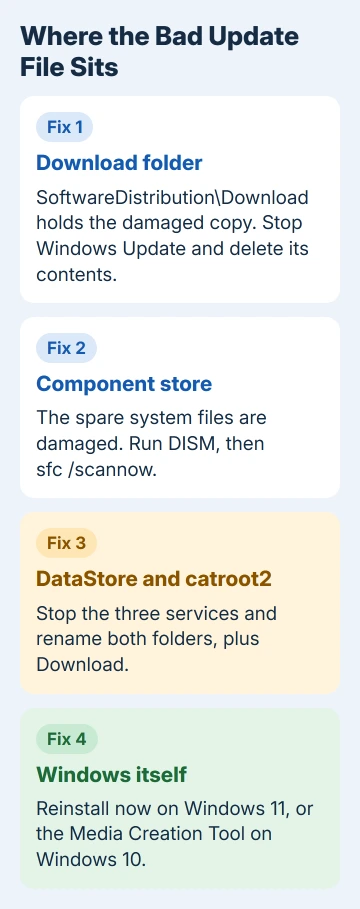
The component store is the folder of spare system files Windows repairs itself from. Each fix here deals with a different place the bad copy can sit, starting with the one that's quickest to throw away.
Got a different code in your update history? The Windows Update error code list covers other numbers.
1. Delete the downloaded update files
One owner fought this error for three days, then emptied the update download folder, and the updates finally installed. More than 400 people marked that reply helpful.
I'd do this first even if you've restarted a dozen times, because a restart leaves the cached file in place. It takes two minutes:
- Press Windows+R, type
services.msc, and press Enter. - Right-click Windows Update and choose Stop. Its Status column goes blank.
- In File Explorer, open
C:\Windows\SoftwareDistribution\Download, select everything in it, and delete it. Approve the administrator prompt. - Back in Services, right-click Windows Update and choose Start.
- Open Settings > Windows Update and select Check for updates.
The update now downloads again from scratch, so expect it to take a little longer. If it installs, the old download was the problem and you're finished.
Emptying the whole SoftwareDistribution folder works too. It's the standard cache reset, and Windows refills the folder once the service starts again.
Rather not touch the folders yourself? On Windows 11, Get Help's Windows Update troubleshooter tries similar repairs.
Same update, same 0x800B0100? Then the bad copy isn't only in the download folder, and the next fix reaches further down.
2. Repair the component store with DISM and SFC
Microsoft's guide to update corruption lists 0x800B0100 among its corruption errors, and its DISM fix covers Windows 10 and 11.
DISM, a repair tool built into Windows, mends the component store first. SFC (System File Checker) then uses that store to fix the files Windows is actually running.
- Open Start and type Command Prompt. When it appears, right-click it and select Run as administrator.
- Type the repair command and press Enter. Stay online while it works, because DISM pulls clean replacement files from Windows Update. It can take several minutes, and the percentage may sit still for a while, so leave it running:
DISM.exe /Online /Cleanup-image /Restorehealth- Once DISM says the restore operation completed successfully, run the file check:
sfc /scannow- Close the window, restart, and try Windows Update again.
DISM keeps a log at C:\Windows\Logs\CBS\CBS.log, and when it ends with an error, that file holds the details of what it couldn't fix. Hang on to it, because it's the first thing a support agent will ask you for.
If SFC lists files it can't repair, the SFC repair steps cover what to run next.
3. Reset the update folders and catroot2
Windows Update keeps more than downloads. Its records sit in SoftwareDistribution\DataStore, and the full reset also renames the catroot2 folder in System32. Each renamed folder comes back fresh when the services restart.
In an administrator Command Prompt, stop Windows Update, Cryptographic Services and the background download service, pressing Enter after each: net stop wuauserv, then net stop cryptsvc, then net stop bits.
Then rename the three folders, one line at a time:
ren %systemroot%\SoftwareDistribution\DataStore DataStore.bak
ren %systemroot%\SoftwareDistribution\Download Download.bak
ren %systemroot%\System32\catroot2 catroot2.bak
If a ren line answers with Access is denied, one of the services didn't stop. Run its stop command again, then repeat the rename.
Start the services again with net start bits, then net start cryptsvc, then net start wuauserv. Restart the PC and check for updates.
The full manual reset for Windows Update components also rewrites service permissions with sc.exe, but that step is meant only for when nothing else has worked. I'd leave that part to a technician.
4. Reinstall Windows over itself
When that one update still fails after all of it, repair Windows itself. This reinstalls the version you already have and leaves your apps, files and settings where they are.
On Windows 11:
- Open Settings > System > Recovery.
- Look for the heading Fix problems using Windows Update, then select Reinstall now.
- Choose whether the PC can restart by itself 15 minutes after the install, then select OK.
Windows jumps to its update page and fetches a repair copy of the last update that installed successfully. Keep the power and the internet connected until it finishes.
The button only shows up on Windows 11 with the 2022 update (22H2) or later, and only after the optional update from February 2024 or anything newer is installed. School or company PCs may hide it.
Can't find it? The Windows 11 repair guide does the same job from installation media.
Windows 10 doesn't have a Reinstall now button. Open the Windows 10 download page, scroll to Create Windows 10 installation media, select the Download Now button just under that section's text, and run the tool as an administrator.
Pick Upgrade this PC now. On the last screen, open Change what to keep and make sure Keep personal files and apps is selected. The same download page notes that free Windows 10 updates stopped after October 14, 2025.
If 0x800B0100 keeps coming back
Write down the KB number of the failing update from Settings > Windows Update > Update history. Microsoft's support team, reached from the Get Help app, will want that number and your CBS.log, since the log shows which component failed.
If the laptop is still under warranty, let its maker run the repair. A company or school laptop is a different case: its IT team may manage which updates it gets, so ask them first.
The Short Version
0x800B0100 means an update file failed its signature check, usually after a damaged download. Empty SoftwareDistribution\Download with Windows Update stopped, run DISM and SFC, reset the update folders, then reinstall Windows over itself.
Checked November 19, 2026.