A black command window at sign-in that says unable to open xmrig.json is a cryptocurrency miner trying to start without its settings file.
Whatever launches it is still on the PC, usually as a startup entry with a harmless-sounding name. Delete that entry with Autoruns, remove the miner's folders, then run an offline scan to catch the program that installed it.
In this guide
What is the window telling you?
XMRig is mining software, and when it starts by itself at sign-in, malware put it there to mine cryptocurrency with your processor.
The window lists the places it looked for its settings: AppData\Roaming\Dll\config.json, a .xmrig.json file in your user folder, and .config\xmrig.json.
Each line starts with a date and time in square brackets. None of those files is there, which is why it complains instead of running quietly. What you need to remove is whatever starts it at every sign-in, plus the folders it uses.
Task Manager and Task Scheduler may not show the launcher by name. The asker checked both and found nothing. Autoruns, a free startup viewer, lists every place Windows starts programs from, so it catches entries those two miss.
1. Find the startup entry with Autoruns
- Open the Autoruns download page, select Download Autoruns and Autorunsc, then unzip the file.
- Right-click Autoruns64.exe and choose Run as administrator.
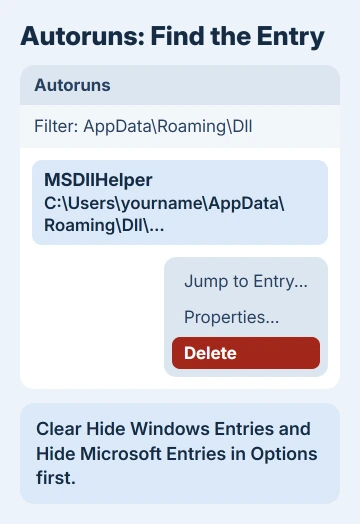
- In the Options menu, clear Hide Windows Entries and Hide Microsoft Entries. Leave Hide Empty Locations ticked.
- Type
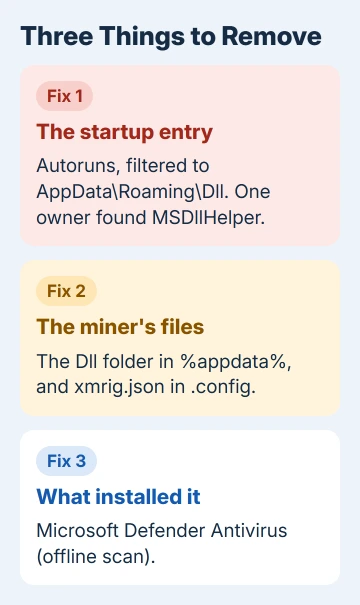
AppData\Roaming\Dllinto the filter box at the top and let the list refresh. - Right-click each entry that appears and choose Delete. One owner found theirs named MSDllHelper.
Next, type powershell into the filter box and look at what's listed. Entries there aren't automatically bad: when one owner posted theirs for review, both turned out to be fine.
Delete one only if it points into AppData\Roaming\Dll or another folder the miner uses.
Not sure about an entry? Save the list with File > Save and share the .arn file with whoever is helping you, which is how volunteers reviewed suspicious entries in that thread.
Restart when you've finished. Two owners said the window stopped appearing after this, one of them with the entry named MSDllHelper. Two others said it came back later, which fix 4 covers.
2. Delete the miner's folders
With the startup entry gone, nothing holds the files open. Type %appdata% into File Explorer's address box, press Enter, and delete the Dll folder there.
Next, open your user folder (C:\Users\yourname) and look for .config. Delete xmrig.json inside it.
Some developer tools keep their own settings in .config, so delete the whole folder only if the miner's files are all it holds.
If Windows won't delete a file because it's in use, the miner is still running from somewhere. Restart, delete it before opening anything else, and go back to Autoruns if it stays locked.
3. Scan with Microsoft Defender before Windows loads
Defender's offline scan reboots the PC and checks the drive outside your normal Windows session, where malware has a harder time hiding. I'd run it even after the window stops, because whatever installed the miner may still be on the PC.
- Save your work, because the PC restarts by itself.
- Open Windows Security > Virus & threat protection > Scan options.
- Select Microsoft Defender Antivirus (offline scan), then Scan now.
The scan runs from Windows' recovery environment and restarts the PC when it's done. Afterwards, open Protection history to check what it found and removed.
For a second opinion from a different engine, the ESET Online Scanner runs alongside Defender without replacing it.
If the fan still roars while the PC sits idle, the hidden miner checks help you catch a miner that hides from Task Manager.
4. If the window comes back
Two owners said the popup returned after a while, and the owner who had reinstalled Windows saw it again a day later.
That means something keeps putting the miner back, such as a program you run again, a download you kept or a USB drive you plug back in.
Think back to what you installed just before the window first appeared, uninstall it, and scan any USB drives before opening files from them. Then repeat fixes 1 to 3, because a fresh copy brings a fresh startup entry.
If it still returns, back up your documents and photos (not programs) and use Settings > System > Recovery > Reset this PC with Remove everything.
Afterwards, change important passwords from another device, because there is no telling what else arrived with the miner.
When to get expert help
A miner on an office or school machine is IT's problem to clean. Tell them straight away, because they may need to check other machines on the network.
At home, a local repair shop can do the cleanup if the popup keeps winning, and you can reach Microsoft's support team from the Get Help app.
The Short Version
The unable to open xmrig.json window is a coin miner starting at sign-in. Delete its Autoruns entry, remove the Dll folder and xmrig.json, then run a Defender offline scan. If it returns, find what keeps reinstalling it.
Checked November 19, 2026.