Windows already has .NET Framework 4.8, but that's not the part AutoCAD LT 2025 is missing. It needs Microsoft's newer .NET 8 runtimes, and the error appears when one of them isn't installed, is damaged or is the wrong version.
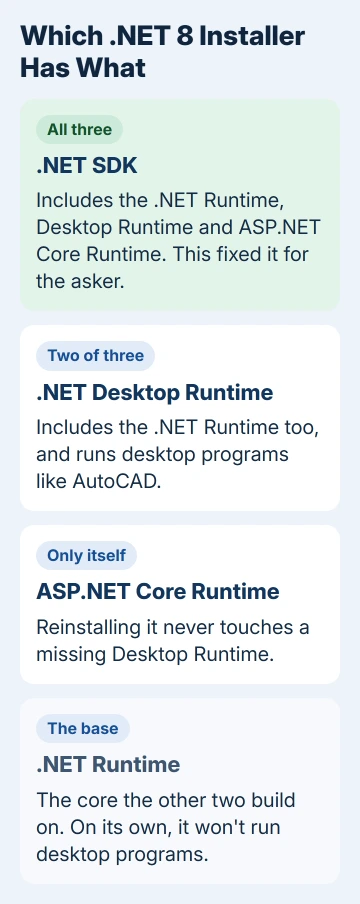
Installing the .NET 8 SDK fixed it for the asker. It's Microsoft's kit for developers, but it also bundles all three .NET 8 runtimes in one installer.
Other owners got the same result by installing the .NET 8 Desktop Runtime and ASP.NET Core Runtime separately. Either way, use the x64 versions and restart before you open AutoCAD again.
In this guide
Why reinstalling AutoCAD didn't fix it
The message doesn't say which component it wants, so the obvious fixes miss it. The asker reinstalled AutoCAD LT 2025 and the two ASP.NET Core runtimes Autodesk support suggested, 6.0.31 and 8.0.6, and got the same box every time.
Modern .NET on Windows comes as three runtimes. The .NET Runtime is the base the others build on, the ASP.NET Core Runtime runs web-based parts, and the .NET Desktop Runtime runs desktop programs like AutoCAD.
The ASP.NET Core installer carries only its own runtime, so reinstalling it never touched a missing or broken Desktop Runtime. Microsoft's .NET install page lists which installer includes what, and only the SDK includes all three.
The version matters too. AutoCAD LT 2025 wants .NET 8 specifically: one owner found that installing .NET 9 doesn't help, and .NET 10 won't either, since each major version installs separately.
The asker's AutoCAD LT 2024 still opened on the same PC, which fits, because AutoCAD only started needing .NET 8 with the 2025 release. So an older AutoCAD that works fine says nothing about your .NET 8 files.
The 32-bit or 64-bit choice matters as well. AutoCAD LT is 64-bit, so the x86 (32-bit) runtimes do nothing for it. Grabbing the x86 Desktop Runtime by mistake is an easy slip on a download page with a dozen links.
1. Check which .NET 8 runtimes you have
Open Command Prompt and run:
dotnet --list-runtimesYou want three lines with an 8.0 version: Microsoft.AspNetCore.App, Microsoft.NETCore.App and Microsoft.WindowsDesktop.App. Each line shows its version and the folder it lives in, under C:\Program Files\dotnet\shared.
A missing WindowsDesktop line is the gap AutoCAD trips over. Lines that show 8.0 next to 6.0 or 9.0 are fine; versions sit side by side, and AutoCAD only cares that the 8.0 ones are there.
If Windows says dotnet isn't recognized, no modern .NET is installed at all. Settings > Apps > Installed apps gives you the same answer: search for .NET and look for Windows Desktop Runtime 8.0 and ASP.NET Core 8.0 entries marked x64.
2. Install the .NET 8 SDK
This is the one-step fix, and it's the one I'd start with. The asker installed it and AutoCAD LT 2025 opened again; one owner in the thread got the same result.
The quickest route is winget, Windows' built-in tool for installing apps with a single command. It comes with Windows 11 and current Windows 10. Open Command Prompt and run:
winget install Microsoft.DotNet.SDK.8Accept any prompt, let it finish, then restart the PC before opening AutoCAD. Run dotnet --list-runtimes again afterward, and you should see all three 8.0 lines with the same version number.
Prefer an installer you can click? Microsoft's .NET 8.0 download page has the same SDK; pick the Windows x64 installer.
.NET 8 reached the end of its support on November 10, 2026, and its final update is 8.0.34. That doesn't stop AutoCAD LT 2025 from using it, but no more fixes will come for .NET 8 itself.
3. Or install the two runtimes on their own
Two other owners skipped the SDK. One installed the .NET 8 Desktop Runtime and ASP.NET Core Runtime separately, restarted and ran AutoCAD as administrator once, and it opened. Another added the plain .NET Runtime as well.
With winget, that's two commands:
winget install Microsoft.DotNet.DesktopRuntime.8
winget install Microsoft.DotNet.AspNetCore.8
Keep both on the same 8.0 release, which winget does by fetching the newest of each. On the download page, that means the Windows x64 installer for each runtime, not the Hosting Bundle, which is meant for web servers.
Restart, then right-click AutoCAD LT 2025 and choose Run as administrator for the first launch.
If that option is gray on your shortcut, the grayed-out Run as administrator fix explains why. After the first launch, open AutoCAD normally.
4. Remove the broken .NET 8 entries and reinstall
When the SDK installs but the error stays, the old .NET 8 files may be damaged beyond what an install on top can repair. An adviser passed on Autodesk's method: remove the .NET entries, newest first, then install the latest SDK.
In Settings > Apps > Installed apps, search for .NET and uninstall the 8.0 entries: the SDK, Windows Desktop Runtime, ASP.NET Core and .NET Runtime. Leave other versions alone, because other programs on the PC may rely on them.
Restart, install the .NET 8 SDK again with the winget command from step 2, and restart once more before opening AutoCAD. If your other programs complain afterward, reinstall whatever .NET version they name.
5. Turn on .NET Framework 3.5 and 4.8 in Windows Features
One owner fixed the same error a different way, by switching on the older .NET Framework parts in Windows Features. It's quick, so try it if the .NET 8 steps didn't do it.
Type features into the Start search box and open Turn Windows features on or off. Tick .NET Framework 3.5 (includes .NET 2.0 and 3.0), check that the .NET Framework 4.8 entry is ticked, select OK, and restart if asked.
On Windows 11 26H1, build 28000 or later, .NET Framework 3.5 is no longer in that list and comes as a separate installer instead. If the feature refuses to install, the 0x800f0954 page covers that error.
When AutoCAD still won't start
Send Autodesk support the output of dotnet --list-runtimes, your Windows version and what you've tried. Ask them which .NET 8 runtime version your AutoCAD LT 2025 build expects.
One owner sidestepped the problem by installing AutoCAD 2023 instead, and it ran without trouble. If the box names MSVCP140.dll, that's a different fault, a missing Visual C++ runtime, with its own fix.
The Short Version
- AutoCAD LT 2025 needs Microsoft's .NET 8 runtimes, not .NET Framework 4.8 or .NET 9.
- Install the .NET 8 SDK (winget install Microsoft.DotNet.SDK.8), restart, and open AutoCAD again.
- Still failing: install the Desktop and ASP.NET Core runtimes, reinstall the .NET 8 entries cleanly, or turn on .NET Framework 3.5 and 4.8.
Checked November 19, 2026.