Router application.exe is a helper that Movavi's video software installs, and the box at shutdown means that helper failed to start. Renaming the file so it can't launch stopped the error for the asker.
One owner deleted the file outright, and Movavi 23 kept working without it. Reinstalling Movavi and repairing Windows both failed for the asker, so you can skip those and go straight to the file.
In this guide
What the message is telling you
The full box reads "This application was unable to start correctly (0xc0000142). Click OK to close the application." The title bar names Router application.exe, and despite the word Router, your Wi-Fi router plays no part in it.
Microsoft's status code reference describes 0xC0000142 as STATUS_DLL_INIT_FAILED. In plain words, the program crashed while loading its own building blocks, before it could do anything.
Going by the timing, Movavi's helper gets launched while Windows is already closing your session, when it's too late to load. Clicking OK only closes the box, and it's back at the next shutdown.
It isn't a virus warning, and it doesn't mean your copy of Windows is damaged. One program is failing to load, which is why repairing Windows didn't touch it.
The asker first suspected Movavi 23, and an adviser confirmed the file belongs to the Movavi Video Suite. When the box names a different program, the general 0xc0000142 guide fits better.
1. Find RouterApplication.exe with Task Manager
Tracking down the file was the hard part for the asker. What finally worked was a tip from another owner: catch the helper while it's running, and Task Manager takes you straight to its folder.
- Press Ctrl+Shift+Esc to open Task Manager on the Processes page. On Windows 10, select More details first when Task Manager opens as a small window.
- Look for Router Application in the list, or RouterApplication.exe on the Details page. A helper with no window of its own appears under Background processes, past the Apps group.
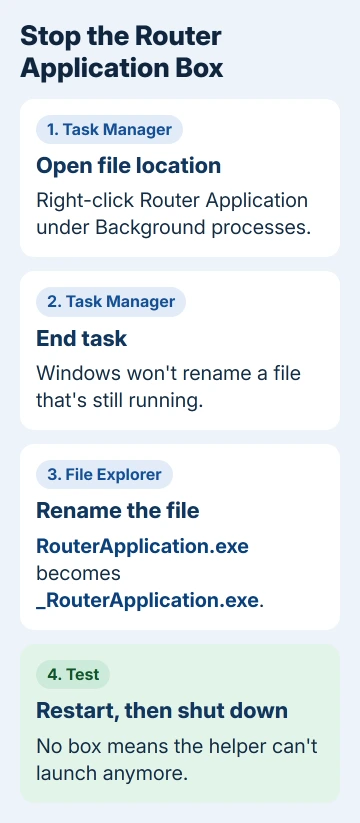
- Right-click it and choose Open file location. File Explorer opens with the file selected.
When the list has no Router Application entry, the helper isn't running right now. Search This PC in File Explorer for RouterApplication.exe instead, with hidden items turned on so the search reaches hidden folders.
Before you change anything, check which folder File Explorer opened. It should be inside a Movavi folder. A copy sitting elsewhere needs a closer look, and the guide to unknown .exe files shows how to check one.
2. Stop the helper and rename the file
Windows won't let you rename a file that's running, so close any open Movavi program and stop the helper. In Task Manager, right-click Router Application and choose End task.
Then, in File Explorer, right-click RouterApplication.exe and choose Rename (F2 does the same).
Windows 11 tucks Rename into the row of icons along the top edge of that menu, while Windows 10 lists it with the other options. Put an underscore in front, so the name becomes _RouterApplication.exe, then press Enter.
Select Continue if Windows wants administrator permission. A volunteer moderator suggested this rename, and the asker confirmed it: "I was able to solve the problem by renaming the file, as you suggested."
If Windows shows a file-in-use warning instead, the helper has started again. End it once more and rename it straight away, or restart and do the rename right after you sign in.
Restart once, then shut down normally. The box shouldn't appear, and Task Manager won't list Router Application anymore.
I'd rename rather than delete because it's easy to undo: if a Movavi feature misbehaves later, take the underscore off.
Renaming works because Movavi starts the helper by its file name. With no file of that name in the folder, nothing launches at shutdown, so nothing can fail.
3. Check Movavi after the change
Open Movavi and do what you normally use it for, such as editing, exporting or converting a clip. The owner who deleted the file said Movavi 23 kept working, though the thread never said what the helper is for.
If the shutdown box returns after a Movavi update, check whether the update put a fresh RouterApplication.exe back. Rename the new copy the same way.
Some PCs carry several Movavi programs, such as a video editor and a screen recorder. If the box keeps appearing after one rename, look for another RouterApplication.exe in a different Movavi folder.
What didn't help
The asker uninstalled and reinstalled Movavi, and the error came straight back. An adviser then suggested moving to Windows 11 24H2, but the PC was already on it.
A repair install of Windows 11 from Microsoft's ISO changed nothing either. That makes sense, because a repair leaves installed apps like Movavi in place, helper included.
If you don't use Movavi anymore
Uninstalling Movavi takes the helper away with it. Movavi's uninstall steps use the Windows apps list: open Start > Settings > Apps, select the Movavi program and choose Uninstall, then confirm.
On Windows 11 the list is under Settings > Apps > Installed apps, with Uninstall in the three-dot menu. Type Movavi into its search box to see every Movavi program you have at once.
Restart afterward and shut down to test. If the box still appears, search This PC for a leftover RouterApplication.exe.
When the error stays
Contact Movavi support through the Contact Support team link on their support pages. Give them your Movavi product and version, your Windows version, the exact message and the folder path of RouterApplication.exe.
A picture of the box helps too. When it appears, press Windows key + Shift + S and snip it before you click OK.
Ask whether the helper is needed and why it starts at shutdown on your PC. If renaming stopped the error, say so, because it shows them the helper itself is failing rather than Windows.
The Short Version
- Router application.exe belongs to Movavi, and 0xc0000142 means it failed while starting.
- Find it with Task Manager's Open file location, end the task and rename it to _RouterApplication.exe.
- Reinstalling Movavi or repairing Windows didn't help. Uninstalling Movavi also ends the error if you've stopped using it.
Checked November 19, 2026.