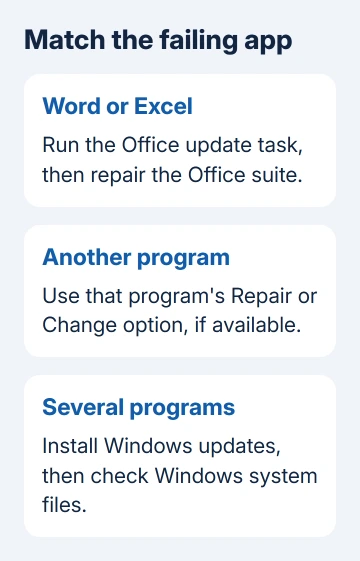
Error 0xc0000142 means the app couldn't start properly. For Word, Excel or another Office app, run Office's automatic update task, then repair the suite. For a different app, repair that program first.
The message doesn't identify one missing DLL or one Windows update. Check the program name in the error window before following instructions meant for a different application.
In this guide
1. Restart and identify the program that fails
Save your work and choose Start > Power > Restart. Open the affected program once Windows returns. If the same error appears, write down the program name in its window heading, such as WINWORD.EXE or the application's own executable.
Check whether an unrelated program opens. If only one app fails, start with its installation. If several fail, the Windows checks later in this guide become more useful. An Office repair won't fix an unrelated game's installation.
For a work PC, check whether IT controls the application's updates. Use your organization's software service, or have the help desk repair it if those controls are unavailable to you.
Don't install a loose DLL offered by a download site. Repairing through the application's own installer keeps its components together and avoids replacing a Windows file with an unrelated copy.
2. Update Office even when Word won't open
Microsoft recommends updating Office in its 0xc0000142 repair steps. It names version 2102, build 13801.20808, or later for the historical fault; that old build isn't a target to install today.
Search Windows for Task Scheduler and open it. Expand Task Scheduler Library > Microsoft > Office. In the middle pane, right-click Office Automatic Updates 2.0 and choose Run.
This starts the Office update task without needing Word's File menu. Allow the update process to finish, then reopen the Office app that failed. Check whether you can open a document normally again.
If that task is absent or managed by your organization, move to the repair route or ask IT to update the suite. Don't create a replacement scheduled task by copying commands from another computer.
When Office opens again, save your document and check another installed Office app too. If the same error remains, repairing the suite next can fix the installation those apps share, rather than changing only the shortcut you clicked.
3. Repair Office or the affected application
In Windows 11, right-click Start > Installed apps. Find your Office product, open its three-dot menu and choose Modify. Look for the suite name even when the fault appears only in Excel.
Choose Online Repair > Repair and follow the prompts. Close your Office apps first and keep the internet connection available. Online Repair repairs the suite; Quick Repair works faster and replaces damaged files it detects.
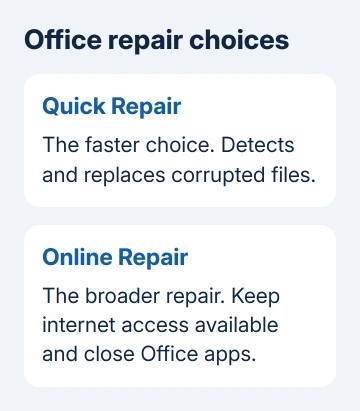
An older MSI-based Office installer, which uses a different setup system, shows Change your installation instead. Choose Repair, then Continue, and follow its prompts rather than looking for Online Repair.
On Windows 10, the equivalent Start-menu choice is Apps and Features. The suite's Modify command leads to its repair controls. A separately purchased standalone Office app appears under its own product name.
For a non-Office program, use its own repair option instead. Search for Control Panel, open Programs > Programs and Features, right-click the program and choose Repair or Change when offered.
Some apps offer Advanced options > Repair in Installed apps instead. Not every program has either repair route. If yours doesn't, use the publisher's installer or support instructions for repairing that exact product.
I'd repair the one failing program before changing the whole Windows installation. Once the repaired app opens normally, stop there. The earlier error isn't a reason to change more Windows settings.
4. Install Windows updates and check system files
Open Settings > Windows Update > Check for updates, apply its offered updates, then restart if prompted. On Windows 10, use Settings > Update & Security > Windows Update. Check the failing program afterward.
If unrelated programs still fail, use the Windows system-file repair procedure. Find Command Prompt using Start search. Use its Run as administrator command.
Enter the following repair command. Leave it running until a result appears:
DISM.exe /Online /Cleanup-image /RestorehealthAfter it reports successful completion, run:
sfc /scannowLeave the verification running until 100% appears. These commands repair Windows components and protected files, not files belonging only to another program. If the first command fails, copy that error into your support notes.
If the scan repairs files, restart and try the app again. If Windows reports no system-file problems but one program still fails, return to that program's publisher rather than repeating the same scan.
For a different startup message, the 0xc000007b application-error guide addresses that separate code. Match the characters exactly before changing the repair plan.
5. Check an older Office service only when it exists
For Office that still fails after updating and repairing, search for Services. Look for Office Software Protection Platform, right-click it and open Properties.
Check for Startup type: Automatic and Service status: Running. If the service is stopped, select Start, apply the change and retry Office. Ask IT before changing service settings on a managed computer.
Newer Office versions don't use this service. If it isn't listed, skip this step. Installing another service with a similar name won't repair a newer Office installation.
An Outlook window that gets past this error but then hangs on its profile needs the Outlook startup checks. At that point, OUTLOOK.EXE has started, but Outlook is getting stuck loading your profile.
6. Reinstall the application or send its details to support
If Office still fails, use its official uninstall and reinstall procedure for the version you own. First check which account owns it and that you can install it again. Back up local data and custom settings before removing the software.
For another app, send its publisher the executable name, app version, error and Windows build. Explain the repair result and whether other apps work. Ask which installer and prerequisites your version needs.
If several programs continue failing after the Windows repairs, open Get Help and describe the repeated application-start error. Include any DISM or SFC result instead of reporting only that the computer doesn't work.
The Short Version
Repair the program named by 0xc0000142. For Office, run its update task and repair the suite. For another app, use its own installer. Check Windows files for wider failures, then send the remaining error to support.
Checked November 15, 2026.