

A OneNote recording that plays back as silence usually recorded silence. The timer ran and the file grew, but the microphone OneNote listened to was muted, blocked by Windows or simply not the one you spoke into.
Check the Windows microphone permission and the input device first. Those two cover the common cases in a couple of minutes. Then test before every lecture, because nothing in OneNote can rescue a clip that captured silence.
In this guide
Is it silent everywhere, or just on this PC?
Find out which side failed before you change anything. Right-click the audio icon on the page, choose Save As, and play the file in Media Player or on another device. Opening the page on a second computer works too.
If it's silent everywhere, the sound never got recorded, so start with the microphone permission in fix 1. If the clip plays fine somewhere else, the recording is good and the problem is this PC's speakers or sound output.
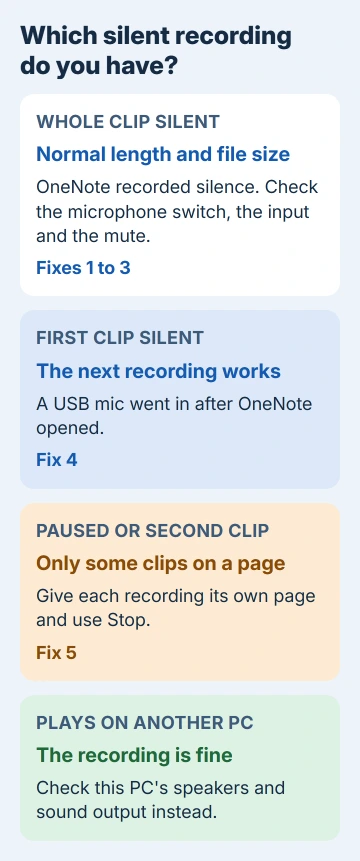
Don't let a normal file size fool you. One owner's silent 30-minute clip still came to 3.61 MB, since the recorder writes audio at a steady rate whether the microphone sends sound or silence.
1. Let desktop apps use the microphone
Windows 10 and 11 have privacy switches that can cut desktop programs like OneNote off from the microphone. When that happens, OneNote can still run its timer and save a clip with nothing in it.
On Windows 11, open Settings > Privacy & security > Microphone. Turn on the main Microphone access switch and the one for apps, then scroll down and switch on desktop app access too.
Windows 10 has matching switches under Settings > Privacy > Microphone, and the desktop apps switch that OneNote needs sits last on that page.
Still on the older OneNote for Windows 10 app? It's a Store app, so it gets its own switch in the per-app list rather than the desktop one.
2. Pick the right microphone and watch the level
A laptop with a webcam, a headset and a USB mic has several inputs, and Windows records from only one. On Windows 11, you pick it in Settings > System > Sound, under Input.
Select your microphone, click Start test and speak. The bar should jump with your voice. If it barely moves, raise Input volume. Windows 10's Sound page has the same Input choice with a live test bar.
Windows' own microphone test only checks the input that's selected, so it can pass while OneNote listens to a different one. A headset's own mute button can silence everything, too.
OneNote has its own device choice as well. In OneNote 2016 or the Microsoft 365 app, open File > Options > Audio & Video and set the recording device to your microphone or the default device.
Microsoft's own recording steps start the same way: set the microphone up in Windows before you record anything.
3. Unmute it in the classic Sound panel
One owner found something kept muting the laptop's built-in microphone between recordings. The quickest place to catch that is the old Sound panel, which Settings still opens.
- On Windows 11, open Settings > System > Sound > More sound settings. On Windows 10, choose Sound Control Panel on the Sound page.
- On the Recording tab, right-click your microphone and choose Properties.
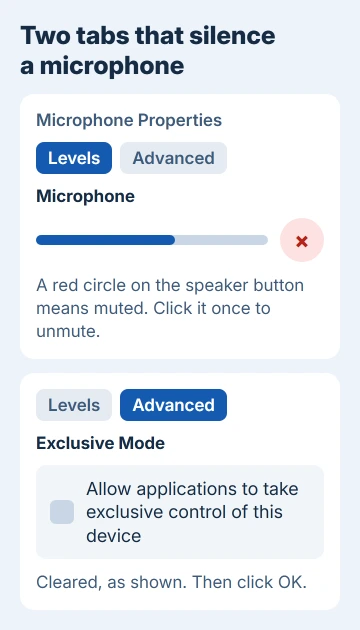
- On the Levels tab, look at the speaker button next to the slider. A red circle on it means the mic is muted, so click it once to unmute.
- On the Advanced tab, clear the box that lets applications take exclusive control of the device, then click OK.
Clearing that box cut how often the mute came back for that owner, but it didn't stop it. Check the Levels tab before each important session.
4. Plugged in a USB mic? Start a new page
OneNote picks up the audio setup when it starts, and again when you create a page. A USB microphone plugged in after OneNote opened can go unused even though Windows shows it as connected.
The owner who figured this out put it simply: "OneNote also refreshes the audio settings when you create a new page." That explains the odd pattern where the first recording is silent and the second one works.
So open OneNote, plug in the microphone, then create a new page and record there. Restarting OneNote after plugging in works too.
5. Give each recording its own page
Another owner's silent clips were always the ones where they'd paused, or a second recording on the same page. Their other clips from that day played fine.
That's one person's pattern, not a known cause, but a fresh page only takes a second. Make a new page for each recording and use Stop rather than Pause.
The record button has moved over the years. Older versions have Insert > Record Audio. Current Microsoft 365 builds put Record Audio on the Home tab, and on some it appears after you click Transcribe.
6. Test ten seconds before anything that matters
Record ten seconds of talking, stop, and play it back through headphones. The only real check is a level that moves in the Windows test plus a clip you can actually hear. OneNote 2010 had no live meter at all.
One owner lost whole classes because they trusted the timer and stopped taking notes. I'd make the test clip a habit, the way you'd check a pen works before an exam.
When it's still silent
Try a different microphone, a USB headset for instance. If that records, the built-in mic is the weak link. If nothing records in any app, run the Recording Audio troubleshooter.
On Windows 11 it's under Settings > System > Sound, in the troubleshooting section for input devices. On Windows 10, go to Settings > Update & Security > Troubleshoot > Additional troubleshooters.
If the troubleshooter doesn't bring it back, the driver and hardware steps for a microphone not working on Windows pick up from here. A built-in laptop mic that stays silent after those is a job for the maker's service center.
The Short Version
Silence on playback is usually silence on the recording. Let desktop apps use the microphone, pick and test the right input, and unmute it on the Levels tab.
Plug a USB mic in before you create the recording's page, give each recording its own page, and play back a ten-second test before anything important.
Checked November 20, 2026.
 If you have any business, I can build it online






