

No, not on a Lenovo laptop that uses Elevoc's microphone noise reduction. ElevocControlService.exe is the background service for that software, and the blank Details tab is something its maker left unfilled, not a sign of malware.
The Microsoft signature is normal too. Every production driver package for Windows has to be signed by Microsoft, and Elevoc's audio software arrives as a driver. Three quick checks tell you whether your copy is the real one.
In this guide
What ElevocControlService does
Elevoc is a Shenzhen company that makes AI software for cleaning up speech. Its Vocplus PC noise reduction launched on Lenovo's Yoga Slim 9i in late 2020, running on Intel's GNA chip (a small AI engine inside the processor).
It strips sounds like keyboard clicks out of your voice on calls. On Lenovo laptops, the settings app for it is Smart Microphone Settings, powered by Elevoc Vocplus PC, and that app talks to this service.
After a round of Elevoc driver updates, one IdeaPad 3 owner's app showed "Service connect failed. Please check Elevoc Control Service" even though the service was running. That's how tightly the two are tied.
The Microsoft Update Catalog carries Elevoc Technology Co., Ltd. AudioProcessingObject driver updates for Windows 11, the newest from August 2026.
An audio processing object is an add-on for the Windows audio system. This one cleans up the microphone signal before your apps get it.

1. Check where the file lives
Open Task Manager with Ctrl+Shift+Esc, go to Details, right-click ElevocControlService.exe and choose Open file location. One owner who worried about this file found theirs in System32, alongside other driver services.
A copy in your user folder, AppData, Temp, Downloads or C:\Users\Public is a different story, because driver software doesn't install there. Treat that one as suspect and go to step 4.
2. Read the digital signature
Right-click the file, choose Properties and open the Digital Signatures tab. That owner's copy had Microsoft signatures.
That's what you'd expect from a driver that went through Microsoft's hardware program. Select the signature and click Details to see whether Windows reports it as valid.
If the Digital Signatures tab is missing, the signer is a name you don't recognize, or Windows warns about the signature, the file isn't what it claims to be.
The blank Details tab, with no description, product name or version, is what made that owner suspicious in the first place. An adviser called it a probable bug that only the maker can fix in a driver update.
It's untidy, but it doesn't change what the signature tells you.
3. Match it to Elevoc's drivers in Device Manager
Right-click Start, open Device Manager and expand Software components. On a Lenovo with this software you'll find Elevoc entries there. One E15 Gen 4 owner found Elevoc Audio Effects Component, for example.
Your update history tells the same story. Open Settings > Windows Update > Update history and look under Driver updates; on Windows 10, it's Settings > Update & Security > Windows Update > View update history.
One IdeaPad 3 owner found Elevoc Technology Co., Ltd. Extension and Software Component updates listed there, delivered by Windows Update. If you see those entries too, the service belongs to them, and I'd leave it alone.
4. Scan the file if anything didn't match
Windows Security can check just one folder. Open it, select Virus & threat protection, then Scan options, choose Custom scan and pick the file's folder. Windows Security's scan options cover each scan type.
For a copy in an odd place, also run the offline scan from that same list. That one reboots the laptop and scans before Windows loads, so malware that dodges a normal scan is easier to catch.
Can you turn it off or remove it?
You can, but leaving it running is fine. The noise reduction app depends on it, so stopping the service takes those controls away.
Don't delete the .exe by hand either. It belongs to a driver package, so Windows Update can put it straight back.
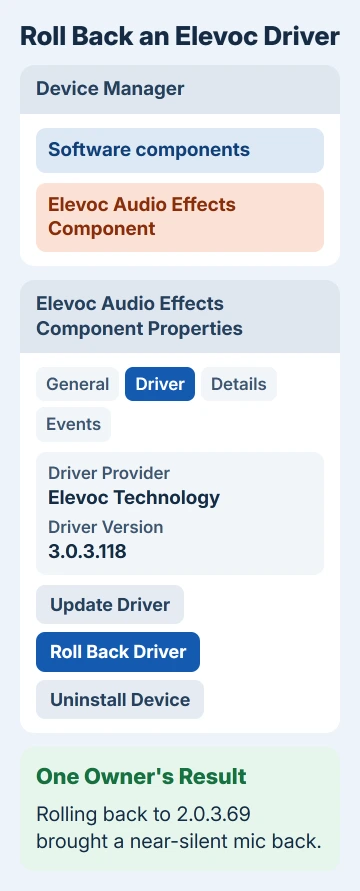
If your microphone went quiet after an Elevoc driver update, roll the driver back instead. One Lenovo E15 Gen 4 owner fixed a nearly silent mic this way, going from version 3.0.3.118 back to 2.0.3.69.
- In Device Manager, expand Software components and double-click Elevoc Audio Effects Component.
- On the Driver tab, choose Roll Back Driver, pick a reason and confirm.
- Restart and test the microphone.
That owner's broken version came through optional updates in Windows Update, so skip it if it's offered again.
No Roll Back option? Choose Uninstall device instead, and when Windows asks, tick the checkbox that deletes the driver too. Leave it unticked and Windows reinstalls the same version.
If you'd rather move up to Lenovo's newer release, update the audio drivers through Lenovo Vantage or Lenovo's support site.
The noise reduction controls live under Device Settings in Lenovo Vantage or Lenovo PC Manager, where Lenovo calls the feature Smart Noise Cancelling.
If the old Elevoc settings app stopped working altogether, one owner got the same controls back with the Lenovo Smart Noise Cancellation app from the Microsoft Store.
For mute keys and other mic faults on these laptops, the Lenovo microphone fixes cover the rest.
Still not sure?
If the file passed all three checks and the blank details still bother you, report them through Feedback Hub, as the adviser suggested, so Microsoft and Lenovo hear about it.
If a check failed and your scans come back clean, ask Lenovo support or a local technician to look at the laptop. Lenovo's support site also has an Elevoc Audio Driver download for models such as the Yoga 7 14ITL5.
The Short Version
ElevocControlService.exe is the service behind Elevoc's microphone noise reduction on Lenovo laptops, not a virus. A genuine copy sits in System32, carries a Microsoft signature and matches the Elevoc entries in Device Manager.
Anything else, like an odd folder or a missing signature, gets a Custom scan and the offline scan. If an Elevoc update silenced your mic, roll the driver back instead of deleting the file.
Checked November 20, 2026.
 If you have any business, I can build it online






