Microphone issues on a Lenovo laptop can come from its mute key or Lenovo audio controls even when the speakers work. Unmute the microphone, then choose the built-in input in Windows and check whether it records your voice.
If the microphone is missing from Windows, address that before changing settings in a silent meeting app. Check whether Windows records your voice first; that avoids reinstalling audio drivers when the calling app simply lacks permission.
In this guide
1. Check the microphone key and attached headset
Look for the crossed-out microphone symbol on your Lenovo's keyboard. On supported models it's F4. Press the key, or Fn with that key when the keyboard's hotkey mode requires it, and watch for the mute indication to change.
The speaker-mute key is a separate control. Music from the speakers can play even with the microphone muted. Lenovo's hotkey guide distinguishes the two functions.
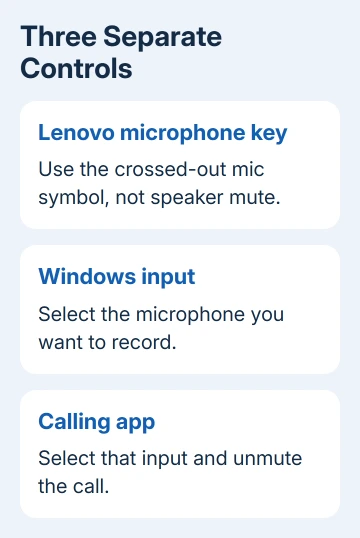
Check a headset's mute switch or boom position using its instructions. Disconnect it briefly to test only the laptop's built-in microphone. Windows can keep using the headset while you speak toward the laptop.
Don't assume every ThinkPad, IdeaPad, Yoga, and Legion has the same key or indicator. Use the printed microphone symbol and your model's user guide. Opening the camera's privacy shutter won't unmute the microphone either.
If the key does nothing, continue with Windows input selection and Vantage. A mute key that doesn't respond can be a separate problem from a silent recording. Tell support which one still happens.
2. Select the Lenovo's built-in microphone in Windows
On Windows 11, open Settings > System > Sound. Under Input, choose the input you want for your voice. The built-in device can be called Microphone Array, but check the entries on your laptop rather than relying on that name.
Open that device's properties, select Start test, speak normally, then select Stop test. Listen back using Play if your Windows version offers it. Increase Input volume if the recording is too quiet, then repeat the short sample.
On Windows 10, open Settings > System > Sound and select the microphone under Choose your input device. Speak while watching Test your microphone. A moving level shows that Windows is receiving sound from that selected input.
Microsoft recommends checking the selected recording device in its microphone repair instructions. Our microphone test guide helps distinguish the selected input from other audio devices.
If the built-in microphone records clearly, move to the app and permissions checks. If it records silence, continue with Lenovo's controls. If it doesn't appear at all, remember that when you reach the driver check.
I'd test the built-in microphone without a dock, USB webcam, or headset connected. That makes it easier to select the intended input and avoids confusing another device's working microphone with the laptop's own.
3. Review Lenovo Vantage and model-specific voice modes
Open Lenovo Vantage from Start. Check the audio or microphone controls available for your model and confirm that the microphone isn't muted there. Vantage layouts and available controls vary, so follow the labels actually shown.
Some models also have microphone options in a Lenovo quick menu. On the ThinkPad P16v Gen 2, the TrackPoint Quick Menu includes microphone sound-effect modes, with options that depend on the supported audio hardware and driver.
Its quick-menu instructions describe Center mode for capturing the speaker's voice and other meeting modes. These aren't universal settings on every Lenovo laptop.
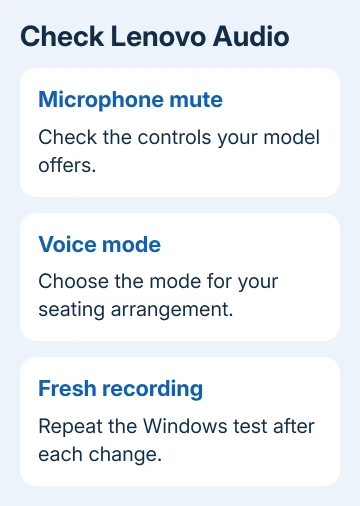
If your voice cuts out or the microphone doesn't pick up another person in the room, check the selected voice mode. Choose the mode that matches where people are sitting, then repeat the Windows recording from the same position.
If Vantage has no microphone controls, don't install unrelated Dolby software to create them. Continue with permissions and your model's audio package. Your model can lack those optional controls without having a broken microphone.
Record the result after each change. If a supported mode makes your voice clearer, sound processing may explain the problem. If it's still silent, check microphone access, drivers, and hardware next.
4. Allow microphone access and choose it inside the app
In Windows 11, use Settings > Privacy & security > Microphone. Enable Microphone access, then Let apps access your microphone and your listed app. Desktop calling apps need Let desktop apps access your microphone permission.
In Windows 10, use Settings > Privacy > Microphone. Enable access for the device through Change when needed, allow apps to access the microphone, and allow desktop apps when your calling software uses that permission.
Next, open the meeting or recording app's audio settings. Select the same microphone that passed the Windows check, and unmute inside the call. Changing Windows Input doesn't always replace a microphone already selected in an app.
For calls in a browser, also check the site's microphone permission. A site blocked from recording can remain silent while the Windows test works. If an organization controls the permission, ask its administrator to review it.
If Windows records you clearly but one app is silent, focus on that app's microphone selection and permissions. The Windows microphone fault guide covers disabled recording-device cases when the expected input isn't available.
5. Update the correct audio software before seeking repair
Open Vantage's system-update function and check the updates offered for your exact Lenovo. Install its offered audio updates and restart when asked. Use the model-specific package, rather than a generic driver-download utility.
For a microphone that failed right after an audio-driver update, open Device Manager, expand Sound, video and game controllers, and open the relevant audio device's properties. Check Driver > Roll Back Driver if the button is available.
For audible recordings stuck on a low-quality format, compare the available input formats before treating the Lenovo microphone as dead.
For an undetected microphone, the repair sequence includes reinstalling audio drivers and restarting. Have the Lenovo audio package for your model ready before removing a driver, so you can reinstall that software if needed.
For a work laptop, let IT handle driver removal or organization-managed controls. Tell them what happened in the Windows test and whether the device disappeared after an update, rather than requesting a complete Windows reset.
If the internal mic stays silent but a working USB headset records normally, request an internal-microphone assessment from Lenovo support. Supply the model, Windows version, mute-key behavior, Vantage settings, and test result.
The Short Version
Unmute the Lenovo mic key, select the Windows input, and test a recording. Check Vantage controls for your model. A working sample points toward app access; a missing or silent internal mic needs audio software or service checks.
Checked November 12, 2026.