Windows 11 still has the performance index, the old Windows Experience Index, but you won't find it in Settings or Control Panel anymore. The test behind it, WinSAT, still ships with Windows, and two commands bring your scores back.
Run winsat formal in an administrator Terminal window first. Get-CimInstance Win32_WinSAT only reads the results of that test, so asking for the scores before the test has run gives you nothing useful.
In this guide
Why the score seems to be missing
One owner on Microsoft's Q&A forum, with an Acer Nitro 5 on Windows 11, ran Get-CimInstance Win32_WinSAT from an online guide and expected a report.
Nothing useful came back, because the test hadn't run yet and there were no results to read. The adviser's reply was simply to run winsat formal first.
The guide the asker followed never mentioned that step, and they had assumed the report would build itself. Once they ran the test, the scores showed up straight away.
Microsoft's reference page for Win32_WinSAT warns that it "may be altered or unavailable for releases after Windows 8.1".
It still works on Windows 11, as the asker found, but treat the numbers as a rough guide rather than an official rating.
1. Run the formal assessment
- Plug in your laptop. A formal assessment won't run on battery power.
- Right-click Start and select Terminal (Admin) on Windows 11, or Windows PowerShell (Admin) on Windows 10. Approve the prompt that asks for permission.
- Close your other apps, then type
winsat formaland press Enter. - Leave the PC alone until the test finishes and you can type in the window again.
Expect loud fans and some lag while it runs. The test pushes the processor and graphics as hard as they'll go to measure them; the asker saw the processor jump to 100 percent.
Programs left open change the results a little, and anything using the graphics chip drags that score down. That's why you close your apps first.
2. Read your scores
In the same window, run this line:
Get-CimInstance Win32_WinSATYou get one line per score. Higher is better, and WinSPRLevel is the base score, which is simply the lowest of the others. It's not an average, so one slow part sets the base score for the whole PC.
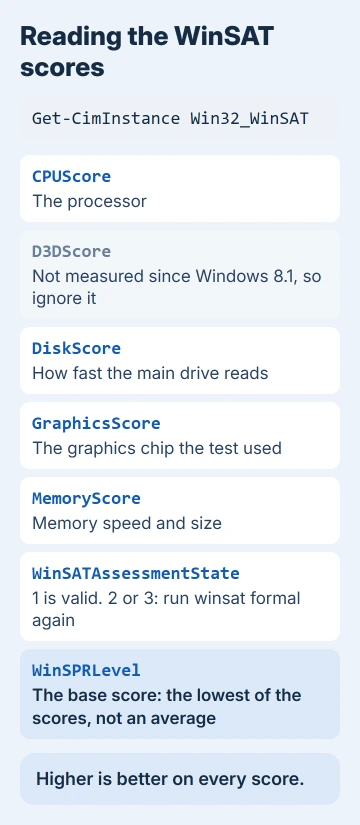
CPUScore rates the processor, MemoryScore the memory's speed and size, and DiskScore how fast the main drive reads one long file. GraphicsScore rates the graphics.
D3DScore hasn't been measured since Windows 8.1, so ignore whatever number it shows.
Look at WinSATAssessmentState before trusting the numbers. A 1 means the scores are valid. A 3 means no assessment is available yet, and a 2 means the results no longer match the hardware; run winsat formal again in either case.
3. Laptops with built-in and separate graphics
Gaming laptops usually pair the graphics built into the processor with a dedicated NVIDIA or AMD card. The test may measure the built-in one, which gives a lower graphics score than you might expect.
To see which one it used, open Task Manager with Ctrl+Shift+Esc before you start the test, select Performance, and watch GPU 0 and GPU 1 while winsat formal runs. The chip whose graph climbs is the one being measured.
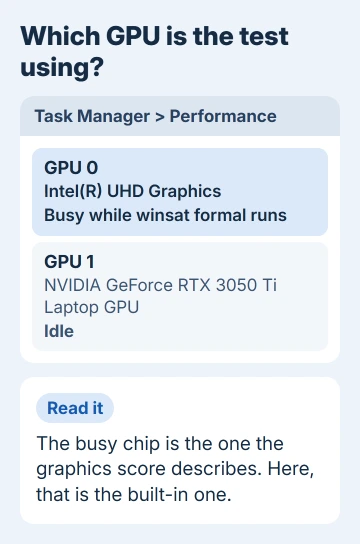
That's how the asker worked out their 6.5 graphics score: the RTX 3050 Ti sat idle and the integrated graphics did the work.
The adviser confirmed it, so a score like that describes the built-in chip and isn't a sign the gaming card is faulty.
If Task Manager lists only one GPU on a laptop that has two, our Task Manager GPU guide covers why the second one can be hidden.
4. Open the full report
The formal test also saves a full report, as an XML file, in %systemroot%\Performance\WinSAT\DataStore.
Paste C:\Windows\Performance\WinSAT\DataStore into File Explorer's address bar, sort by Date modified, and open the newest XML file in your browser.
It holds what's behind each score, such as the measurements used for it and information about the processor that was tested. I'd only dig into it if one score looks wrong and you want to see why.
What the numbers are good for
I'd use the scores to compare the same PC before and after a change, like a new SSD or more memory. Comparing two different PCs tells you less, and the graphics part no longer covers gaming at all.
Win32_WinSAT always shows the most recent formal assessment. So after an upgrade, run winsat formal again, then the Get-CimInstance line, to see what changed.
The formal test covers four parts: the processor, the memory, the main drive and the video card. A second drive isn't tested, so DiskScore says nothing about an SSD you added later for games.
Because the base score is the lowest subscore, an old hard drive can hold back a fast processor. If DiskScore is the low one on an SSD, our SSD health guide shows how to check the drive itself.
When winsat formal refuses to run
The command only runs in a window opened as administrator. A plain PowerShell or Command Prompt window can't run it, so close it and open Terminal (Admin) again.
An administrator Command Prompt runs winsat formal too, but Get-CimInstance is a PowerShell command. Read the scores in Terminal or PowerShell, or you'll get an error that the command isn't recognized.
On a laptop, make sure the charger is connected and Windows shows the battery charging.
If the test still fails in an administrator window with the charger connected, write down the exact message it prints, then open Get Help and show it to Microsoft's support.
The Short Version
Plug in the laptop, run winsat formal in Terminal (Admin), then Get-CimInstance Win32_WinSAT. WinSPRLevel is the base score, the lowest subscore, and D3DScore is no longer measured.
Checked November 20, 2026.
 If you have any business, I can build it online