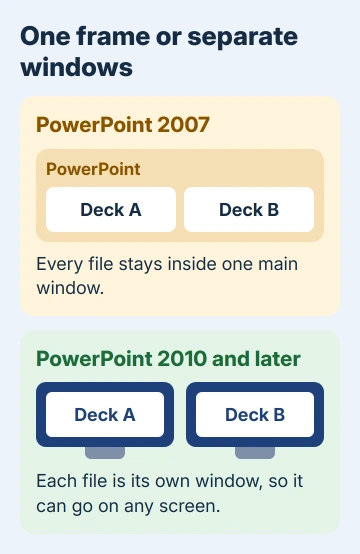
PowerPoint 2010 and later already open each presentation in its own window, ribbon and all. Drag one to your second monitor, or snap two decks side by side with the Windows logo key plus Left or Right; no setting needs changing first.
PowerPoint 2007 is the exception. It keeps every open file inside one main window, and its Show all windows in the Taskbar option only adds a taskbar button for each file. Arrange All is the closest you'll get there.
Either way, Task Manager shows one PowerPoint, because the windows share a single running copy of the program. For putting decks on different screens, that doesn't matter.
In this guide
Put each presentation where you want it
From PowerPoint 2010 on, including Microsoft 365, each file you open gets a separate window that Windows treats like any other app window. Moving one doesn't move the others.
- Open both presentations. If one window fills the screen, double-click its title bar to shrink it so you can drag it.
- Drag the window by its title bar onto the other monitor. Windows key+Shift+Left arrow or Right arrow does the same without the mouse.
- To put both on one screen, click the first window and press Windows key+Left arrow. Windows then offers your other open windows for the right half; click the second deck.
You can snap two windows side by side with the mouse as well: drag a window to either edge of the screen until an outline appears, then let go.
On Windows 11, rest the pointer on a window's maximize button and a few layouts appear. Pick one and Snap Assist offers your other decks for the empty spaces; drag the line between two snapped windows to give one more room.
Windows 11 also remembers a snapped pair as a group. Hover over the PowerPoint icon on the taskbar and you can bring both decks back together after working in another app.
If your second monitor only shows a copy of the first, a window has nowhere to go. Press Windows key+P and choose Extend; the two-monitor setup on Windows covers the rest.
Tile them from the View tab
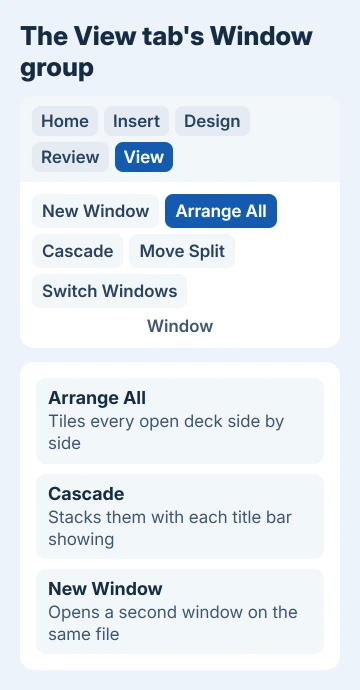
PowerPoint can line the windows up for you. On the View tab, the Window group has the commands, and they work on every presentation you have open.
- Open only the presentations you want to see. Arrange All tiles every open one, so close the rest first.
- Click View > Arrange All. The windows sit side by side across the screen.
- Click Cascade instead if you'd rather stack them with each title bar showing.
The windows don't scroll together; each one moves on its own. Side by side is still the easiest way to copy slides between presentations, because you can see where each slide lands.
Switch between open decks
Because each deck is a window of its own, Alt+Tab lists every one separately, and the PowerPoint icon on the taskbar shows a thumbnail per file when you point at it.
Inside PowerPoint, View > Switch Windows gives the same list by file name.
Open one presentation in two windows
Click View > New Window and PowerPoint opens another window on the presentation you're in, so you can look at slide 3 while you edit slide 12.
Both windows show the same file, so a change in one shows in the other at once. Use Arrange All to put them side by side, then close the extra window when you're done; the presentation stays open in the first.
Play a slide show in a window you can move
A normal slide show takes over the whole screen. To watch one in a window you can drag anywhere, change how that presentation plays.
- On the Slide Show tab, click Set Up Slide Show.
- Under Show type, choose Browsed by an individual (window) and click OK.
- Start the slide show. It plays in a window you can move to any monitor or next to another deck.
This setting is saved with that file. Set it back to Presented by a speaker (full screen) before you present to a room, or the show will open in a window instead of full screen in front of the audience.
In PowerPoint 2007, work inside the main window
PowerPoint 2007 can't give a presentation a window of its own, and two PowerPoint MVPs (volunteer experts Microsoft recognizes) said on its forum that it never could. These are the options that do work.
- Show all windows in the Taskbar, under the round Office button in the top-left corner, then PowerPoint Options > Advanced > Display, gives each file a taskbar button. It was already on for one owner, who still couldn't drag a deck out of the main window.
- View > Arrange All tiles the files inside the main window. Another owner on PowerPoint 2007 settled on it as the best fit for copying between decks.
- Stretching the main window across both monitors works, though one asker found it wasted space when the two screens were different sizes.
- Starting a second copy of PowerPoint 2007 under another Windows user account gives you two truly separate programs, and those MVPs know of no other way. It's a lot of fuss for two windows.
I'd skip the registry edits and paid add-ins suggested for 2007 on that forum. Any PowerPoint from 2010 on, including Microsoft 365, separates the windows without them.
If a window still won't leave the main one
Check your version under File > Account (File > Help in PowerPoint 2010). A round Office button in place of the File tab means PowerPoint 2007. There, the main-window behavior is normal, and only a newer version changes it.
On 2010 or later, a deck that won't come loose may simply be maximized, so double-click its title bar first. If it still won't move, you can reach Microsoft from Help > Contact Support in PowerPoint for Microsoft 365.
The Short Version
Each presentation already has its own window in PowerPoint 2010 and later. Drag it to another monitor, press Windows key+Shift+Arrow, or snap it with Windows key+Left/Right; View > Arrange All tiles them.
PowerPoint 2007 keeps files inside one main window, so Arrange All or a newer version is the answer there.
Checked November 20, 2026.
 If you have any business, I can build it online