

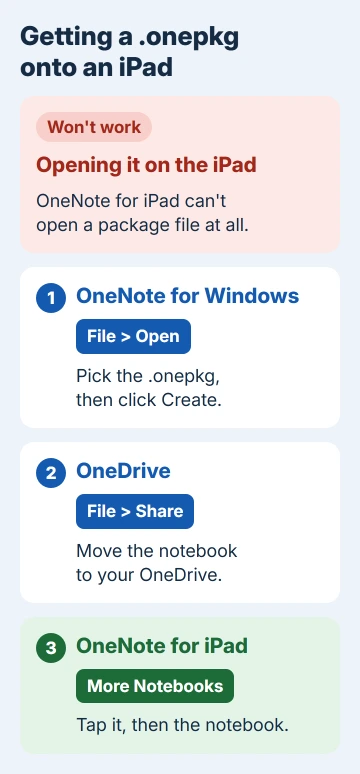
No, OneNote for iPad can't open a .onepkg file, whether it comes by email, through Files or as a download. A package is a packed-up copy of a whole notebook, and only desktop OneNote for Windows can unpack it.
Unpack it on a Windows PC, move the notebook to OneDrive, and it opens on the iPad like any other notebook, ready to edit and sync. If you don't own a Windows PC, a borrowed one is fine for the few minutes this takes.
In this guide
Why the iPad won't take a .onepkg
A .onepkg file is a single compressed bundle that holds a notebook's section files and its table of contents. Desktop OneNote makes it with File > Export, usually as a backup or to hand a notebook to someone else.
OneNote for iPad doesn't open notebook files stored on the iPad at all. It only opens notebooks that live in OneDrive or SharePoint, so a package sitting in Files or Mail has nowhere to go, and the app won't even recognize the file type.
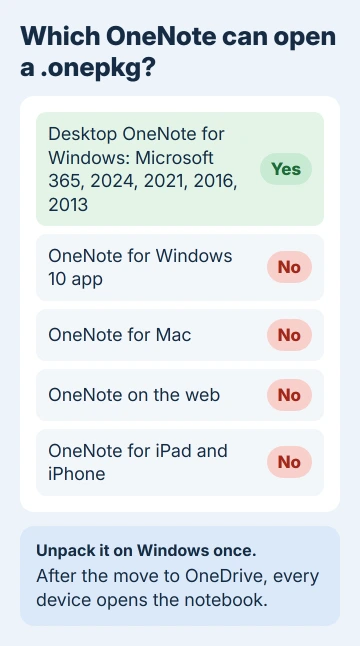
Microsoft's help on exported notebooks says it plainly: opening one "is only supported in OneNote for Windows and isn't supported on iOS". OneNote for Mac, OneNote on the web and the old OneNote for Windows 10 app can't unpack one either.
It's the same story on an iPhone. OneNote works the same way on both, so these steps cover either one.
1. Unpack the package in OneNote for Windows
Copy the .onepkg file to a Windows PC with desktop OneNote: OneNote for Microsoft 365, OneNote 2024, 2021, 2016 or 2013. If it has none of those, desktop OneNote for Windows is a free download from Microsoft.
Open OneNote, choose File > Open, then browse to the package and open it. Double-clicking the file in File Explorer does the same job.
OneNote asks where to unpack it. Type a different name for the notebook if you like, leave the Path box as it is, and click Create. The notebook's sections show up in the notebook list a moment later.
Look through a few pages before moving on. The package holds the notebook as it was on the day it was exported, so newer notes won't be in it.
If something's missing, it was never in the package, so whoever made it needs to export the package again with every section included.
2. Move the notebook to OneDrive
The unpacked notebook sits in a folder on that PC, where the iPad can't reach it. With the notebook open, choose File > Share, then pick your OneDrive as its new home and confirm the move.
Pick the OneDrive tied to the same Microsoft account the iPad signs in with. When OneNote then offers to share the notebook with people, close that box if the notes are only for you.
In some versions the same option is under File, then Settings next to the notebook, then Share or Move.
Either way, use OneNote's own move rather than dragging the folder into OneDrive with File Explorer, so OneNote keeps track of where the notebook now lives.
Let the upload finish before you leave the PC. A notebook with a lot of pictures or attachments takes longer than a text-only one.
3. Open it on the iPad
In OneNote for iPad, open your notebooks and tap More Notebooks. Make sure the account shown is the one that now holds the notebook, then tap the notebook to open it.
It downloads like a notebook you'd made there, and from now on edits sync both ways. The .onepkg file is now just a backup copy, so keep it somewhere safe or delete it.
If the notebook doesn't show up, the iPad is probably signed in with a different account. The steps for syncing OneNote on an iPad cover adding the right one.
No Windows PC handy?
When the package came from someone else, ask them to share the notebook itself instead. They can do that from File > Share in desktop OneNote or the Share button in OneNote on the web, and the link opens straight in OneNote for iPad.
I'd take that route whenever it's possible. It skips the PC entirely, and you get the live notebook rather than a snapshot from the day the package was made.
For a package of your own, borrow a Windows PC for the unpack and the move. Afterward, right-click the notebook in that PC's notebook list, choose Close This Notebook, and sign out of OneNote there.
A Mac can't stand in for the PC, since OneNote for Mac doesn't open .onepkg files. A Windows virtual machine on the Mac does work, because it runs the real Windows app.
When the package still won't open
If desktop OneNote rejects the file with an error, the package may have been damaged on the way. Ask for a fresh copy, ideally as a OneDrive link rather than an email attachment.
For a school or work notebook, your IT team can unpack it into your Microsoft 365 OneDrive and share it back with you.
With a personal Microsoft account, Microsoft's support team can help via Windows' Get Help app; explain that you need the .onepkg opened so it works on your iPad.
The Short Version
OneNote for iPad, Mac and the web can't open .onepkg packages. Unpack the file in desktop OneNote for Windows with File > Open, move the notebook to OneDrive with File > Share, then open it from More Notebooks on the iPad.
If someone sent you the package, asking them to share the notebook is quicker.
Checked November 20, 2026.
 If you have any business, I can build it online






