

Error 0x26 in OneNote ("OneNote cannot access the notebook cache file") has two causes that look the same on screen. When it hits every notebook, the cache itself is damaged, and clearing it fixes things.
When it keeps coming back for one notebook, even after the cache has been rebuilt, a damaged section file in that notebook is to blame. Open its sections one at a time until the error appears, then restore that one from a backup.
In this guide
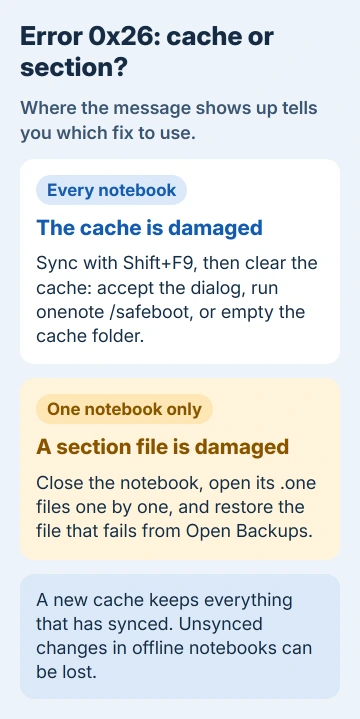
Which fix matches what you're seeing
The cache is OneNote's local working copy of the notebooks it syncs, whether they live on OneDrive, SharePoint or a network share. Throwing it away doesn't delete a notebook. OneNote simply downloads everything again.
Unsynced work is the exception. OneNote's own follow-up message says deleting the cache "will not lose any content synced with your notebooks," but offline notebooks lose changes made since their last sync.
So the question is where the error shows up:
- Every notebook, or right after OneNote starts: the cache is bad. Fixes 1 to 3 deal with it.
- Only one notebook, and other notebooks in the same folder open fine: a section file in that notebook is damaged. Go to fixes 4 and 5.
1. Sync first, then accept the new cache
If OneNote stays open long enough, press Shift+F9 to sync all notebooks before you touch the cache. That gets your newest pages onto the server, so a new cache can't cost you anything.
Then let the error dialog do its job. When it offers to delete the cache file, accept, and OneNote restarts with a fresh one.
One owner who chose Make a Copy got a second message instead, saying OneNote couldn't delete the cache file and asking them to check they had write access. If that happens, skip ahead to fix 3.
2. Clear the cache with OneNote's safe boot
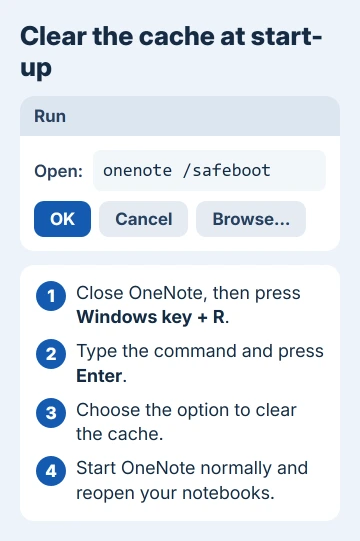
OneNote has a hidden startup mode that can throw the cache away before it loads anything.
- Close OneNote completely.
- Press Windows key + R to open the Run box.
- Type this command and press Enter:
onenote /safeboot- In the small window that appears, choose the option to clear the cache, then start OneNote normally.
- Open your notebooks again. OneNote rebuilds the cache as each one syncs.
For one owner with the same cache message under a different code, that was the whole fix: "There was an option in safeboot to clear cache. I chose that and it worked!"
It changed nothing for the owner with 0x26, and that's your sign to look at the notebook instead.
3. Delete the cache by hand
When OneNote can't remove the cache itself, you can. In OneNote, go to File > Options > Save & Backup and copy the Cache file location. Then close OneNote.
Paste that location into File Explorer's address bar and delete what's in the folder. Restart the PC, then start OneNote and reopen your notebooks.
Older versions keep a single file instead: OneNote 2007 and 2010 use OneNoteOfflineCache.onecache, and OneNote 2007 shows its path under Tools > Options > Save.
If Windows won't let you delete it, OneNote is probably still running in the background, so end ONENOTE.EXE in Task Manager first.
4. Track down the damaged section
This is how the owner with 0x26 solved it, after a new cache, a reinstall and turning off antivirus had all failed. Their notebook lived on a network share.
- Right-click the notebook in OneNote and choose Close This Notebook.
- Open the notebook's folder in File Explorer. Each section is a .one file there.
- Double-click the section files one at a time. Each opens in OneNote on its own.
- When the cache error appears, you've found the damaged section. Note its name and close OneNote.
One more sign you're in this situation: that owner could ignore the message and still browse every page, while the sync icon kept spinning. Other notebooks in the same shared folder opened without a complaint.
5. Replace that section from a backup
Move the damaged .one file out of the notebook folder into a holding folder rather than deleting it outright. If the backup turns out to be older than you thought, you'll still have the original to fall back on.
To bring the section back, go to File > Info > Open Backups, open the notebook's folder and pick the newest good copy of the section.
Microsoft's guide to restoring notes from a backup then has you right-click the restored section and copy it back where it belongs.
Reopen the notebook and let it sync. The owner deleted the bad section, restored it from a backup and wrote: "Haven't had any problems since."
Restoring the whole notebook over the top hadn't helped them. Copied back to the same server, the notebook threw the error again, while the same backup opened fine on a different server.
If the notebook sits on a server or NAS
One adviser explained the code itself: with 0x26, Windows is normally telling OneNote that it's reading past the end of a file.
Their guess was that something was getting in the way when OneNote wrote to the cache file: a failing drive, antivirus, a driver or a disk controller, more likely on the server than on the PC.
Antivirus is the quick test. Turning it off on both machines didn't help that owner, but it rules one thing out in minutes. Ask whoever runs the server to check the drive, especially if other files on that share misbehave too.
Another owner hit the same error with a notebook kept in Dropbox. I'd rather keep notebooks on OneDrive or SharePoint, where OneNote syncs them itself, than in a folder another sync program is copying at the same time.
When the error won't go away
Clearing the cache doesn't touch settings OneNote keeps elsewhere, so your custom tags in OneNote come through it unchanged.
If the error keeps returning on every notebook, repair Office from Settings > Apps, the same repair the OneNote vertical tabs fix uses.
Still stuck? On a work PC, give IT the error code, the notebook's location and a list of what you've already tried. At home, use Help > Contact Support in OneNote.
The Short Version
OneNote error 0x26 says it can't read the notebook cache. Sync with Shift+F9, then let OneNote delete the cache, run onenote /safeboot to clear it, or delete the folder shown in File > Options > Save & Backup.
If only one notebook keeps failing, close it, open its section files one by one, and replace the one that triggers the error with a copy from File > Info > Open Backups.
Checked November 20, 2026.
 If you have any business, I can build it online






