PowerPoint 2016's Automator actions can be missing after an Office upgrade. Owners restored them by copying their Office 2011 action files into /Library/Automator on the new Mac, then using them with PowerPoint 2016.
This workaround is for the Office 2011 and 2016 combination. It isn't a current PowerPoint switch. Check whether the actions are absent from Automator's library or present but failing when the workflow runs.
In this guide
1. Check the action library before rebuilding the workflow
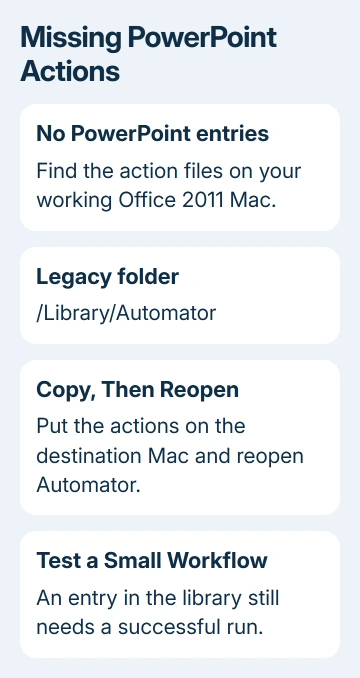
Open Automator from Applications and open your workflow. Look in its action library for PowerPoint actions. The original problem showed only Keynote entries in the presentation category, even though PowerPoint itself was installed.
An action is a small component that gives Automator a particular job to perform in another app. PowerPoint can be installed and working even when Automator can't find its old action files.
If PowerPoint actions appear in the library, don't copy another set yet. Add the needed action to a small test workflow and check which app opens. A workflow that launches PowerPoint but fails later needs its action settings checked.
If the entries are missing entirely, continue with the older Mac or backup. Changing the presentation won't bring the actions back. Those files aren't stored inside the presentation.
On Microsoft's forum, an owner copied the actions from an Office 2011 computer and confirmed they worked on the new Mac. Later replies confirmed success too. Copying those files gave Automator the actions it needed.
2. Find the actions in your own older installation
On the Mac that still has Office 2011 and working PowerPoint actions, open Finder and choose Go > Go to Folder. Enter /Library/Automator to inspect the location the successful owner described.
The leading slash matters. /Library is the Library at the root of the startup disk. It isn't ~/Library, which belongs to the signed-in user, and it isn't /System/Library.
Look for the relevant Office or PowerPoint action components. Copy the action files your workflow needs into a folder you can transfer to the new Mac. Keep the originals on the older Mac so its working setup stays available.
If there are no matching actions, check a backup of the old Mac. The successful workaround required existing action files. An empty Automator folder on the new Mac won't supply them.
I'd use files from your own working installation rather than the old public ZIP linked in the discussion. These are executable workflow components, and a familiar source also makes their Office version easier to identify.
For a current installation, checking the PowerPoint edition helps distinguish a missing feature from a hidden command. Automator components still need their own compatibility check.
3. Import the actions on the destination Mac
On the destination Mac, quit Automator before copying the legacy files. In Finder, open /Library/Automator with Go > Go to Folder. The successful owner created an Automator folder in /Library because none existed there.
Copy the relevant action files into that folder. macOS can ask for an administrator password when changing the shared Library. On a managed Mac, have IT perform that part instead of changing folder permissions yourself.
Apple's Automator import instructions also describe File > Import Actions and opening an .action file to install it. Those steps install an action that already works with your system; they can't make an incompatible old action work.
The folder-copy method is the confirmed workaround for this archived PowerPoint 2016 problem. The linked import instructions are for macOS Sequoia; use them only for a compatible action on that system.
Reopen Automator and look for the PowerPoint entries again. When the entries appear, Automator can see the action files. Run a small workflow next to check whether they work with your PowerPoint version.
If macOS rejects an action as incompatible or prevents it from loading, keep that message for IT. Don't weaken the Mac's security settings to force an old workflow component to run.
4. Try a few pictures before importing the whole collection
The original task was to turn more than 100 pictures into a presentation. Start with two or three copied images and a new test presentation. A small trial shows which action fails while keeping the important deck untouched.
Select the restored action, check what files it expects to receive and run the small workflow. Watch for PowerPoint 2016 opening and the expected slides or pictures appearing. Save this trial separately from your real presentation.
Make a note if an action opens an older PowerPoint installation. The discussion includes a workflow running in PowerPoint 2016, but some participants weren't sure which generation of action files they had.
The next useful comparison is the same small workflow on the old Mac where it worked. A failure only on the destination Mac points toward the transferred action or app combination, rather than how many pictures you're importing.
After success, check image order, crop and slide layout before running the full collection. A workflow that creates slides can still arrange them differently from the presentation you intended.
5. Stop reinstalling when the missing part is the action
Changing Office editions wasn't a confirmed cure. One participant replaced Home and Student with Home and Business and still saw no PowerPoint actions. Another reported no success after the suggested startup troubleshooting.
Those replies give you no reason to buy another Office edition or rely on a restart to restore the actions. The fix that owners confirmed was to restore the older action files missing from the new installation.
The Office 2011 chart-error workaround addresses a different legacy integration problem. Moving Office preference files for that error won't supply missing Automator actions.
For actions that still won't load, give a Mac technician the macOS and Office versions, action filenames and rejection message. Ask whether those components can run on the destination Mac before rebuilding the workflow.
For a current Mac without compatible action files, use a presentation workflow that the Mac supports, or have the automation rewritten for its installed apps. Copying an old workflow alone can't replace the action components it requires.
The Short Version
Restore the legacy PowerPoint action files from your own working Office 2011 installation into /Library/Automator. Reopen Automator and try a small workflow. If the actions aren't compatible, get help adapting the workflow to your Mac.
Checked November 21, 2026.
 If you have any business, I can build it online