

Norton Password Manager can get stuck before Unlock Vault in Edge even while the same vault works in another browser. Turn the extension off and back on, restart Edge, and try again. An owner confirmed that simple toggle restored access.
For a message saying it can't connect to the Norton server, check for a Norton service outage first. A spinning extension, a server message and a rejected vault password need different checks.
In this guide
1. Restart the extension that won't reach Unlock Vault
Enter edge://extensions in Edge's address bar. Find Norton Password Manager, switch it off, and switch it back on. Close and reopen Edge, then open the extension from the toolbar's Extensions menu.
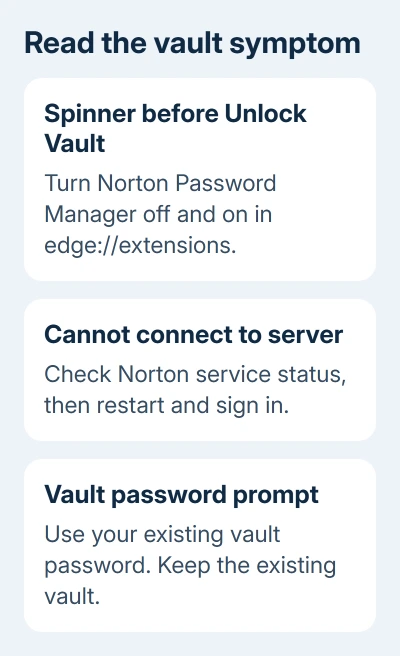
Check whether it now gets to Unlock Vault or your saved logins. If it does, check a familiar login entry. Being able to open the vault and reach that entry tells you access is working again.
The toggle worked for one owner, but the original asker still saw the spinner after trying it. Give it one attempt. If nothing changes, move on to the other checks.
Make sure you're changing Norton Password Manager, rather than Norton Safe Web or a similarly named extension. They do different jobs. Turning off a website-safety add-on isn't the same as restarting the vault extension.
If the extension isn't installed or is disabled, use Edge's Extensions > Manage extensions controls to check it. Our Edge Add-ons guide explains how to inspect a listing before installing it.
2. Check the service when the message mentions the server
For Cannot connect to the Norton server, check the Norton service status page. Look for a Password Manager incident or maintenance notice and its update time. If an outage is listed, wait for service to return.
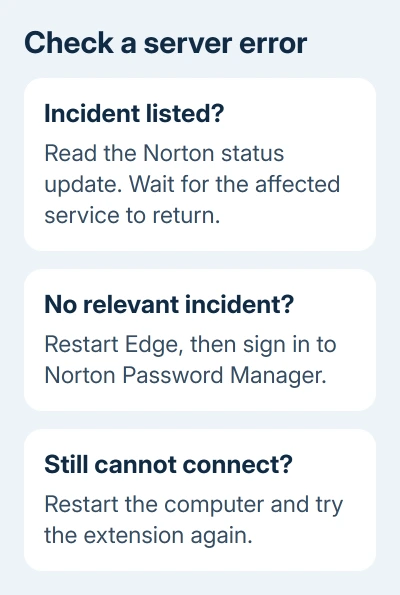
Norton's server-connection instructions say an outage or maintenance can prevent vault access.
Being unable to connect doesn't mean your saved passwords are gone. Don't recreate or delete the vault to fix a connection message. That changes the data you're trying to reach instead of fixing access to it.
With no relevant incident listed, restart the browser. Open Password Manager, choose Sign In, and use your Norton account credentials. If the connection error continues, restart the computer and retry.
Check what the extension asks for after signing in. Signing in to your Norton account and unlocking the vault are separate steps. Finishing the first doesn't mean the vault is unlocked.
At a vault-password prompt, use your existing vault password. That prompt is asking you to unlock the vault, so treat it separately from a message saying the extension can't connect.
3. Update Edge and compare the same vault elsewhere
Enter edge://settings/help to reach the browser update check. Install any available update, then relaunch Edge. Open Password Manager again in the same profile and check whether the spinner has gone.
The Edge update and recovery guidance is useful when a browser update or browser fault is involved. It doesn't replace the service check when the message names the Norton server.
If Password Manager is already installed in another supported browser you use, open the same Norton account there. Compare whether it reaches the vault, rather than whether the browser can load ordinary websites.
The original asker could open their vault in Chrome and Norton Browser while Edge failed. That gave them a practical way to retrieve logins while checking Edge. A working second browser doesn't mean the Edge extension has been repaired.
Tell Norton support if every installed copy fails at the same step. For Edge-only trouble, include its full version and the extension version from Details on edge://extensions. That tells support which versions you're using together.
4. Keep the old Beta workaround in context
In September 2024, the original asker got the vault working in Edge Beta. They installed a separate browser with a newer test release than regular Edge had then. This wasn't a setting in their existing profile.
A later owner said Beta didn't help. The discussion doesn't show that later versions of regular Edge all needed this workaround. Updating your current Edge makes more sense than installing a test browser because of a years-old report.
I'd use a browser where your vault already opens while support checks a continuing Edge problem. That keeps access to your logins without turning an old Beta result into a promise about today's versions.
If support asks you to try Beta, write down its exact version and what happens, separately from regular Edge. The test release can behave differently. Keep your usual profile and vault intact while comparing them.
5. Keep the next repair focused on the failed component
The original asker had already reset Edge and removed and reinstalled Password Manager without success. Since those attempts didn't stop the spinning window, another reset isn't automatically the next useful step.
A freezing browser needs the wider recovery steps after closing stuck Edge sessions. A failed Password Manager popup with working websites is different: report that extension-specific behavior to support.
If both Edge and Chrome close before any vault popup appears, check the shared Norton startup failure instead.
Edge's own saved-password controls don't operate the Norton vault. Changing Microsoft Password Manager autofill settings won't unlock a Norton vault that's still waiting for its account session. Check the extension itself after each change.
For websites that forget your login after Edge closes, use the clear-on-close cookie checks. That symptom can happen while the vault works normally, because saved passwords and website sessions are separate things.
When the vault still won't open
Use Contact us on Norton's support site. Give them the exact popup message, Edge and extension versions, Windows or macOS version, and the result for that vault in another browser. Mention any service incident you checked.
List the results of the toggle and both restarts. Ask support to restore extension access to your existing vault. Never post your vault password or screenshots of saved passwords in a public support discussion.
The Short Version
Restart the extension using its toggle. Update Edge and check service status for server errors. Compare a working browser. Beta helped one owner but failed for another. Keep the existing vault while fixing extension access.
Checked November 23, 2026.
 If you have any business, I can build it online






