

Microsoft Edge updates through edge://settings/help. A pending restart may be all that's left. Use any error message to choose the fix: blocked downloads, a disabled updater, and a damaged installation need different fixes.
In the original thread, an out-of-date warning sent owners back to a page with no obvious download button. Start with the updater itself, rather than changing how the browser identifies itself to reveal a download button.
In this guide
1. Finish the update from the About page
Enter edge://settings/help in the address bar, or choose Settings and more > Help and feedback > About Microsoft Edge. Keep the page open while it checks. Note whether it says Edge is up to date, downloads an update, or displays an error.
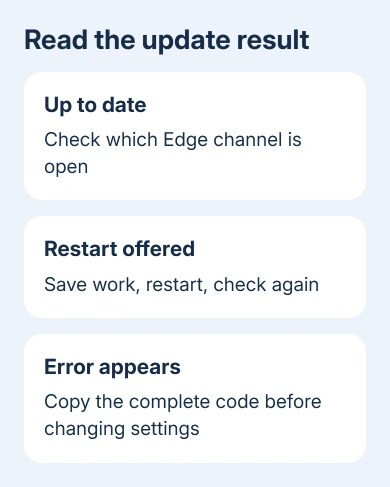
If Restart appears, save unfinished work in your tabs and select it. Reopen the About page afterward to check the version and status. An update can finish downloading before it's fully installed.
If About says Edge is current but an old warning remains, exit every Edge window, then launch it again. Check About in the browser you actually use, especially if Beta or Dev is installed too.
Microsoft's update-error troubleshooting separates connection, permission, and installation failures. Copy the complete code before changing anything; the first few digits alone can cover different faults.
For a work PC that says updates are managed, have IT review the installed release and update rules. IT may need to install the update through your organization's tools rather than a personal download.
2. Clear a restart or connection problem
Save your work and use Start > Power > Restart to restart Windows. Return to the About page after signing in. This lets an installation already in progress finish before Edge tries another update.
If the error says another update is running, let it finish. Don't open several installers to make the process move faster. Check again after the restart and use the new result to decide whether you need a network or repair step.
For 403 while using a personal VPN, disconnect that VPN temporarily and retry the download. The VPN can block access to the update service even when normal websites load. Reconnect it after the comparison.
If your employer requires a VPN for access, give IT the error instead of changing its setup. They can check the permitted update route. Keep security software enabled while you work through the browser and network results.
A failure on one network but success on another points toward that network's filtering or connection. Tell the administrator that Edge's update check needs msedge.api.cdp.microsoft.com and downloads use *.dl.delivery.mp.microsoft.com.
For a name-resolution error such as 0x80072EE7, the Edge DNS checks cover that branch. Avoid rebuilding your whole Windows network configuration just because the browser's download page was confusing.
3. Restore the updater when its service was disabled
An owner found they'd turned off Edge's update services. Turning them back on restored updates and stopped the failure prompts. They remembered turning those services off earlier.
If that matches your PC, press Windows+R, enter services.msc, and press Enter. Look for the Microsoft Edge Update service entries. Check whether a service is disabled to see whether this matches your PC.
For 0x80040154, the support instructions identify a missing or disabled Edge update service and advise setting it to Automatic. Open the service's Properties, change its Startup type from Disabled as directed, and apply the change.
If available, select Start, then retry the About page. If the service is absent, won't start, or the setting changes back, continue with Repair or ask IT. Don't download a service executable from a third-party repair site.
On a managed machine, ask why the service is disabled before changing it. The original thread includes a thin client with a write filter, where ordinary update advice didn't fit. A write filter restricts which changes the device keeps.
For those devices, the administrator needs the manufacturer's servicing procedure. Don't disable a write filter yourself or force an update during a work session. The administrator needs to plan the update and restart together.
4. Repair Edge's installation on Windows
Close Edge after saving your work. On Windows 11, open Settings > Apps > Installed apps. Find Microsoft Edge, open its menu, and select Modify. On Windows 10, use Settings > Apps > Apps & features > Microsoft Edge > Modify.
Approve the Microsoft installer's administrator prompt, then select Repair while online. Your data and settings shouldn't be affected. Wait for completion, reopen Edge, and check About again.
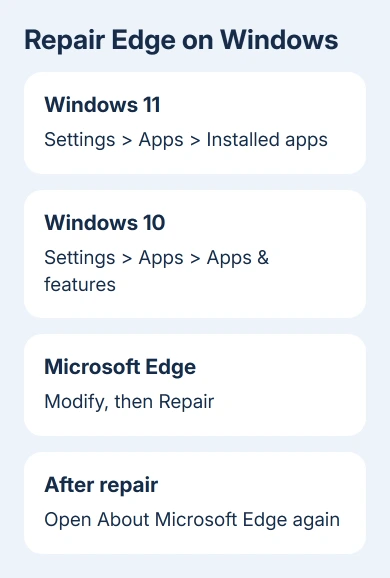
If Modify isn't available, the installation may be managed by your organization. Give IT the updater error and request an Edge repair or supported redeployment. Don't force an uninstall by deleting the browser's program folder.
Try Repair after checking the connection and updater service. A blocked update address or disabled service can still stop the next attempt. If the installer fails, save its exact message. Fix that problem before trying Repair again.
5. Use a fresh installer when Repair can't complete
If Edge still won't update, use another working browser to get a current Microsoft installer. The Edge offline installer guide explains the Windows package choices and matching the PC's processor type.
Use the current Stable package for an ordinary Edge installation. Beta, Dev, and WebView2 are different products or channels. Installing WebView2 doesn't replace the browser you're trying to update, even though both names include Edge.
Don't choose Edge 87 because an old answer calls it current; that was December 2020. The thread's developer-tools trick changed which browser identity the download page saw. Start with the updater checks instead.
If installing Edge on a work PC needs administrator permission, have IT handle it. Keep your profile in place while they repair the application. Removing favorites and saved passwords doesn't fix a failed installation service.
When updating still fails
Use Settings and more > Help and feedback > Send feedback, or your work help desk if the PC is managed. Include the Edge version, full error, Windows version, whether Repair completed, and whether switching networks changes the result.
Request a check of the specific service or installer fault shown. If the PC is a thin client, include its manufacturer and write-filter setup so support doesn't treat it like an ordinary home laptop.
The Short Version
Check About, finish any restart, and follow the exact error. Test the connection, restore a disabled updater, then repair Edge. Managed PCs and thin clients need their administrator's update procedure.
Checked November 23, 2026.
 If you have any business, I can build it online






