

Edge passwords disappearing after an update can mean antivirus software blocked the saved list. Check its password-protection controls first, especially with Avast or AVG; owners recovered their logins without resetting them.
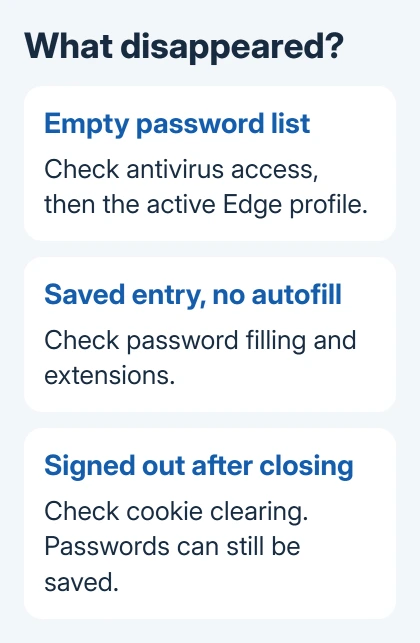
An empty password list, autofill that doesn't work and websites signing you out need different fixes. Open the saved list first to tell those problems apart.
In this guide
1. Check whether the saved passwords are actually missing
Open Edge Settings > Passwords and autofill > Microsoft Password Manager. Older versions put passwords under Profiles > Passwords. Search Settings for passwords if your layout differs.
Look for a website whose login Edge used to remember. Open its entry and use the eye control to view the saved password. Edge may ask for your Windows password or device PIN before showing it.
If the entry is there, the saved password hasn't disappeared. Try entering it on that site's sign-in page. If you can sign in by typing it yourself, check autofill or the site's sign-in settings rather than recovering a lost password.
The current password-manager instructions explain where the list lives. Editing an entry changes the stored copy; the website's actual password stays unchanged.
If the entire list is empty, check the antivirus controls next. Don't clear browser data with passwords selected while trying to recover them. That would remove data you're trying to get back.
2. Allow Edge through the antivirus password protection
Open your security app and look for Password Protection or Browser Shield. These features control access to passwords stored in browsers; they're separate from an antivirus company's own password-manager app.
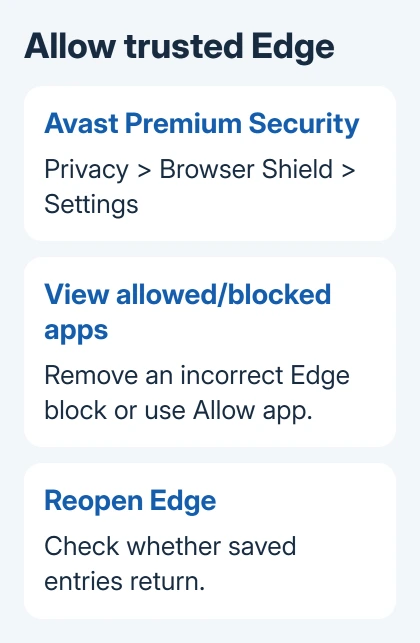
In Avast Premium Security, open Privacy > Browser Shield, then its gear-shaped Settings control. Select View allowed/blocked apps and check whether Microsoft Edge is blocked.
Remove an incorrect block on the trusted Edge application, or use Allow app to add it to the allowed list. Check the app's name and file location before allowing it. Don't approve an unfamiliar program.
Avast's Browser Shield instructions describe this route. Older versions used a Password Protection label, so an older discussion won't necessarily match the current app's menus.
If needed, temporarily turn off just that feature's password protection to check whether it's blocking Edge. Keep the antivirus's main protection running. Close Edge, reopen it and check the password list again.
Several owners reported success in the missing-password discussion after changing Avast or AVG's password protection. One also confirmed that excluding Edge restored access through AVG's password protection.
If the entries return, set a lasting exception for Edge through the security app or ask its support team to correct the block. I'd do that before resetting dozens of website passwords that still work.
If nothing changes, restore the protection setting you changed and continue. The timing of an update doesn't tell you which program caused the problem, and this fix didn't help every participant.
3. Return to the right browser profile
Open Edge's profile menu and check its displayed account. A personal Microsoft account, a work account and an unsigned profile have separate browser data. Check each existing profile that you normally use.
Open the password list again after switching. If it appears in another profile, keep using that profile for those websites. Creating a new empty profile won't move the old profile's passwords into it.
If you sync passwords, use the account from the device that still has your saved list. In Settings > Profiles > Sync, check that sync is on and that Passwords is enabled where that choice is offered.
Wait for Edge to finish syncing, then check the saved list rather than relying on what appears in a website's login box. A site can still ask for a password even when Edge has downloaded the saved entry.
An organization can restrict password storage and sync in its managed Edge profiles. Ask IT to check those policies before changing a managed security setting.
The separate Authenticator password-move guide applies if the missing list started in Authenticator. Its password feature moved to Edge, which is different from an antivirus blocking an existing Edge list.
If a phone or another PC still has the passwords, keep that working copy intact while checking the affected PC. Don't delete entries on a synced device to try to make them reappear elsewhere.
4. Fix autofill when the entries are still there
Return to Microsoft Password Manager and open its settings. Check that saving passwords and filling saved passwords are enabled where your version offers those controls. Then revisit a normal sign-in page.
Click inside the username or password box and check whether Edge offers the saved account. A website using a different sign-in address may need the correct entry selected rather than the first suggestion.
If Edge fills an old password that the site rejects, update that saved entry after confirming the current password works manually. Repeatedly saving the outdated value won't repair the account's login.
Temporarily turn off password-related extensions at edge://extensions and retry. If autofill starts working, switch them back on separately, checking which add-on disrupts the login boxes.
When saved logins remain visible yet websites sign out after closing Edge, search Settings for close the browser. Review the automatic data-clearing choices. Clearing cookies removes website sessions, even when saved passwords remain.
A cookie can preserve a website's sign-in session. Staying signed in and remembering a password are different things. The Edge cache guide explains the data categories before you clear anything.
When the password list stays empty
Install any available browser update from edge://settings/help. If the antivirus exception and correct profile don't restore the list, press Alt + Shift + I to send feedback.
Include the Edge version, antivirus name, when the entries disappeared and whether another synced device still has them. Report whether the list is empty or only autofill fails, because those need different repairs.
Avoid old instructions to delete the MicrosoftEdge package folder or re-register Edge Legacy with PowerShell. They target the retired browser and won't repair modern Edge's password access.
If no device, export or password manager still has a copy, use each website's password-recovery option. Start with the email account that receives reset messages. Reinstalling Edge can't recreate passwords that no remaining copy holds.
The Short Version
Check antivirus password protection, then the active Edge profile. If the entries remain visible, repair autofill or cookie settings instead of treating them as deleted passwords.
Checked November 23, 2026.
 If you have any business, I can build it online






