Saved PDFs open in Edge when Windows assigns the .pdf file type to that browser. When choosing Adobe does nothing, close Edge completely, including its background processes, then set the PDF default again in Windows Settings.
An owner confirmed that this unlocked the choice after ordinary attempts failed. A file labeled Microsoft Edge PDF Document is still a PDF; the label describes its associated app, not a conversion of your documents.
In this guide
1. Close Edge fully before changing the default
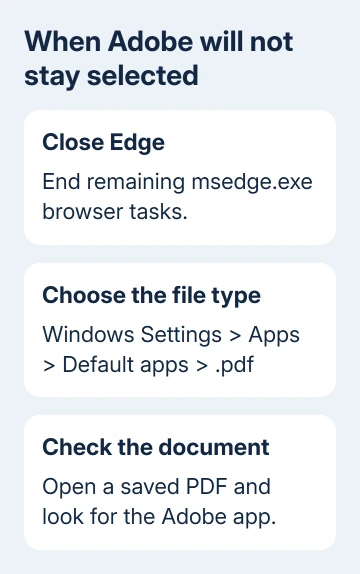
Save any unfinished browser work and close Edge's windows. Press Ctrl+Shift+Esc to open Task Manager, then look for Microsoft Edge in the Processes view.
Select the Edge browser entry and choose End task if it remains. In Details, Edge browser processes use msedge.exe. End remaining browser tasks, then leave Edge closed while changing the default.
Leave msedgewebview2.exe alone. Other apps use that separate browser component. It isn't the Edge browser process you're trying to close.
An owner in the PDF-default discussion reported that a background Edge instance remained running. Once they closed it, they could change both their PDF viewer and default browser.
That's why closing Edge is a useful first step when the choice won't respond. It doesn't mean every PDF default change needs Task Manager. If Windows already accepts Adobe, move straight to checking a saved document.
I'd try this before reinstalling Acrobat. It addresses the specific refusal without removing either app or changing your PDF files. If the choice still won't save, check Adobe itself after the Windows selection steps.
2. Choose Adobe for the .pdf file type
On Windows 11, open Settings > Apps > Default apps. Use the file-type search to find .pdf, select the result, and choose Adobe Acrobat or Adobe Acrobat Reader from the installed apps.
Confirm with Set default, or the confirmation control your Windows version presents. Return to the .pdf entry and check that it now names the Adobe app you chose.
On Windows 10, open Settings > Apps > Default apps, then Choose default apps by file type. Find .pdf, click its current app and choose Acrobat or Reader.
The Windows default-app controls assign an app to a file type. Setting Adobe for .pdf doesn't require changing your normal web browser, email app or other document defaults.
Choose the actual installed desktop reader. An Adobe extension in Edge isn't the same as having Acrobat or Reader installed on Windows. If Adobe is absent from the list, continue to step 4 rather than choosing an unrelated app.
For more detail on the Windows 11 picker, use the default-app selection steps. Repeating the picker is unnecessary once its .pdf entry already shows Adobe.
3. Check a saved file, then separate browser links
Find a trusted PDF in File Explorer, such as a document already in Downloads. Double-click it. The successful result is the separate Acrobat or Reader desktop window opening that saved document.
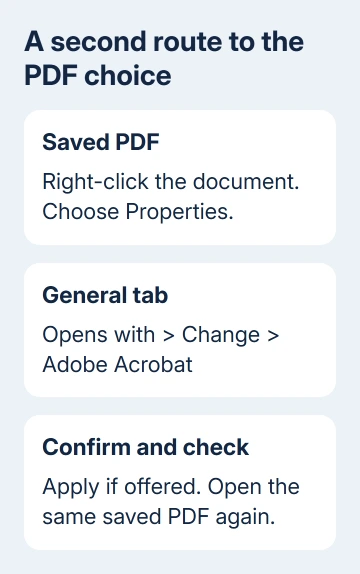
If it still opens in Edge, right-click the same file and choose Properties. On the General tab, inspect Opens with. Select Change, choose the Adobe reader, confirm, then choose Apply if offered.
Close Properties and double-click the file again. This tells Windows which app to use for PDFs through Properties. It doesn't convert the document. Keep the filename's .pdf extension intact.
A PDF link clicked inside Edge can still open in a browser tab even when saved files correctly use Adobe. Check which action failed before deciding that Windows forgot your choice.
For a website document, save the actual PDF using its download control, then open the saved copy. A document inside a site's own viewer may need that viewer's download button instead of the browser's Save page command.
If the same distinction occurs in Chrome, the Adobe-versus-browser PDF instructions explain why download behavior and the computer's default app are separate settings.
An Adobe-branded toolbar inside a browser tab also isn't the desktop window. Check which app opens your saved file. The color or branding of an online viewer doesn't tell you your Windows default.
4. Make sure Acrobat can open a document itself
Open Acrobat or Reader from Start, then use File > Open to open the saved PDF. In the newer Acrobat interface, the main menu may sit under the Menu button.
If Adobe opens the file successfully, its PDF reader is working. Return to Windows' .pdf selection once more with Edge closed. If Adobe won't launch, repair that failure before trying more default changes.
For an Adobe app that fails to open, go to Control Panel > Programs > Programs and Features. Select Adobe Acrobat, choose Change, then Next > Repair in its setup program. Restart Windows after repair.
On a managed PC, ask IT to repair or install the approved Acrobat or Reader package. Tell them whether Adobe is missing from the default-app list or appears there but cannot open a PDF directly.
One PDF failing while other PDFs open normally points to that document. Ask its sender for another copy or the password it requires. Reassigning every PDF to a different app won't repair a damaged download.
5. Check whether the choice survives a restart
Install any pending Windows updates before checking whether the choice sticks. The asker later reported that an update restored the Adobe selection. They didn't say which Windows update or IT change made the difference.
On Windows 11, open Settings > Windows Update. On Windows 10, use Settings > Update & Security > Windows Update. Select Check for updates, install updates offered for your computer and finish any requested restart.
After a successful change, restart Windows and open the same saved PDF again. If Adobe remains the default, the repair is complete. Keep the browser's PDF-link behavior separate when checking the result.
If a workplace computer changes the default back at sign-in, have IT inspect its file-association policy. A company can deploy default-app settings, so a choice that repeatedly returns may need an administrative change.
Send the administrator a screenshot of the .pdf entry before and after restarting, plus the Windows version. Ask whether a default-associations policy is assigning PDFs to Edge.
Avoid registry permission changes or scripts that lock file associations. They add another failure to untangle if Windows or your workplace later needs to update the app choice.
When Windows still refuses the selection
If Windows won't save your default choice, contact Microsoft Support or your company help desk. Explain whether closing Edge helped, whether Properties accepts Adobe and whether the reader opens files directly.
For an Acrobat launch or repair error, send Adobe Support your Acrobat version alongside the error message. Keep a working saved PDF ready for support. They can then compare an app failure with trouble opening just one file.
The Short Version
Close all Edge browser processes, assign .pdf to Adobe and test a saved PDF. Use File Properties as another route. If the choice returns after sign-in, have IT check managed defaults; repair Adobe if it cannot open files itself.
Checked November 23, 2026.
 If you have any business, I can build it online