

iCloud.com's server error in Edge can come from saved browser settings or the network connection. Update Edge first. When Firefox works on the same PC, try the confirmed Edge reset before changing Windows networking.
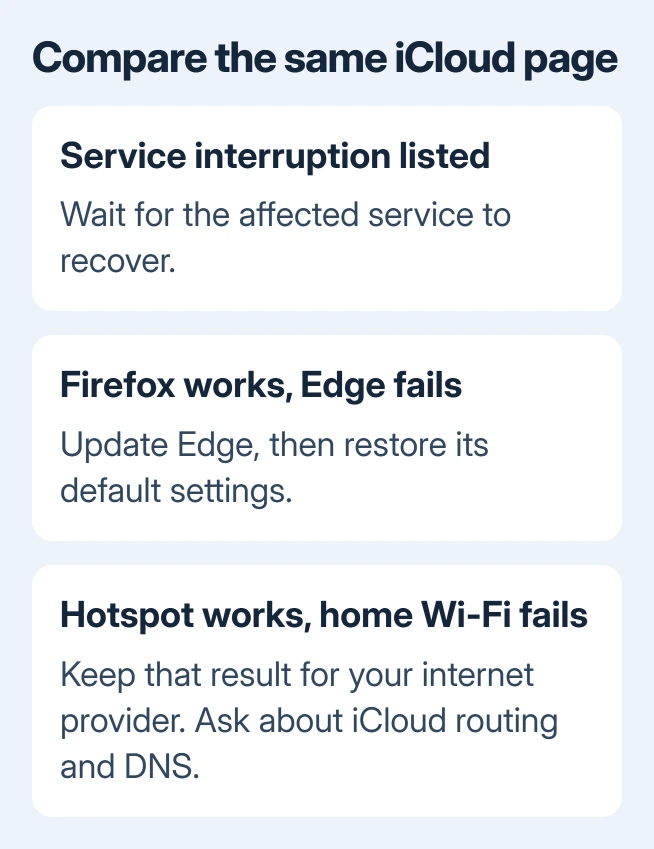
An outage affecting several devices calls for waiting; a lone PC failing on home Wi-Fi needs local checks. Comparing devices and connections separates those cases without changing your Apple Account password or reinstalling Windows.
In this guide
1. Update Edge and check whether iCloud is available
Open edge://settings/help in the address bar. Apply any available browser update and choose Restart when offered. Save any unfinished browser work before restarting, then load https://www.icloud.com/ again.
Type the complete address, replacing old shortcuts or search results. One owner reported success after adding www, but another reported the same error afterward. It's a quick address check, but it didn't help both owners.
Next, open Apple System Status through the iCloud connection guidance. Look for an issue affecting the iCloud service you need. A listed interruption means you should wait rather than reset the browser.
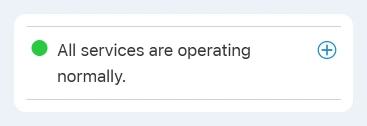
If an interruption is listed, wait for its status to change before retrying that service. Resetting Edge won't repair an outage. If status looks normal, compare browsers and connections on the affected PC.
The original complaint dates to August 2023. A later owner said updates eventually fixed their Edge connection. Those reports suggest useful checks without showing that every current Edge release has the same fault.
2. Compare another browser on the same Wi-Fi
Open the same iCloud address in another browser already on the PC. Firefox is a useful comparison here: several owners could access iCloud there while Edge failed. Keep the network unchanged for this check.
If Firefox reaches the sign-in page and Edge doesn't, iCloud is reachable from that computer. Continue with Edge's settings. Keep the Apple Account password and Windows iCloud installation unchanged during these browser checks.
For failure in both browsers, check whether a phone can open iCloud through that Wi-Fi. If the phone opens the site but the PC can't, focus on the PC next. Its browser and the way it connects can still differ from the phone's.
Use a browser that works for urgent access while you repair Edge. Check that the address is really iCloud.com before entering account details. Several affected owners used another browser to get back into iCloud.
If the website works but the installed Windows app can't connect, use the iCloud Windows connection checks. Its app requirements and security-software checks address a different failure.
3. Compare home Wi-Fi with a phone hotspot
Check your carrier's hotspot allowance before connecting the PC through your phone. On iPhone, use Settings > Personal Hotspot > Allow Others to Join. Android makers usually put hotspot controls under network or connection settings.
Keep using the same Edge profile and exact iCloud address. If the page starts working without resetting Edge, the difference points to the original network connection. Record that difference before changing browser data.
The asker and several other owners reported working cellular connections alongside failed home broadband. Report that contrast to the provider: it explains which connection fails and which still reaches iCloud.
Disconnect from the hotspot after the comparison to avoid unnecessary mobile-data use. Back on home Wi-Fi, continue with the browser reset. If iCloud also fails through the hotspot, the error isn't limited to the home connection.
For a connection that fails to open many unrelated sites, use the DNS connection checks. DNS provides the address a browser needs to reach a named website. Failures across unrelated sites call for broader connection repair.
4. Restore Edge's default settings
Open edge://settings/reset and choose Restore settings to their default values, then Reset. Review the warning first: preferences change and extensions are disabled. Note any work settings you'll need later.
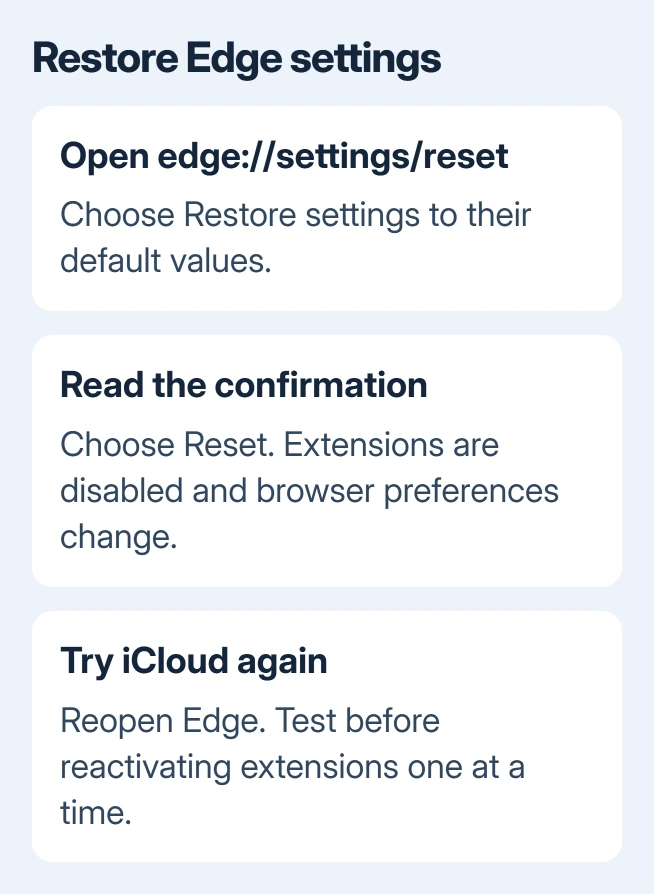
Reopen Edge and test iCloud with extensions still disabled. If it works, enable one needed extension and reload, repeating for the rest. If a particular extension brings the error back, check its settings or update.
The asker later restored iCloud by resetting Edge and reactivating IPv6, an internet addressing system Windows uses. That got iCloud working without leaving part of Windows networking switched off.
After the reset, restore IPv6 if you disabled it earlier. Run ncpa.cpl with Windows + R. Right-click the active adapter, open Properties, select Internet Protocol Version 6 (TCP/IPv6) and click OK.
These Windows 10 and 11 steps use the same adapter dialog. On a managed PC, have IT restore any network settings they control. If Edge still fails, keep the browser and hotspot results for the network check.
5. Report the browser and connection results
The accepted answer reported success from disabling IPv6, and several owners confirmed it. Later replies also reported broken Facebook access and a printer problem after that change. It wasn't a harmless fix for every connection.
I'd keep IPv6 enabled and use the working browser while the connection is checked. Microsoft recommends against disabling IPv6, because some Windows functions need it.
If only home broadband fails, ask your provider to check the route to iCloud and DNS. Include the hotspot result and affected browsers. One owner fixed access with Google Public DNS; that doesn't explain every case.
If Edge alone fails after updating and resetting, use Settings and more > Help and feedback > Send feedback. Include the Edge version, exact address, message and comparison results. Keep screenshots free of private account details.
If current browsers fail on different networks despite normal service status, ask Apple Support about iCloud.com access. State whether the page fails before login or the account fails after signing in.
The Short Version
Update Edge, check service status and compare Firefox and a phone hotspot. Reset Edge when the failure follows that browser. Keep IPv6 enabled and give persistent network-specific failures to the provider with the comparison results.
Checked November 23, 2026.
 If you have any business, I can build it online






