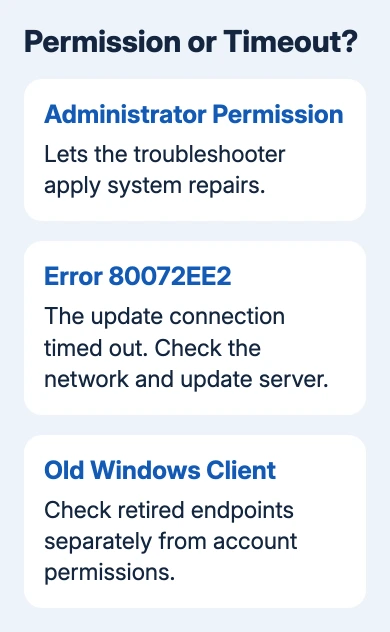
A timeout with Windows Update error 80072EE2 means the server didn't respond. Administrator rights let you run repairs, but they won't fix the connection. Check the network and update source if the code returns.
On an old Windows 7 or Vista machine, the update service itself can also be the problem. Retired update-server addresses and an old corporate update-server setting need different fixes from a missing administrator prompt.
In this guide
1. Start the troubleshooter with the right permission
On Windows 10 or 11, open Get Help. Enter Windows Update troubleshooter in its search box. Follow its automated checks. Approve an administrator prompt, or have the administrator supply their own credentials when Windows requests them.
On Windows 11, open Settings > System > Troubleshoot. Select Other troubleshooters, then choose Run beside Windows Update. On Windows 10, the older route is Settings > Update & Security > Troubleshoot > Additional troubleshooters.
Use Get Help if Settings sends you there. The current troubleshooter steps recommend restarting when the checks finish and then checking Windows Update again.
In Windows 7's Control Panel troubleshooter, choose Advanced > Run as administrator when offered. A repair tool can also ask for permission. Don't download retired Fix it packages from mirrors.
If the latest attempt still returns 80072EE2, note the time it failed and continue. The asker said the old repair tool claimed success while the update still failed. Repeating it with the same result doesn't solve the connection.
2. Compare the network before editing Windows
Open a familiar website to check ordinary internet access. Then retry Windows Update after disconnecting a personal VPN through its app. On an organization network, have IT check the required VPN and proxy instead of removing them.
Try the update on a second trusted network, such as your phone hotspot. Check your cellular allowance before downloading. Keep the PC and package the same so you're comparing connections.
If updates work on the second connection, ask the first network's administrator to check update traffic, proxy timeouts and filtering. A browser loading websites doesn't test every connection the update client makes in the background.
If the computer loses internet access generally, follow the internet connection checks first. If ordinary access works and the update alone times out across networks, inspect the update source next.
Don't disable all firewall protection to copy old forum advice. Report which security product is installed and ask its provider to check the update connection if the network comparison points to filtering on the PC.
3. Check whether updates are organization-managed
Read the Windows Update page for a message that settings are managed by an organization or system administrator. On a work PC, that can be expected. On a formerly managed personal PC, it can mean old settings need to be checked.
Windows Server Update Services, or WSUS, lets an organization provide its own update server. A PC still trying to contact an unavailable internal server can time out even though Microsoft's public websites load normally.
The historical asker saw an administrator-managed message on a standalone machine. An adviser suggested removing Windows Update policy registry entries, but those entries shouldn't be removed from every managed PC.
Ask IT to check the configured update-server address and whether it is reachable from your current network. If the PC was bought used, ask the seller to finish removing it from the former organization's management.
I'd keep the managed-settings message with the error screenshot. Support needs to know which server your PC has been told to contact, along with your account's permission to run repairs.
4. Read the proxy and recent update log
Find Command Prompt in Start. Select Run as administrator, then enter this command to read the proxy setting:
netsh winhttp show proxyCopy the output for support. Direct access (no proxy server) means no static WinHTTP proxy is listed. Have your network administrator check any server address shown; it isn't automatically an unwanted setting.
The update proxy explanation describes how the client can use system and user proxy settings. That's why changing a browser setting alone may leave Windows Update unchanged.
On Windows 7 or Vista, open C:\Windows\WindowsUpdate.log and look at entries from the latest failed attempt. On Windows 10 or 11, run Get-WindowsUpdateLog in administrator PowerShell to create a readable desktop log.
Ask support to check the server address in the log entries around the timeout, especially an internal WSUS address. Share the file privately. It can contain device and network details that don't belong in a public forum post.
5. Recognize the retired-endpoint case on old Windows
Microsoft's SHA-1 endpoint notice lists 80072EE2 among failures older clients can show after the SHA-1 update endpoints were discontinued.
The notice lists the affected older systems and the SHA-2 updates they need. It doesn't say every timeout is caused by SHA-1. For a Windows 11 timeout, check the connection and managed settings, then use current troubleshooting tools.
For Windows 7 SP1, the notice lists KB4490628 for the servicing stack and KB4474419 for SHA-2 support. Match the exact operating system and architecture before asking a technician to check whether those required updates are installed.
The Windows Server 2008 packages aren't for Vista. These prerequisites don't restore current security support either. Ask a technician to plan a supported replacement for a Vista machine.
If a current attempt produces a different number, use the Windows Update error-code guide. If the download now works but installation fails, use the repair for the new code instead of repeating timeout fixes.
What to ask support to check
Open Get Help > Contact Support on a current personal PC, or send the evidence to your workplace help desk. Send the Windows build, exact error, failed KB number, troubleshooter and second-network results, and managed-settings message.
Ask support to check which update server your PC uses and the log entry showing the timeout. For an old Windows PC, ask a technician whether a supported operating system can run on it and how to move your personal files safely.
The Short Version
Approve the repair's administrator prompt, then test the update connection and check managed-server and proxy settings. Old Windows clients can also hit retired endpoints, which administrator rights can't bring back.
Checked November 26, 2026.
 If you have any business, I can build it online