Windows Update error 8020002E means a background transfer lost its connection before finishing. Retry on a steady connection, then check for interfering background software. The code doesn't identify a particular damaged file or update.
Many reports come from Windows 7, Windows 8 and Windows RT. Steps written for those systems don't automatically apply to Windows 11. Fixing the connection also won't restore security support for an unsupported system.
In this guide
1. Retry the download on a reliable connection
Save your work, restart the PC and reconnect to your usual trusted network. Open Windows Update and try again once. If the download starts moving and the package installs, check its entry in update history before doing further repairs.
For Windows 11, open Settings > Windows Update. For Windows 10, use Settings > Update & Security > Windows Update. In Windows 7 or 8, search Start for Windows Update and open the Control Panel entry.
Loading a browser page doesn't test a long update download. Deal with a dropping connection first. Try a better Wi-Fi signal or an Ethernet cable if your PC has a suitable Ethernet port.
If a personal VPN is connected, disconnect it temporarily and retry. Get IT's approval before changing your managed work connection. Don't turn off the Windows firewall as a general download repair.
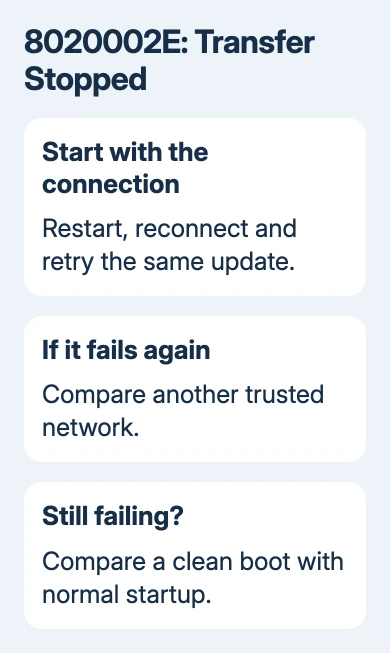
Try another trusted network to see whether your PC still has the download problem. An update that downloads there but repeatedly stops at home gives you something concrete to take to the router provider or network administrator.
An owner cleared this error by restarting. Other replies report failed component resets. I'd compare connections before clearing update folders because 8020002E describes a transfer ending early.
2. Record the update and the Windows version
Press Windows+R, enter winver and note the version shown. Then check Windows Update's history for the failed package, including its KB number, full title and complete error code.
On Windows 11, select Update history. Windows 10 calls the link View update history. In the older Control Panel interface, select View update history and inspect the failed entry.
If several unrelated updates return 8020002E, check the connection they all use. A new code after a package downloads needs its own installation checks; don't keep treating that as the earlier transfer failure.
For a broader code comparison, the Windows Update error guide separates download failures from installation and recovery-partition problems. Keep the exact digits when moving between those checks.
Windows 7, 8 and RT are historical systems. October 2025 ended Windows 10's regular free support; Extended Security Updates are offered separately. Check support eligibility before rebuilding an old update setup.
An old discussion moved into a Windows 11 category can still describe a Windows 7 machine from 2010. The date and the operating system in the replies matter more than the category at the top of that discussion.
3. Let Get Help check updating
Find Windows Update in Windows 11's Settings > System > Troubleshoot > Other troubleshooters and select Run. Follow the Get Help diagnostic when it opens. Retry the failed update after the diagnostic finishes.
On Windows 10, open Get Help from Start and search for Windows Update troubleshooter. Follow its diagnostic.
For an installation with the older tool, open Settings > Update & Security > Troubleshoot > Additional troubleshooters. Choose Windows Update there. Retired tools may redirect to the current help.
If the diagnostic itself won't start, the Windows Update diagnostic launch checks address that separate failure. Repeatedly opening a broken diagnostic won't retry the actual package.
If the diagnostic says it made changes, try Windows Update again. The result you need is a completed download and successful installation, not just a report that a service was restarted.
If it finds nothing or 8020002E returns, continue to the clean boot to check software running in the background. That is especially useful if the problem began after installing a network utility, security suite or another startup program.
4. Compare a clean boot with normal startup
A clean boot reduces the background software that loads with Windows. Microsoft's clean boot procedure supports using it when an update or installer may be blocked by another program.
Search Start for msconfig and open System Configuration as administrator. Open Services, check Hide all Microsoft services, and only then choose Disable all. Select Apply.
In Startup, choose Open Task Manager on Windows 10 or 11. Disable the enabled startup entries, keeping a record of which ones you changed. Close Task Manager, confirm System Configuration and restart.
Windows 7 and Vista keep startup entries in System Configuration. Use selective startup and clear Load startup items. Select Hide all Microsoft services, then disable the third-party services left in the list.
After restarting, retry the same update with those programs disabled. If it installs, another service or app was interfering. Restore entries in groups, restarting between comparisons, until you can identify what makes the problem return.
Afterward, restore the services and startup entries you disabled and restart. Don't leave unrelated software disabled once the update finishes. Leave the advanced boot settings in System Configuration as they are.
If the transfer still fails
Stop retrying obsolete Fix it downloads or registration commands for unrelated errors. Record the results from each connection, the diagnostic and the clean boot. Open Get Help and request update support.
On managed PCs, IT can check whether the update server, proxy or network filter is interrupting the download. For an unsupported home system, ask the PC maker about upgrade eligibility or transferring your files to another computer.
The Short Version
8020002E points to an interrupted background transfer. Compare a stable network, retry the correct update and use a clean boot if background software may be involved. Keep old Windows support limits separate from the download repair.
Checked November 26, 2026.
 If you have any business, I can build it online