A PowerPoint GIF that moves once and stops can have the wrong repeat setting. Changing the file to loop forever fixed this in PowerPoint 2010 for several owners. Edit a copy, insert the repaired GIF and test it in Slide Show.
A picture that never moves needs a different check. Desktop PowerPoint plays animated GIFs in Slide Show; the browser version has a separate limit. Check which of these you're seeing before changing animation effects.
In this guide
1. Test the GIF in the desktop slide show
Open the slide containing the GIF in desktop PowerPoint. On Windows, choose Slide Show > From Current Slide. On Mac, use Slide Show > Play from Current Slide. Leave the slide open long enough to watch a full animation cycle.
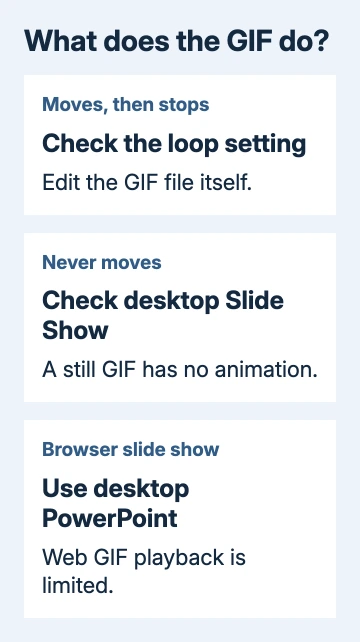
If it moves and then freezes on one frame, continue to the file's loop setting. If it moves normally in Slide Show, the picture is usable even if the editing view doesn't show the same motion.
Microsoft's GIF insertion instructions distinguish desktop playback from PowerPoint for the web, which can't play animated GIFs in its slide show. Check the same slide in the PowerPoint app installed on your computer.
If the whole presentation doesn't advance or opens in a small window, check the slide-show type separately. A GIF's repeat setting won't correct kiosk timing or a windowed show.
2. Keep the original GIF and edit a copy
Find the original .gif file that was inserted into the slide. Copy it under another name, such as butterfly-loop.gif, before editing. Keep the original presentation for a direct comparison of the two versions.
Check that the file really contains several animation frames. A GIF can also be a single still image. Changing a still image's repeat option can't create the missing movement.
For the old PowerPoint 2010 fault, owners found that files which looped in PowerPoint 2007 could stop in 2010. Even when the presentation worked in one version, changing the GIF file could still fix playback in the other.
The successful repair changed how the GIF was saved. It didn't add an entrance effect or make PowerPoint repeatedly bring the picture onto the slide. Those are different kinds of animation, controlled in different places.
I'd repair just one troublesome GIF and compare both copies on a spare slide. If the exported copy loops correctly, apply that change to the other affected images in your deck.
3. Export the GIF with Loop forever enabled
Use a desktop GIF editor that can preserve animation and change looping. In GIMP 3, open the copied GIF through File > Open. An animated GIF opens as several layers, one for each frame.
Choose File > Export As, enter a new filename ending in .gif, and choose Export. In the GIF export options, enable As animation and Loop forever, then finish the export.
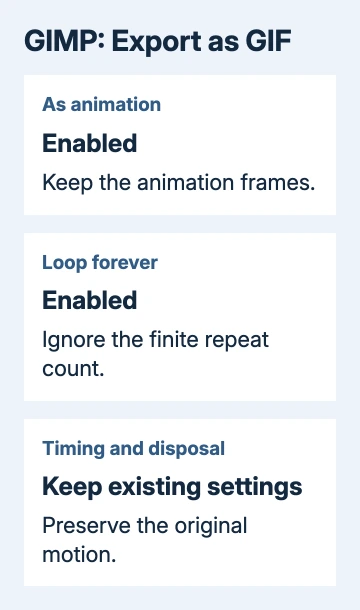
The GIF export documentation explains that Loop forever overrides the finite repeat count. The animation option isn't available when the image has only one layer, so check that the file contains all its frames.
Keep the existing frame delays and disposal settings unless the image itself displays incorrectly. Delay controls the time between frames; disposal controls whether a frame replaces or builds on the previous one.
Changing those options can speed up the animation or leave trails behind moving objects. For a GIF that stops after one cycle, change the loop setting and keep the original motion.
Other editors may call the setting Forever, Infinite or Loop continuously. Choose the unlimited loop option instead of a large repeat count, which might behave differently in an older PowerPoint release.
Owners reported different results with set repeat counts. Some files worked after being resaved with the same number, and another editor showed different repeat information. One owner confirmed that Loop forever restored the animation.
4. Insert the repaired file as a picture
Return to PowerPoint and use a spare slide for comparison. In Windows, choose Insert > Pictures and select the newly exported GIF from your computer. In Mac PowerPoint, use the picture-from-file command and select that same file.
Insert the saved file rather than pasting a preview from a browser or image editor. The clipboard may carry one frame instead of the animated GIF you just exported.
Start Slide Show from that slide and wait for at least two complete cycles. If the repaired copy keeps moving while the original stops, replace the original object with the repaired one and save the deck under a new name.
If the image stops again, open the exported GIF back in the editor and check that it still has multiple frames and Loop forever enabled. That catches an export saved as a single picture instead of an animation.
Keep size, cropping and position changes separate until playback works. Adjusting the file and slide together can hide which change helped, especially if you reinsert the unchanged original by mistake.
5. Skip the fixes that target something else
The Animation Pane doesn't control a GIF's internal frames or its stored loop count. Repeating a slide entrance effect isn't the same as repeating the moving butterfly or snowfall inside the GIF.
In the original report, changing compression and reinserting the file had failed. Neither action changed the GIF's saved loop behavior. Reusing that same source puts its old animation instructions back into the slide.
A video object has different controls. If selecting the item shows video playback options, follow the PowerPoint media checks for that object rather than looking for a GIF export setting.
The loop-setting fix worked in PowerPoint 2010, but current playback problems can have other causes. Test a second known animated GIF on a blank slide. If both fail, check your PowerPoint app and how you're playing the slide next.
When an exported GIF still won't loop
For current Office on Windows, use File > Account > Update Options > Update Now. On Mac, use Help > Check for Updates, or the App Store's Updates area for a copy installed there. Then repeat the single-slide playback test.
If it still fails, send Office support a small deck with both GIFs, your PowerPoint version and the Slide Show result. Ask them to check why GIF playback stops and whether PowerPoint reads the saved loop setting.
For an old PowerPoint 2010 deck, keep the original and test a copy in a supported desktop release. Reinstalling obsolete GIF utilities isn't necessary when a current editor can save the animation correctly.
The Short Version
Test in desktop Slide Show, then export a copy of the GIF as an animation with Loop forever enabled. Insert that saved file as a picture and watch more than one cycle. PowerPoint's Animation Pane doesn't change a GIF's loop count.
Checked November 26, 2026.
 If you have any business, I can build it online