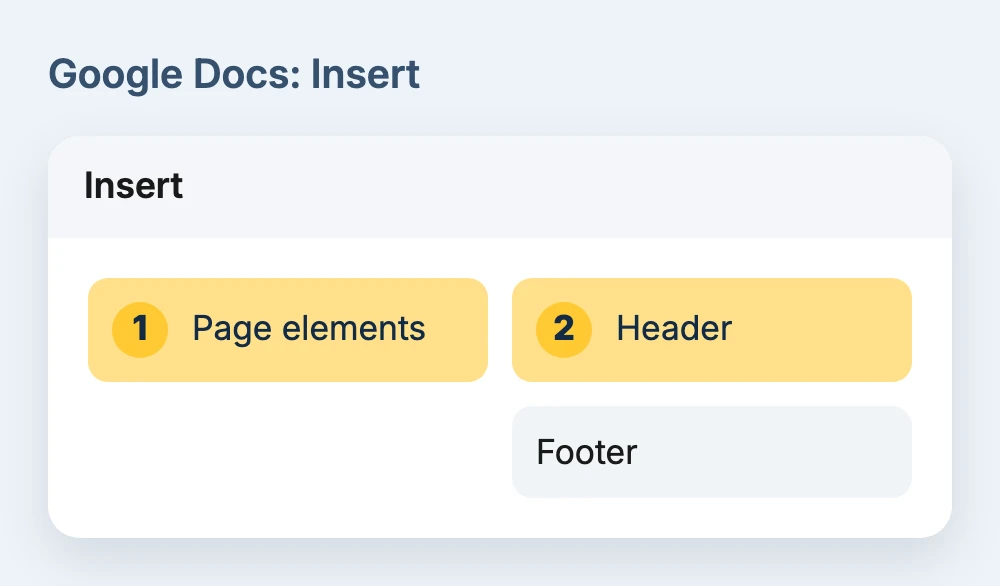
To add a repeating header on a computer, open Google Docs and choose Insert > Page elements > Header. The document must use Pages format; Pageless hides headers and doesn't let you add them.
For a title that appears only at the document's beginning, type it in the document body instead. A header is the separate area at the top of the pages, useful for a name, report title, or other repeating text.
In this guide
Put the document in Pages format first
Choose File > Page setup, select Pages, and click OK. Keep Pageless only for a continuously scrolling document that doesn't need headers or page numbers.
Switching to Pageless hides existing headers and footers. It doesn't mean the text was erased. Changing back to Pages shows the headers and footers again.
Check the page format first when header controls disappear. It also explains why a shared document can look different after somebody changes its page format.
Check which file you're editing too. If you started with an upload, open the Word document in Google Docs and decide whether you're keeping that file format or making a separate Google document.
Insert the header and type its contents
Google's current header and footer instructions show the menu inside Insert > Page elements. Use Header for the top area or Footer for the matching area at the bottom.
- Load the file in Google Docs on your computer.
- Click Insert at the top left.
- Open Page elements and choose Header.
- Type the text you want in the header.
- Click back in the document body to continue writing.
Move to another page to check whether the text repeats as intended. If you typed into the first paragraph instead, the words will behave like ordinary document content rather than occupying the header area.
Keep the header brief enough to fit comfortably. A full paragraph can crowd the page's top area, making it harder to distinguish the report's repeating label from its actual content.
I'd add the repeating text before adjusting its spacing. It's easier to judge the margin when the real name or report title is already in place, rather than an empty header area.
Give the first page a different header
Click inside the header and select Different first page. Your document or section can then use a different header and footer on its first page.
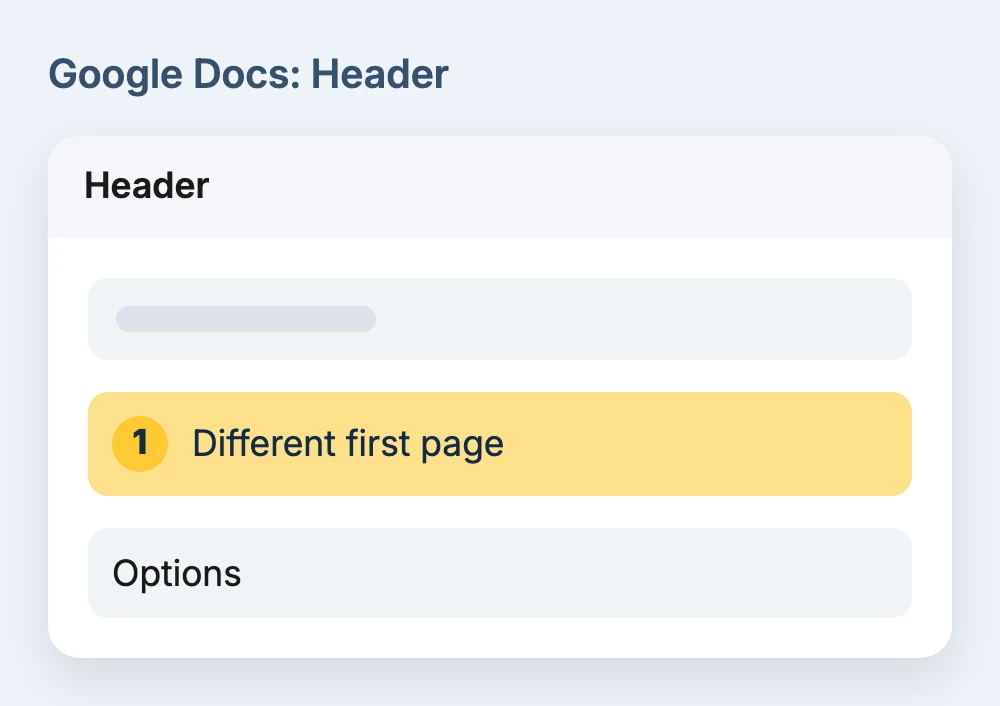
Use it when a cover page should stay clean but the following pages need a report title. Check both the opening page and the next page after selecting it; they now have separate places for the header text.
Different first page can leave the header on page one empty. Check that option when the repeating text should start on the opening page, before inserting another header.
This isn't the same as making every page different. For a new chapter with its own repeating label, use a section break and the section controls rather than typing a replacement into a linked header.
Make a later section use its own header
Put the cursor where the new section should begin, then use Insert > Break > Section break. Choose the break that suits the layout, such as starting the section on the next page.
Click the header in the new section. Turn off Link to previous before entering text that should differ from the earlier section. If that option isn't available, check whether you added a section break rather than an ordinary page break.
A page break moves content onto another page. A section break also lets a section have its own header. Without a separate, unlinked header, editing a chapter name can change the headers on earlier pages too.
After entering the new header, inspect one page in the earlier section and one in the new section. The old title should remain in the earlier section while the new title appears where you intended.
For a document with several chapters, check the headers where each chapter starts. Don't assume that a new page automatically has an independent header simply because it starts with a chapter title.
Use alternating headers or adjust the spacing
For alternating page layouts, click the header, choose Options, set Apply to to Whole document, then choose Different odd and even and click Apply. Check an odd page and an even page after entering their text.
Use this when you need different information on facing pages. A short report with the same label throughout can keep its simpler repeating header.
To adjust the header margin, click in the header and open Format > Headers & footers > More options. Under Apply to, choose the section you want to change or the entire document, enter the margin size, and click Apply.
That setting controls the header or footer margin. Leave the paper size and other layout settings as they are. Make one spacing change, then inspect the result before changing another.
To remove the header, double-click its area and choose Options > Remove header. Deleting the text and removing the header are different actions, so use the removal command when the header itself should go.
Add repeating text from a phone or tablet
For an Android phone or tablet, load your document using the Docs app, then tap Edit. Open More and turn on Print layout. Tap the header area and enter the text you want.
Using an iPhone or iPad, load your document with the Docs app, then tap Edit. Open More and enable Print layout. Tap the header or footer area and type there.
Print layout lets you reach the header and footer areas in the mobile app. If a scrolling document still doesn't offer them, check that the file uses Pages rather than Pageless.
Use a computer when you need to unlink sections, alternate headers, or adjust margins carefully. A larger screen helps when comparing sections and checking which page you're editing.
If edits won't appear after reopening the document, first confirm that the correct file and account are open. For work without a connection, prepare offline access before relying on local edits.
If header controls are still missing from a Pages file you can edit, post the device, app or browser version, and missing menu to the Docs Help Community. Include whether the file is a Google document or a Word upload.
The Short Version
Switch to Pages, then choose Insert > Page elements > Header and enter the repeating text. Use Different first page for a cover page, and unlink a new section before giving it another header. In the mobile app, enable Print layout first.
Checked November 29, 2026.
 If you have any business, I can build it online