Google Docs changes the paper color through File > Page setup > Page color. For a document without page breaks, choose Pageless in the same dialog and change Background color instead. Neither setting changes text highlighting.
Choose the format before picking the shade. A report with headers, page numbers, or a printed layout needs Pages; a continuously scrolling document can use Pageless.
In this guide
Choose the page format that matches your document
In the desktop editor, choose File > Page setup. The dialog has Pages and Pageless choices at the top. Choose the format your document needs, rather than switching just to reach a color picker.
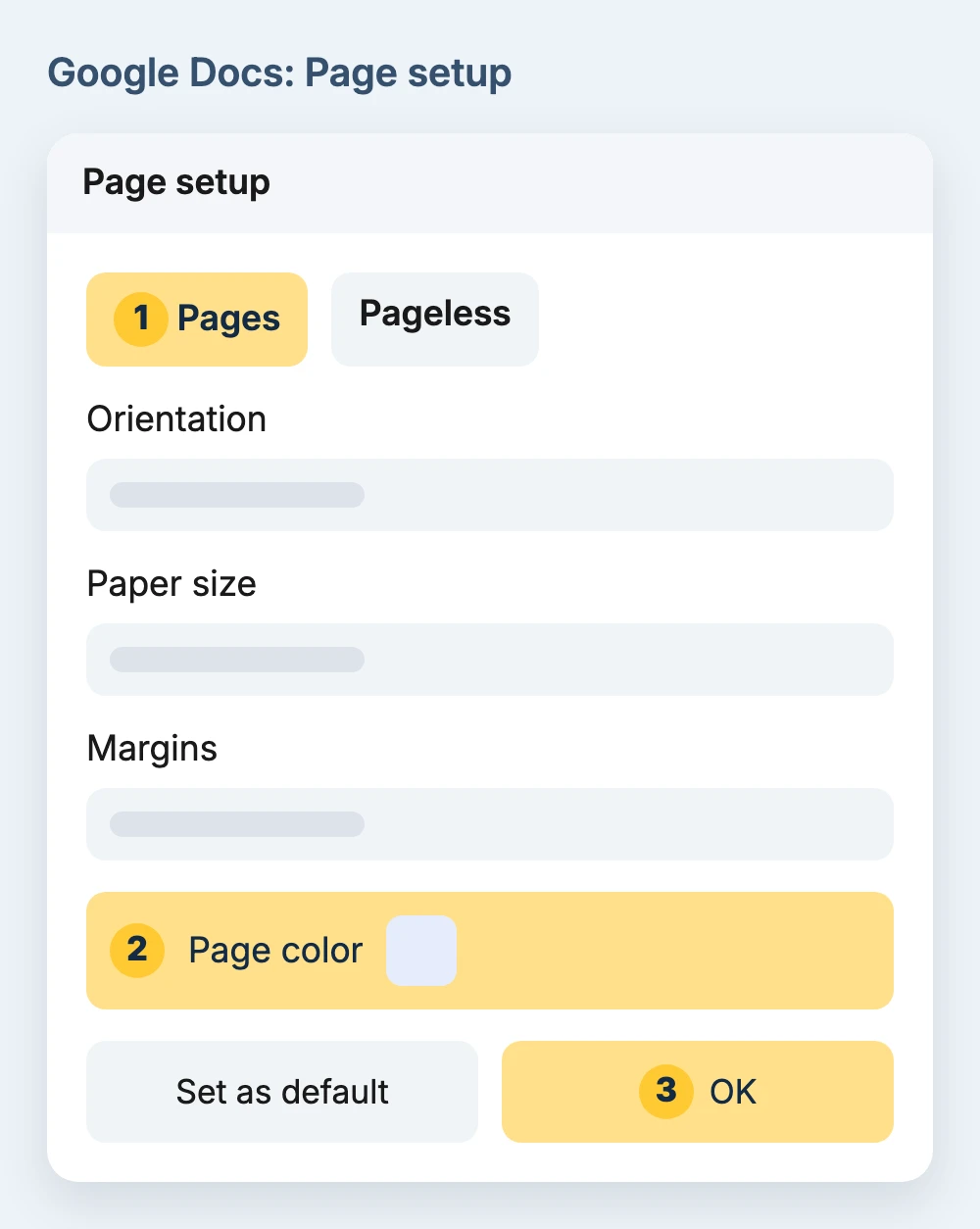
Pages keeps separate sheets of paper, with page margins and a defined paper size. Pageless lets text flow as the window changes size. Its background color applies to that continuous view.
Existing headers and footers disappear in Pageless, then become visible again when you return to Pages. Keep that in mind for a report with a school heading or company footer.
Changing the color edits the document, including a file you share with other people. For a personal experiment, work in a copy rather than changing the version your group is preparing to submit.
Change the paper color on a computer
Google's page setup instructions list the color picker alongside orientation, paper size, and margins. The route is the same in a desktop browser on Windows, Mac, or Chromebook.
- In Google Docs, load the document whose page color you want to change.
- Select File > Page setup.
- Select Pages at the dialog's top.
- Open Page color and choose a shade.
- Click OK to apply it.
The paper area should take on the chosen color. Look at an empty area of paper as well as the space behind your words. If the color only appears behind individual words, you changed highlighting rather than the page color.
Choose a background that keeps your text easy to read. Black text that looked clear against white paper can be hard to see against a dark shade. I'd start with a pale color for a document other people will read or print.
Leave the paper size, margins, and orientation alone unless those also need changing. They share this dialog, but changing a background doesn't require turning a portrait report into landscape or altering where its text wraps.
A Word upload can also bring its own formatting. After you open the Word document in Google Docs, check which file you're editing before applying changes to the version you plan to share.
Use Background color for a pageless document
For a scrolling document, open File > Page setup > Pageless and change Background color. Confirm with OK. This changes the background of your scrolling document rather than giving it separate colored pages.
Use this option for notes or a working document that doesn't need a fixed printed layout. Don't switch a finished report to Pageless just because its color control has a different name.
Pageless also has a separate View > Text width setting. Narrow, medium, or wide changes how much horizontal space the text uses in your view. It isn't a background control, and your width choice doesn't change your collaborators' views.
If the document seems to have lost its page divisions, revisit Page setup and choose Pages. Color and page format solve different problems: one changes appearance, while the other controls whether the document has individual pages.
Find Page color in the mobile app
The mobile controls are in the Google Docs app. Open your file there and enter its editor instead of staying in a Drive preview.
On Android, tap Edit if needed, then More > Page setup > Page color. Choose the color. The app's Page setup screen is also where orientation and paper size controls live.
On iPhone or iPad, tap More > Page setup > Page color, then select the shade. Review the changed page before closing the file.
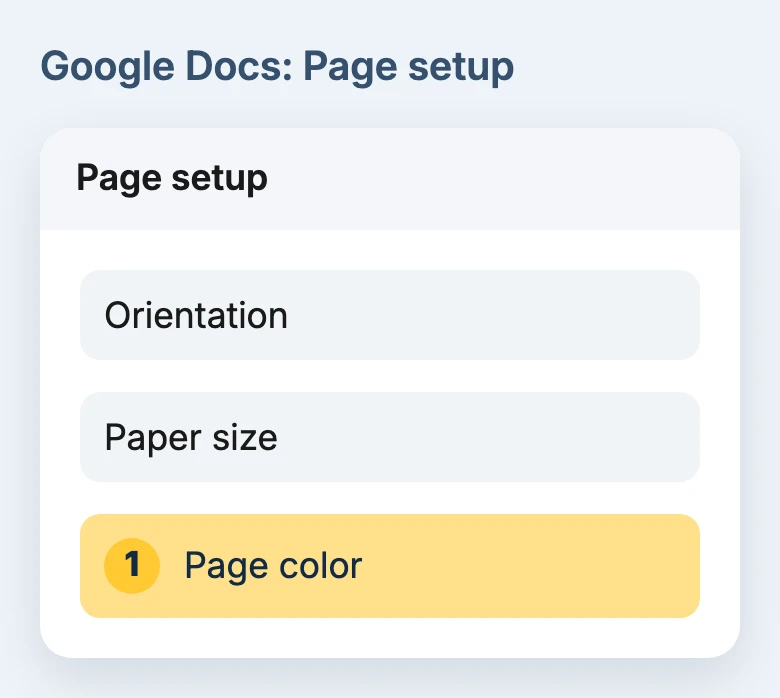
These are page color steps. If the file is pageless and the controls don't match, use a computer to review its format and background setting together. You can check both settings there without hunting for a desktop menu in the phone app.
When several documents are open, check the file title before making the change. A copied file and its original can look identical on a small screen, especially when they contain the same opening paragraph.
Separate page color from text highlighting
Highlighting colors selected text. Page color changes the sheet or document background. Changing either can leave the other in place, so look closely at whether the color stops at the end of each word.
For an all-page change, return to Page setup. For a few marked words, use the text formatting controls instead. This distinction saves you from selecting an entire document and accidentally changing its text formatting.
The browser's surrounding interface is a third area. A document's page color doesn't mean every toolbar and panel will use the same shade. Check the color in the document itself, where your text appears.
For work you need while traveling, set up Google Docs offline access before disconnecting. Background formatting and offline availability are separate settings.
Keep the change, undo it, or set a default
To return to a plain document, reopen the same color control and choose white. Use the Pages control for a paged file and the Background color control for a pageless one.
On a computer, Set as default in Page setup applies the chosen setup to new documents you create. Choose it when you want to use that setup for future files too. A one-off colored worksheet doesn't need a new default.
Before submitting or printing, review the final copy in the format your recipient will use. If an editable desktop file still has no page controls, post its file type, Pages or Pageless setting, and device to the Google Docs Help Community.
The Short Version
Use File > Page setup > Pages > Page color for colored paper. Use Pageless > Background color for a scrolling document. On a phone, open More > Page setup > Page color in the Docs app, then check the actual document area.
Checked November 29, 2026.
 If you have any business, I can build it online