OneNote error 0x2 means it can't access a section file or an attachment at the location it expects. Reopening the notebook restored syncing for one owner, but first save any notes that haven't reached the online copy.
A moved notebook, changed permissions or one unavailable section calls for a different check. Start with the notebook's real location so you don't reconnect to an older copy that happens to have the same name.
In this guide
1. Protect recent notes before reconnecting
Keep this notebook open and compare its newest pages with another available copy. Save important text in another document, along with any readable attachments missing from the other copy.
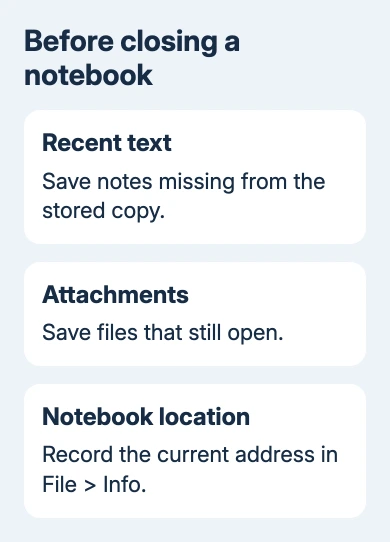
Closing a notebook that hasn't synced can lose local changes. A page still visible in the app can be the only copy of your latest work, so save that work before reconnecting the notebook.
These Windows steps use the desktop OneNote app with a File tab. The retired Windows 10 OneNote app has different controls; its support ended in October 2025. Don't look for desktop export menus inside that retired app.
In desktop OneNote, File > Export can save an available page, section or notebook, depending on the selected export format. Save an extra copy where you can find it and check that the export opens before relying on it.
An export can't include content the app can't read. If a section won't open at all, save the pages you can still read, then check where the missing section is stored.
2. Check the notebook at its actual location
Open File > Info and find the affected notebook. Read its location and, for an online notebook, copy the address shown for that notebook. Use that address rather than searching for a different notebook sharing that title.
Visit the copied address using a browser. Open it with the owner's account, or with another account invited to edit this notebook. Check your actual notes after signing in; a public sign-in page can't show whether the section is present.
If the online notebook opens and contains the section, the saved copy is available. If its latest pages are also present, you can reconnect the desktop app using the next section's steps.
If the browser reports that access is denied, ask the owner to confirm your edit permission and send the current notebook link. Reopening an old address won't restore permission that the owner removed.
For work or school notes, ask IT about changes to the notebook's SharePoint location. Give them the address from File > Info and the exact error. They can check both the saved notebook and your permission to open it.
For a notebook on a local or network folder, check that location in File Explorer. An unreachable network folder needs its connection repaired; a cloud notebook that opens online has a working stored copy.
3. Reconnect to the available notebook
One owner reported that closing and reopening their affected notebooks made them sync again. Microsoft's OneNote sync guidance also uses reopening to reset a notebook's sync connection.
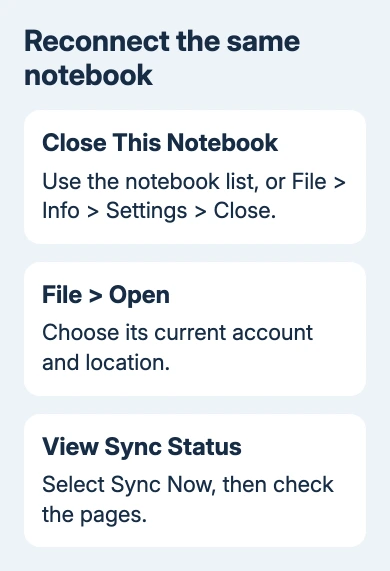
- In desktop OneNote, select File > Info and find the affected notebook.
- Select Settings, then Close for that notebook. Alternatively, use the notebook name's right-click menu, then Close This Notebook.
- Select File > Open, choose the correct account or storage location, and reopen that notebook.
- Return to the section that failed earlier. Check whether its pages now load.
If it isn't listed, return to the notebook's current online address and use Open in Desktop App when available. This reconnects to the stored notebook rather than creating an empty notebook with an identical name.
Under File > Info, open View Sync Status. Choose Sync Now for the reopened notebook. Wait for the result, then check the actual pages as well as the status message.
When the section opens and its latest edits reach the online copy, the connection is working again. If error 0x2 remains, check whether the failure affects the whole notebook or only one section or attachment.
4. Separate an attachment problem from a missing section
Open a second page from this section, followed by a page from a different section. Record which items fail. If only one attachment won't open, don't start by closing every notebook or changing all your account sign-in details.
For a file link, check that the original file still exists at the linked path and that your account can open it. A link to another PC's local folder won't become available simply because the note containing it synced.
An embedded attachment is a copy stored in the notes. If it fails on one device but opens in another current copy of the notebook, save the readable attachment separately before asking support to repair the inaccessible copy.
When one whole section fails, compare that section with the online version. If its pages remain readable locally, create a section for copied pages, then verify that section's sync result before you stop using the old one.
Don't delete an unreadable section to remove its error message. The error doesn't tell you whether another usable copy of those notes exists.
The separate OneNote corrupted-section recovery covers an explicit damaged-cache warning. Error 0x2 alone isn't a reason to clear OneNote's cache.
5. Recover an older copy when the stored file is gone
If the owner confirms that the original section or notebook was removed, check available backups and deleted-note recovery. Desktop OneNote's File > Info > Open Backups only helps when a backup was created before the loss.
Open the backup section, review its pages and dates, then use Move or Copy to copy the needed notes into a working notebook. A backup from last week won't contain edits made yesterday.
For deleted pages, the OneNote deleted-notes guide explains the recovery route. Use that route for missing content rather than repeatedly reopening an address that no longer contains it.
If the section is absent from storage and backups, keep the remaining local copy unchanged. Ask Microsoft support or the administrator responsible for that notebook to check its storage location and your access.
Include error 0x2, the notebook address, which section or file fails, and whether the same item opens online. With those details, support can separate an outdated connection from a missing file or permission problem.
The Short Version
Save unsynced notes, check the current location and access, then reconnect the notebook. Recover an unavailable section or attachment from a readable copy or backup rather than clearing OneNote's stored data.
Checked November 26, 2026.
 If you have any business, I can build it online