A DirectX or Media Player error in OneNote points to Windows media components, even when other apps can use the microphone. Check those components first if recording won't start. A clip that records silence needs a different repair.
Don't download DirectX 8.1 or Media Player 8 just because the error names them. Check your Windows edition, use the supported media components for that edition, and repair OneNote if recording still won't start.
In this guide
1. Separate a recording error from a silent recording
Open a new page in desktop OneNote and try its recording command. In OneNote 2016, look on Insert for Record Audio or Record Video. Current versions may put the commands on Home, with audio recording inside Transcribe.
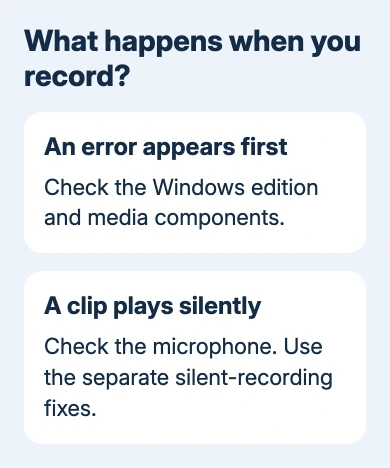
When recording starts, a media icon appears on the page. Select Stop, then select that icon and Play to check the result. An error before that icon appears means recording never began. A completed silent clip needs another repair.
If you get a recording with no audible voice, use the OneNote silent-recording guide. It covers the selected input, mute settings and problems with a particular page. Those checks make more sense when recording already starts.
For the requirement error, save the complete error and note your OneNote version from File > Account > About OneNote. Note whether the recording command is grayed out or an error appears after you select it.
The original OneNote 2016 report already had DirectX 11.2. Its microphone and camera were detected, and Skype could record. That old DirectX 8.1 message didn't mean they needed to install an ancient version of DirectX.
2. Check for a Windows N edition before adding media features
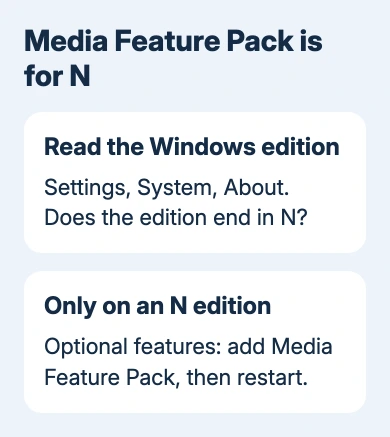
Open Settings > System > About and read Edition under Windows specifications. Windows 11 Pro N and Windows 10 Pro N, for example, omit media technologies included with the ordinary editions.
Microsoft's Media Feature Pack instructions provide the supported way to add those components to Windows N. The pack adds what Windows N leaves out. Other Windows editions don't need it.
On Windows 11 N, search Start for Optional features and open the Settings result. Select View features beside Add an optional feature, search for Media Feature Pack, select it, and follow the installation prompts.
On Windows 10 N, open Settings > Apps > Apps & features > Optional features > Add a feature. Find Media Feature Pack and install it. Use the pack offered by Windows for that installed version.
Restart after installation, even if the feature appears installed before you restart. Then reopen OneNote, create a new page, and try a short recording. The restart is part of installing the missing media support.
Skip this pack when N isn't part of the edition name. If the pack is missing or won't install on Windows N, send Windows Support or IT the build and feature error. Avoid packs meant for another release.
3. Check Windows access if OneNote can't open the microphone
On Windows 11, open Settings > Privacy & security > Microphone. Turn on Microphone access. The Let apps access your microphone switch must also be on. For desktop OneNote, also turn on Let desktop apps access your microphone.
On Windows 10, open Settings > Privacy > Microphone. Turn on access for the device and for apps. Then turn on Allow desktop apps to access your microphone. Desktop access has its own switch apart from Store apps.
Check Camera permissions for video too. A webcam with a microphone can need both sets of controls. If your organization controls a switch, ask IT to allow access rather than changing registry policy settings yourself.
Restart OneNote after changing access and try a fresh recording. If the media requirement message still appears, continue with the app repair. Allowing microphone access won't add missing media components.
If the microphone fails in every recording app, use the Windows microphone guide to check the input and device first. Reinstalling OneNote won't repair a microphone that Windows can't use.
4. Repair the Office installation when media support is present
Before repairing Office, check that your notebooks have synced. Save any notes stored solely on this PC. Then close your Office applications so the repair can replace their files.
On Windows 11, open Settings > Apps > Installed apps. Locate the suite containing OneNote, open its menu, and select Modify. On Windows 10, select the product in Apps & features and choose Modify.
For a Click-to-Run installation, try Quick Repair first, then reopen OneNote and check recording.
If recording still fails, use Online Repair with an internet connection. This repairs Office, not just the open notebook.
Office installations that use an MSI installer have a different repair window. Use its Repair option and finish the prompts. If OneNote is installed separately, choose its own installed-app entry rather than an unrelated Office version.
I'd keep the error screenshot until repair finishes. The original asker saw no improvement from the longer Office repair. Give support that result if it fails for you too, rather than repeatedly running it.
5. Have disabled controls or a persistent error checked
For disabled recording controls on a managed computer, ask IT whether an Office policy blocks audio or video recording. Provide the OneNote version and a screenshot showing the disabled command.
A later owner said changing a registry policy restored recording, but their saved reply doesn't show the values needed to repeat it. Don't copy a partly shown registry recipe or delete the entire Office policy branch.
If the error persists, send Microsoft 365 Support your Windows edition, build, OneNote version, message and repair results. Say whether other apps record. Ask them to check the media components and policies OneNote needs for recording.
The Short Version
Add Media Feature Pack only to an N edition, then restart and retry. Check desktop microphone access and repair Office if needed. Once recording starts but plays silently, switch to the input and mute checks.
Checked November 26, 2026.
 If you have any business, I can build it online