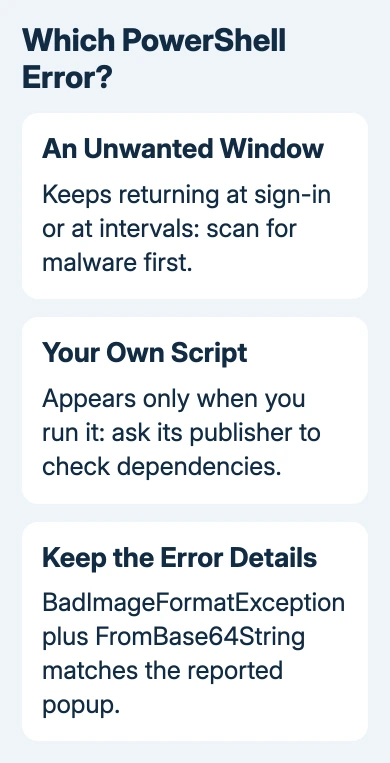
A repeating PowerShell popup with BadImageFormatException and FromBase64String needs a malware scan first. Malwarebytes cleanup stopped this exact post-22H2 popup for owners whose Windows repair commands hadn't helped.
A failure only when you run your own script can involve incompatible components. Use these checks when a window keeps opening on its own. The exception name alone doesn't identify the same problem.
In this guide
1. Run a malware scan for the unwanted popup
Open your installed Malwarebytes app and run a scan. Review the detected items and quarantine the threats it reports. Allow a requested restart, then sign back in and leave the PC running past the time when the popup usually returns.
The asker confirmed cleanup stopped the window. One owner also succeeded after Microsoft scans had failed. A different scan can therefore help even when an earlier one detected nothing.
Use the genuine application from its publisher if it isn't already installed. On a company PC, ask IT to run the approved malware tools instead of installing a second security product yourself.
Record the detection names and save the scan report. Check that cleanup finishes and the window stays gone after you restart. A scan finishing without an error doesn't tell you whether the popup has stopped.
Don't copy the encoded command from the popup into a new PowerShell window. An encoded command is still executable code. Running it again won't safely explain what started it.
If you need another approved scanning option, the ESET second-scan guide explains how that scanner is used. The owners who stopped this particular popup used Malwarebytes, so don't assume ESET will give you the same result.
2. Use Windows Security and inspect the results
Open Windows Security > Virus & threat protection. Check for protection updates, then open Scan options and choose Full scan. Select Scan now. Once scanning finishes, inspect Protection history.
Microsoft's Windows Security scan options also include an offline scan. It runs after a restart, outside the normal Windows session, which can help with threats that hide while Windows is running.
For a persistent popup, save open work, return to Scan options, choose Microsoft Defender Antivirus (offline scan) and start it. Windows restarts for the scan and returns afterward. Its result is available in Protection history.
A clean report doesn't tell you what's launching the command. If the window returns, keep the results and continue to the startup check. Leave protection enabled and keep PowerShell out of the exclusions list.
A PC with another antivirus product may show different protection controls. Use its supported scan procedure, or have IT handle the checks on a managed device. Running a second scan doesn't require disabling the existing protection.
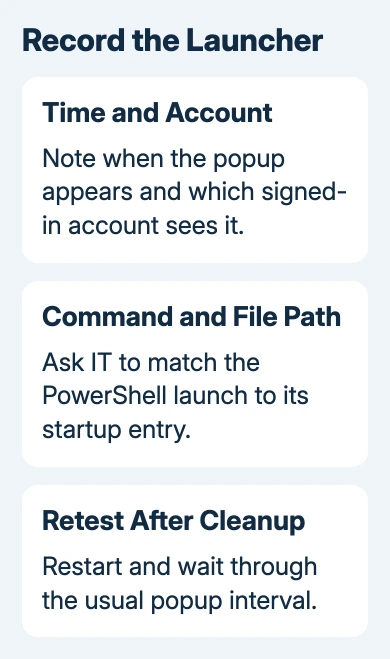
3. Record when the window starts and which account sees it
Note whether it happens at sign-in, after opening one program or at a regular interval. The original discussion included a popup roughly every fifteen minutes and a report that another Windows account wasn't affected.
Those details help narrow down what's starting the window. They aren't a reason to delete a user profile as the first fix. Malware or an unwanted startup command can be registered for one account while other accounts appear unaffected.
Write down the visible error names: BadImageFormatException, System.Reflection.Assembly, and FromBase64String. If a screenshot is possible before it closes, save it for support without running any command shown in it.
The error said PowerShell couldn't load an assembly, a package of program code, because its format was wrong. It didn't identify Windows Update as the cause. Reinstalling PowerShell wouldn't remove a command that keeps launching it.
The asker had already tried updating PowerShell 7.2, Windows repair commands and an update troubleshooter. Those attempts didn't stop this popup. I'd examine what starts the command before replacing more Windows components.
4. Inspect the launch entry without deleting tasks by name
If you already use Autoruns, run it as administrator and inspect its Logon and Scheduled Tasks tabs. Look at the command line and file path for an entry that launches PowerShell around the recorded time.
Autoruns can show startup locations that Task Manager's Startup apps list doesn't cover. Its checkboxes let you disable an entry without deleting the configuration. Record the entry's full details first to help you restore it later.
Use this step with IT or a technician when the command isn't clearly yours. PowerShell also runs legitimate administration and application tasks, so seeing that program name doesn't make an entry unwanted.
After disabling an entry you've confirmed is unwanted, restart and watch for the same window. Keep the malware report as well, since stopping a launch entry doesn't remove every file the scanner may need to quarantine.
One participant suggested deleting two scheduled tasks but hadn't restarted to confirm success. That's too little information to pick tasks on your PC. Don't search for that person's task names and delete whatever happens to match.
5. Trace the parent process when scans don't stop it
A technician can use Process Monitor to capture the next occurrence and examine its process tree. The parent process and command line can identify the task or program launching PowerShell, even when the window disappears quickly.
Keep that trace private when sharing it with support. It can contain file paths and account details. Ask the technician to compare the PowerShell launch events with the scan reports, rather than treating every warning as the cause.
If the error happens in a script you chose to run, have its publisher check component formats and the software the script needs. 32-bit PowerShell confusion can affect available commands; it doesn't explain the unwanted encoded popup.
Ask IT or Get Help to identify the program launching the encoded command if the window persists. Supply its screenshot, timing, affected account, scan detections and process trace so they can examine the launcher.
The Short Version
Scan and quarantine threats first for the repeating encoded PowerShell popup. If it returns, record its timing and check the startup launcher with support. Reinstalling PowerShell doesn't remove a scheduled command that keeps launching it.
Checked November 26, 2026.
 If you have any business, I can build it online