An accessory-not-supported warning can mean damage, an incompatible accessory or a dirty iPhone port. Disconnect it, unlock the phone, then reconnect. For a new accessory, check that its maker supports your exact iPhone model.
A request to unlock the phone is different from a compatibility warning. Unlocking grants access; a compatibility warning means checking the accessory and connection. A warning with nothing connected needs a service check.
In this guide
1. Reconnect once and read the message that returns
Remove the accessory from the iPhone. Unlock the phone with your passcode or usual unlock method, then reconnect the accessory. If the connection now works, leave the security settings alone.
An unlock request can appear when your phone connects to a computer or another device that exchanges data. It doesn't mean the cable is defective. A USB power adapter can charge a locked phone without that data access.
Apple says an accessory warning can involve damage, unsupported equipment, certification or the phone's connector. Reconnecting clears the alert in some cases, but a returning warning needs the next checks.
Write down which accessory triggers it and whether the alert appears immediately or only when the cable moves. That helps the accessory maker understand what's happening without asking you to repeat every test.
If the phone simply won't charge and doesn't show this warning, follow the iPhone charging checks. A charging pause, charge limit or empty battery needs a different explanation.
2. Match the accessory to your iPhone and connector
Check the accessory's packaging or instructions for the supported iPhone models and required iOS version. Even with a matching plug, the accessory might not work. Check that it supports the task you need.
An iPhone 15 or later uses USB-C; earlier iPhones use Lightning. Compare the accessory's stated connector and any adapter in between. Ask the manufacturer whether that complete combination works with your model.
For a Lightning accessory, check that it is supported and properly certified for the intended use. For a USB-C device, check its iPhone compatibility rather than expecting a Lightning certification label to answer that question.
If the accessory has never worked with this phone, confirm that they're compatible before buying replacement cables. Give its maker both model names and the adapter details. Ask which connection works and what power it needs.
If the same warning happens on an iPad, use the iPad accessory checks. Its USB-C, Thunderbolt and Smart Connector combinations can differ from an iPhone's connections.
3. Inspect the plugs and compare a working accessory
Look at the disconnected cable ends and the phone's connector in good light. Check for debris, bent parts or visible damage. Gently clear loose debris as directed for the device; stop if the plug won't seat without pressure.
Take the case off if its opening prevents the plug from seating fully. Connect the accessory directly when its instructions allow it, so an unnecessary adapter or hub isn't part of the first comparison.
Try a compatible accessory or known-working cable. Keep the task and phone the same, changing just one connection part. If the replacement works but the original keeps triggering the alert, tell the accessory maker.
If several compatible accessories fail on this iPhone but work on another supported device, have the phone checked. Support can use that result to plan the next test. It can't tell you which internal part has failed.
I'd try a borrowed compatible cable ahead of buying adapters. Replacing several parts at once costs more and leaves you unsure which connection caused the warning.
4. Handle an unlock request through Wired Accessories
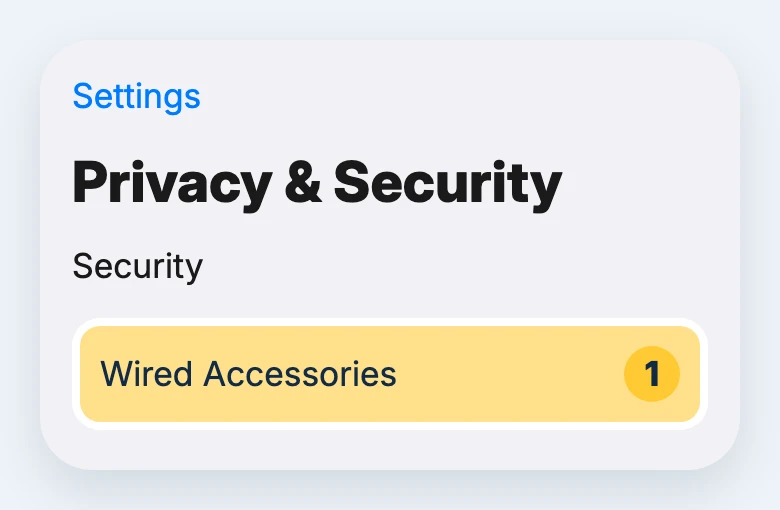
For the current settings layout, open Settings > Privacy & Security > Wired Accessories. USB-C and Lightning have different choices. Keep the setting that requires you to unlock the phone unless your accessory needs a different option.
USB-C iPhones offer Always Ask, Ask for New Accessories, Automatically Allow When Unlocked and Always Allow. A prompt under either of the first two choices is expected, so approve the accessory you recognize.
Lightning models offer a choice that requires unlocking and Always Allow. Older iOS layouts can place the accessory control elsewhere; use your phone's available options; the list differs between iOS versions.
The wired-accessory access instructions also require unlocking for storage accessories. Changing an access preference won't make unsupported hardware compatible or repair a damaged cable.
On a supervised work or school iPhone, an administrator can control this setting. Ask IT whether that accessory is allowed. Repeatedly changing other privacy controls won't override the organization's policy.
5. Install required software, then check for service
Some accessories need a newer iOS version. Compare the maker's minimum requirement with Settings > General > About, then check Settings > General > Software Update for an available supported update.
Save an iPhone backup before that installation. Once the update finishes, reconnect the accessory while the phone is unlocked. Try the task you bought the accessory for and check that the warning doesn't return.
If a liquid-detection alert appears instead, follow the connector drying instructions. Disconnect the cable and let the connector dry; don't treat that message as a request to bypass an accessory permission.
If the unsupported-accessory warning appears with every accessory removed, arrange service through Apple Support. Tell them nothing is connected. The support instructions list that as a reason your phone might need service.
If only one accessory triggers the warning, tell its maker your iPhone model, iOS version and which replacement worked. Ask them to confirm compatibility or check whether it needs replacing. Don't erase your phone to test a cable.
The Short Version
Reconnect with the iPhone unlocked, check exact compatibility, and compare the connector with a working accessory. Treat unlock permission and liquid warnings separately. A warning with nothing attached needs a service check.
Checked November 27, 2026.
 If you have any business, I can build it online