PowerPoint's Presenter View crash on Mojave 10.14.1 was fixed in version 16.20, build 181208. Update a 16.18-era installation first. For an urgent presentation, an owner restored Presenter View by restarting without the external monitor.
This is a specific old Mac fault: PowerPoint hangs or closes when entering Presenter View or changing slides. If the notes stay on the previous slide, or you're using a recent PowerPoint version, the cause needs a separate check.
In this guide
1. Check the PowerPoint build before changing the file
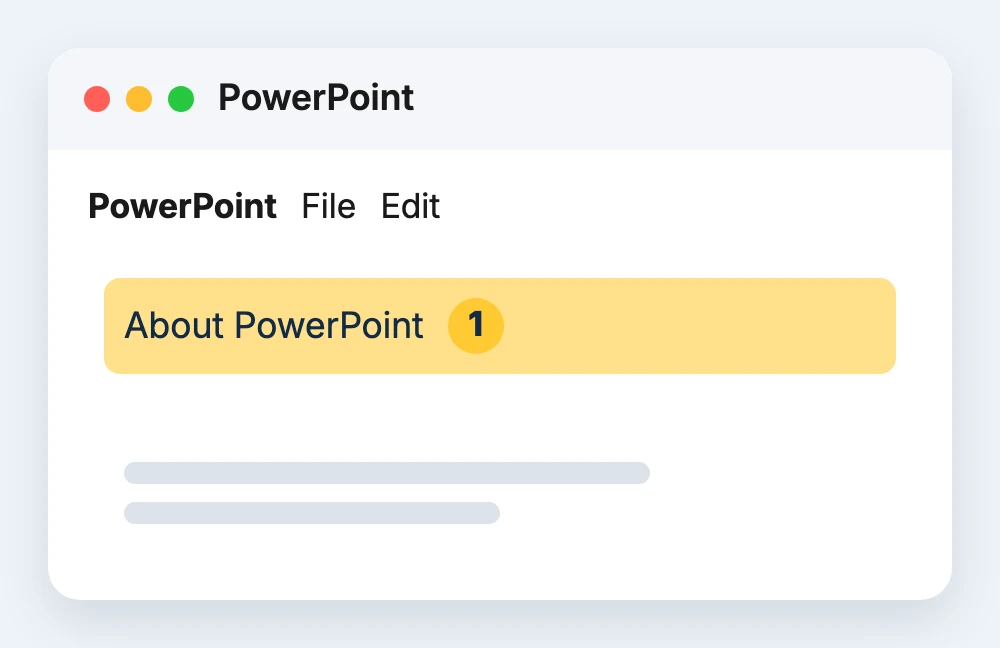
Open PowerPoint without starting the show. Choose PowerPoint > About PowerPoint from the menu bar. Note the version along with its build number. Then open Apple menu > About This Mac to check the macOS version.
The original reports involved macOS 10.14.1 Mojave with PowerPoint 16.18, 16.19 and an early 16.20 Insider build. The fixed release was 16.20 (181208). The build matters because an earlier preview also used the 16.20 version number.
Microsoft's historical forum summary identifies that fixed build. Its release archive lists the December 11, 2018 release as 16.20.0 (18120801). Both build formats refer to the same December release. The longer number isn't a later fix.
An owner reported success with 16.19, but the later summary still included 16.19 among affected versions. Use the fixed release to check whether you have this old repair. Don't assume every 16.19 installation had it.
If your version is already newer, don't downgrade to 16.20. Keep the current supported build and check the display connection and presentation. An old version number isn't a general remedy for every Mac slideshow crash.
2. Install the available update through the correct route
Microsoft-installed Office
For Office installed from Microsoft's installer, use an Office app's Help > Check for Updates. Microsoft AutoUpdate opens. Install the compatible updates offered there, then launch PowerPoint again.

If Check for Updates is missing, use the Microsoft AutoUpdate link in the Office for Mac update instructions. School or company IT may control the Mac's updates instead.
App Store installation
If you installed PowerPoint from the App Store, open App Store > Updates. Select Update beside PowerPoint, or Update All when you want the other available app updates too. That installation uses the App Store rather than AutoUpdate.
Return to About PowerPoint afterward. Check the installed build instead of assuming the download completed. Then open the affected presentation and enter Presenter View with the display setup you normally use.
Presenter View should open and advance through slides without hanging. Try several transitions, including the slide that previously stopped the show. You'll need to advance slides to check whether that crash is fixed.
Mojave can't run today's Microsoft 365 for Mac updates. If no compatible repair is offered, ask IT which macOS upgrade and licensed Office version the Mac supports. Today's Office installer won't run on macOS 10.14.
I'd resolve that compatibility question before removing Office. Reinstalling first can leave an old Mac without the application it still needs, especially when the original installer or license is no longer available.
3. Restart once without the external display attached
Save the presentation and quit PowerPoint. Disconnect the external monitor, projector or display cable, including a dock that carries that video connection. Restart the Mac with only its built-in screen available.
Try the affected presentation in Presenter View again. An owner said this restart worked after earlier restarts with the monitor connected had failed. After another restart with the monitor attached, it still worked.
Use this workaround while arranging an update. It may only work temporarily. If the restart helps, that doesn't mean your monitor is faulty or that the crash can't return when you connect it again.
If the show now works, reconnect the display and run through the slides before the meeting. Check which screen shows the audience slides and which shows your controls. The presenter-notes guide explains normal Presenter View use.
If connecting the display brings the crash straight back, record that result for support. Write down how it connects: direct cable or dock, display model and whether the failure occurs before the first slide or only when advancing.
For an urgent talk, use another available machine where the saved presentation already works. In the original report the file worked on an iPad, but check your own transitions, media and output connection before relying on that alternative.
4. Has the app crashed, or are only the notes stuck?
A Mac that continues presenting while the notes fail to advance has a different symptom. The show hasn't necessarily crashed just because Presenter View is showing the wrong notes.
The Mac notes-not-updating repair covers the later 16.30 problem. Its version history shouldn't be mixed with the Mojave 10.14.1 crash and the December 2018 fix.
For an actual crash, compare a new short presentation with the existing one after updating. Add two plain slides, save it and try advancing in Presenter View. That tells you whether something in the original presentation triggers the crash.
If the small deck works, keep the original safe and work on a copy. Record the first slide or transition that triggers the failure. Support can use that narrower example instead of starting with an entire confidential presentation.
If both decks crash only with the external display connected, include that result with the connection details. If both crash even on the built-in display, neither the presentation nor the monitor cable explains all the crashes.
Take the version and display results to support
Send the exact macOS and PowerPoint builds to your Office help desk and ask about the Presenter View crash. Say whether it still crashes after updating and whether restarting without the display helps.
Include the new two-slide deck result. For unsupported Mojave, ask which Mac and Office combination your hardware and license can use. Reinstalling an obsolete build won't answer that compatibility question.
The Short Version
The Mojave 10.14.1 crash had a fixed PowerPoint 16.20 build. Update through AutoUpdate or the App Store as appropriate. A restart without the monitor helped one owner; test the complete show again before presenting.
Checked November 27, 2026.
 If you have any business, I can build it online