Another computer needs its own authorization to play protected iTunes purchases. On the receiving Windows PC, open iTunes and choose Account > Authorizations > Authorize This Computer, then use the original purchasing account to sign in.
Up to five computers can be authorized for that account. If you've reached that limit, deauthorize an old computer first. Signing in, copying a library, and authorizing playback are separate tasks. Choose the steps for your installed app.
In this guide
Authorize the Windows PC from inside iTunes
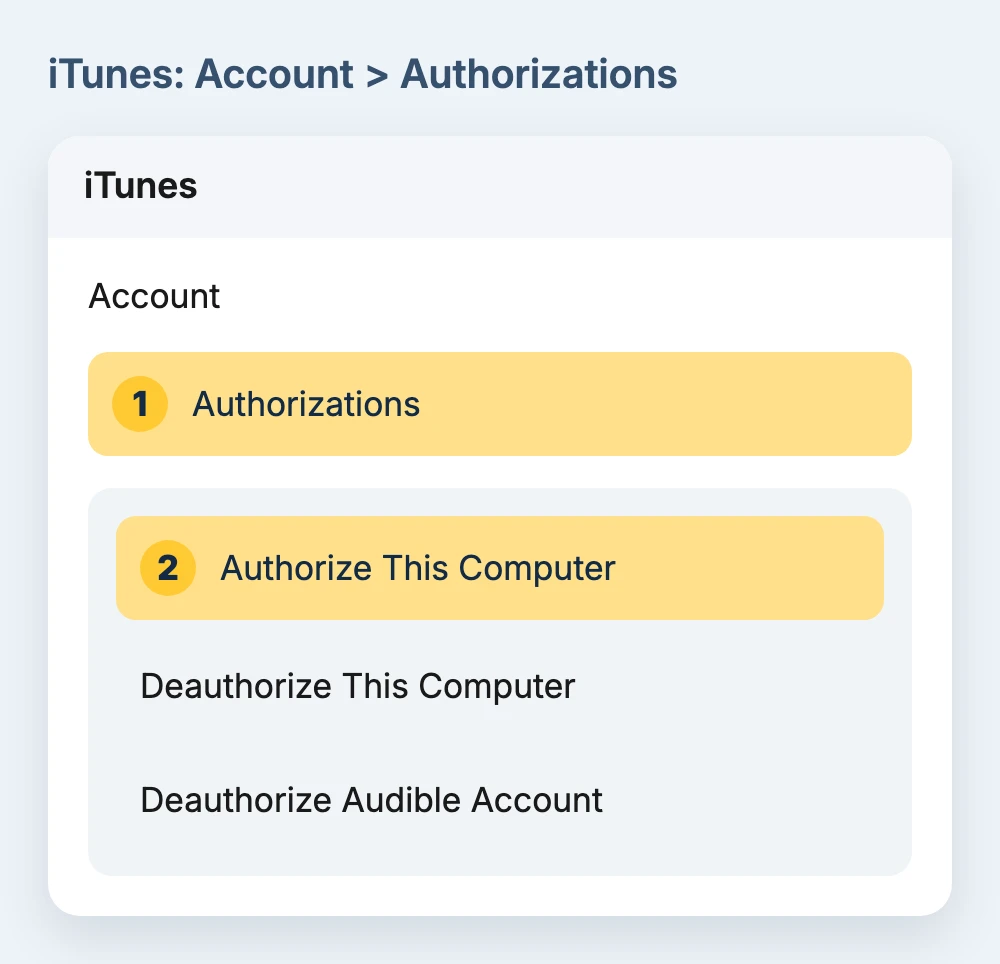
Open iTunes on the receiving computer. In its menu bar, choose Account > Authorizations > Authorize This Computer. Enter the purchasing Apple Account's password when requested and follow the authorization prompt.
Use the account that originally bought the protected song, movie, or other item. The account signed into Windows doesn't determine purchase ownership. An older purchase might belong to an Apple Account you used before your current one.
Apple's iTunes authorization instructions confirm this menu path. An Apple Music subscription isn't required to authorize a computer for purchases you already own.
Wait for authorization to finish, then open an item bought with that account. Check playback of the purchase that asked for authorization. Playing an ordinary imported audio file doesn't check access to a protected purchase.
If another item asks for a different account, check which account bought it. Authorizing the PC with your current account doesn't transfer purchases from an older account or another person's collection.
You'll need to authorize from the receiving computer. An iPhone, iPad, or another PC can't authorize it remotely. Check that you can use that computer and sign in to the purchasing account before you start moving the rest of the library.
Use the different control in Apple Music or Apple TV
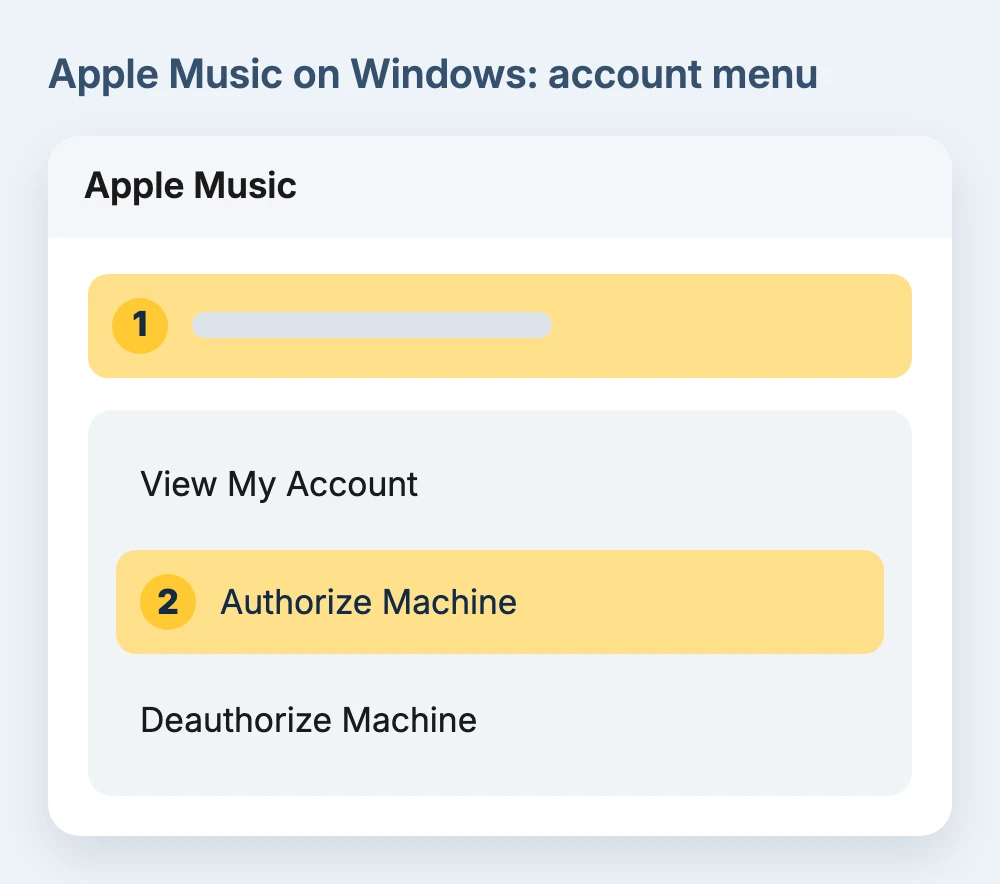
In the newer Windows apps, Apple Music and Apple TV, don't search for iTunes' Authorizations submenu. Open the app and select the name shown at the sidebar's bottom. If you're signed out, select Sign In first.
Choose Authorize Machine, sign in to the purchasing Apple Account, and select Authorize. The label differs from iTunes; it still means allowing this computer to play the account's purchases.
Authorization in one Apple media app gives that computer access to the account's purchases in the other Apple apps too. You don't need to spend another computer slot authorizing each media application separately.
Return to the app that holds the purchase and try playing it. If the purchase isn't listed, check that app's library and purchasing account. Missing library contents and a full authorization count call for separate repairs.
If the receiving machine is a Mac, use the Mac purchase authorization steps. Its Music and TV menu controls differ from Windows' sidebar account menu.
Make room when five computers are already authorized
The limit is five computers across PCs and Macs combined, not five of each. Phones, tablets, iPods, and Apple TV devices don't count as computers for this limit. Removing a phone won't free a computer authorization.
If the old PC is still available, open iTunes there and choose Account > Authorizations > Deauthorize This Computer. Enter the purchasing account details if requested. Then return to the new PC and authorize it.
For an old Windows PC using Apple Music or Apple TV instead, open the sidebar's account menu and choose Deauthorize Machine. Finish the account prompt before trying the new computer again.
Deauthorize before selling, giving away, or retiring a computer. This prevents it from continuing to use an authorization slot and from retaining permission to play the account's protected purchases.
Don't keep authorizing the same computer to bring back a missing file. The computer authorization guidance says repeat authorizations of the same computer still count as one. File availability and playback permission need separate checks.
Recover slots from computers you no longer have
If the old computers aren't available, use Deauthorize All from the purchasing account's settings, then authorize the computers you still use. This removes all existing computer authorizations, so plan which computers to authorize again.
In the Windows Music or TV app, open your account menu, choose View My Account, and sign in if prompted. Find Computer Authorizations on the Account Settings page, then select Deauthorize All.
In iTunes for Windows, open Account > View My Account, then look for the computer authorization section and its Deauthorize All control. Use the same account that reached the limit, not a different account with fewer purchases.
The all-computers option can be used only once a year. If it isn't available, or you've already used it within that period, ask Apple Support about the authorization limit before removing unrelated devices or creating another account.
Afterward, authorize the new computer and each computer you're keeping that needs to play purchases. Deauthorizing doesn't copy or transfer a library. Keep your music and video files backed up while managing which computers can play them.
I'd remove one accessible old computer instead when possible. It frees a slot without interrupting playback on all the other authorized computers you still use.
Check the library separately after authorization
An authorization success message doesn't move the old PC's files, playlists, or library database. If those are missing, the next task is moving or opening the intended library, rather than running authorization again.
If iTunes reports that iTunes Library.itl can't be read, use the Windows iTunes library repair steps. You'll need to fix that unreadable library database before authorization can help you play its purchases.
For one item still requesting authorization, compare its purchasing account with the account you used. Write down any new message word for word. A request for the original buyer isn't a request to subscribe to Apple Music.
If access still fails with the correct account, contact Apple Support for Media Services or purchase playback help. Provide the app, Windows version, authorization message, and whether five computers are already authorized.
Never post account passwords or codes used to confirm a sign-in. Support needs the account and error details through its private support route, not details that let someone else sign in.
The Short Version
Authorize the receiving PC in iTunes under Account > Authorizations. In Apple Music or Apple TV for Windows, use your name > Authorize Machine. Free an old computer slot if necessary, then move the library separately.
Checked November 27, 2026.
 If you have any business, I can build it online