Undo can unsend an email in Gmail only while the button is available just after sending. Press it now; you can set the cancellation window to 30 seconds for future messages sent from your computer, but an expired window can't be reopened.
In this guide
Press Undo while the sent notice is still visible
After sending in Gmail on a computer, look in the bottom-left corner for Message sent. The notice offers Undo and View message. Click Undo to cancel the send, rather than opening the message to inspect it first.
The message returns to the compose window so you can correct it. Check the recipient list, attachment, subject, and text, then send again only when it's ready. Undo doesn't send a correction to the recipient on your behalf.
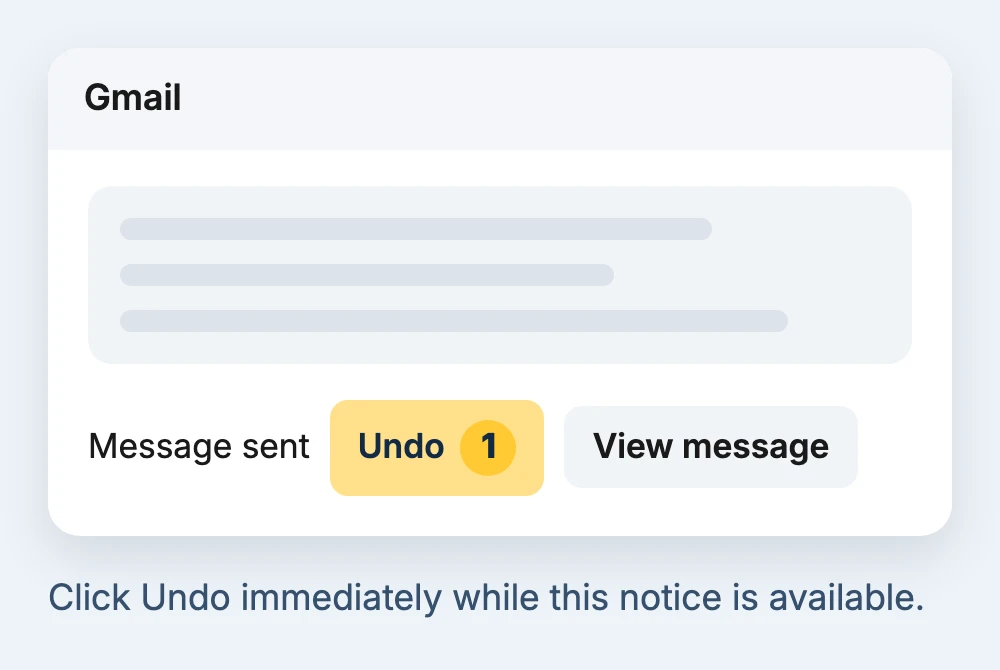
The cancellation period is short. If the wrong attachment or address is obvious, press Undo immediately and inspect the details afterward. Waiting to reread the email can use up the time available to cancel it.
Google's send and unsend instructions describe Undo as a way to cancel shortly after sending. It can't recall old messages from your Sent folder.
Give future messages a 30-second cancellation window
On a computer, sign into the sending Gmail account in your browser. The cancellation setting is in Gmail's full settings page, rather than the message's three-dot menu.
- Click Settings in the top-right corner, then See all settings.
- In General, find Undo Send.
- Set Send cancellation period to 30 seconds. The other choices are 5, 10, and 20 seconds.
- At the end of the settings page, click Save Changes.
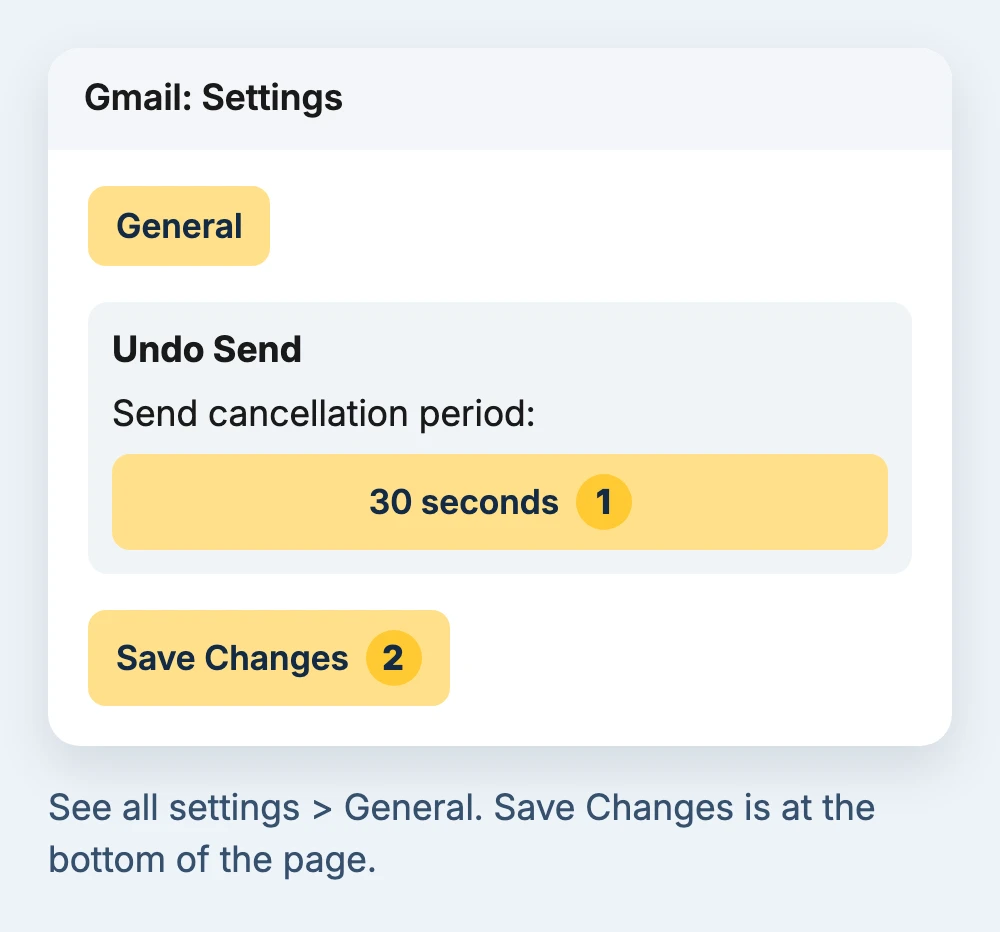
Thirty seconds is the longest choice in this setting. I'd use it unless the shorter delay matters to your work; the extra time is useful when you notice an attachment mistake just after clicking Send.
Set the period before sending the next important message. Changing it after a message's Undo window has expired can't bring that message back. The setting changes the cancellation time available for later sends.
For several Gmail accounts, check the setting while signed in to each account you use. Your work inbox can have a different Undo Send setting from your personal inbox, so check both.
Unsend in the Gmail app on Android
Immediately after sending in the Android Gmail app, look for the Sent notice with Undo. Tap Undo while the option is available, then return to the message and make the correction.
Use the notice from that send rather than going to the Sent folder and hunting for a recall command. Opening a message in Sent doesn't give you another chance to pull it back after the Undo window has closed.
Don't spend the available moment opening app settings. Cancel first while the notice is there. You can set a longer cancellation window for computer sends later, through Gmail in your browser.
If the app is still showing an unsent item in Outbox because it couldn't connect, it hasn't been sent successfully yet. Check that item's status before deciding that the recipient has already received it.
Unsend in the Gmail app on iPhone or iPad
After sending from the Gmail app on iPhone or iPad, look for the sent notice and tap Undo immediately. Review the returned draft, correct its content, and check who will receive it before sending again.
These instructions apply to the Gmail app. An address ending in gmail.com can also be used in Apple Mail or Outlook, and those apps have their own sending controls. Using a Gmail address doesn't give those apps the Gmail app's menus.
For a message sent from a different app, check that app's own cancellation option at once. Moving to Gmail after sending elsewhere isn't a way to create a fresh Undo window for a delivered message.
When several mail apps display that message, avoid sending a second version until you've confirmed whether the first send was canceled. Otherwise the recipient can receive both the mistake and a replacement.
When Undo is gone, treat the message as sent
Gmail can't pull an ordinary email back from the recipient's inbox once it's been delivered. Deleting the message from your own Sent folder removes your copy; it doesn't remove theirs.
An unread message isn't automatically recoverable either. What matters is whether the Undo Send window is still open, not whether the recipient has read the email or also uses Gmail.
The rules for recalling email in Outlook are different and apply only in supported circumstances. Outlook's recall steps won't bring back a Gmail message after its cancellation window has closed.
For a harmless mistake, send a concise correction. Attach a missing file and say which message it belongs with. That gives the recipient the corrected information without spending more time trying to delete the original.
For confidential work information sent to the wrong address, tell your organization's IT or security contact what was sent and to whom. They can handle the incident; changing Undo Send afterward won't remove an already delivered copy.
Use scheduling when you need longer to review
A cancellation window of seconds isn't enough for every message. Schedule send lets you set a later delivery time, leaving the message in Scheduled until that time arrives.
To revise a scheduled message in Gmail on a computer, open Scheduled, select the message, and click Cancel send. It becomes a draft that you can edit. Canceling a scheduled send and undoing an immediate send are different controls.
If you also send from another mail app, use that app's own scheduling steps. The guide to scheduling email in Outlook covers that separate workflow instead of assuming Gmail's menus apply there.
To check a missing Undo notice, send a harmless message to yourself and watch immediately. If the notice still doesn't appear, use Gmail Help's Post to the help community option and include the app, device, and version.
The Short Version
Use Undo immediately after sending. Set Gmail's computer cancellation period to 30 seconds for future messages. Once that window expires, correct the mistake with a follow-up or use your organization's process for sensitive information.
Checked November 29, 2026.
 If you have any business, I can build it online