Command-Space can fail when its Spotlight shortcut is turned off, changed or used by another app. Check Keyboard Shortcuts first. If clicking Spotlight opens search, repair the shortcut before rebuilding its index.
Missing results and an unresponsive shortcut need different repairs. A language change, another launcher appearing or one failed Command key also changes the advice. Start by checking how the Mac responds to those keys.
In this guide
1. Open Spotlight without the shortcut
Click the menu bar's Spotlight icon when available and search for an installed app. If its name appears, search is working. Focus on the keyboard combination that failed to open it.
A hidden icon alone doesn't mean search is broken. Continue to Keyboard Shortcuts and check the assigned keys. Showing or hiding the icon is separate from the shortcut, and the menu bar controls vary by macOS release.
Test Command-Space in Finder, then in the app that first blocked it. Working in Finder but failing in that app points toward that app's shortcuts or the way it handles key presses.
If the window opens without expected files, use the Spotlight search repairs. Index rebuilding changes results, so save it for a search problem rather than a disabled key combination.
2. Enable Show Spotlight search
Open Apple menu > System Settings > Keyboard > Keyboard Shortcuts. Choose Spotlight from the sidebar. Enable the checkbox beside Show Spotlight search.
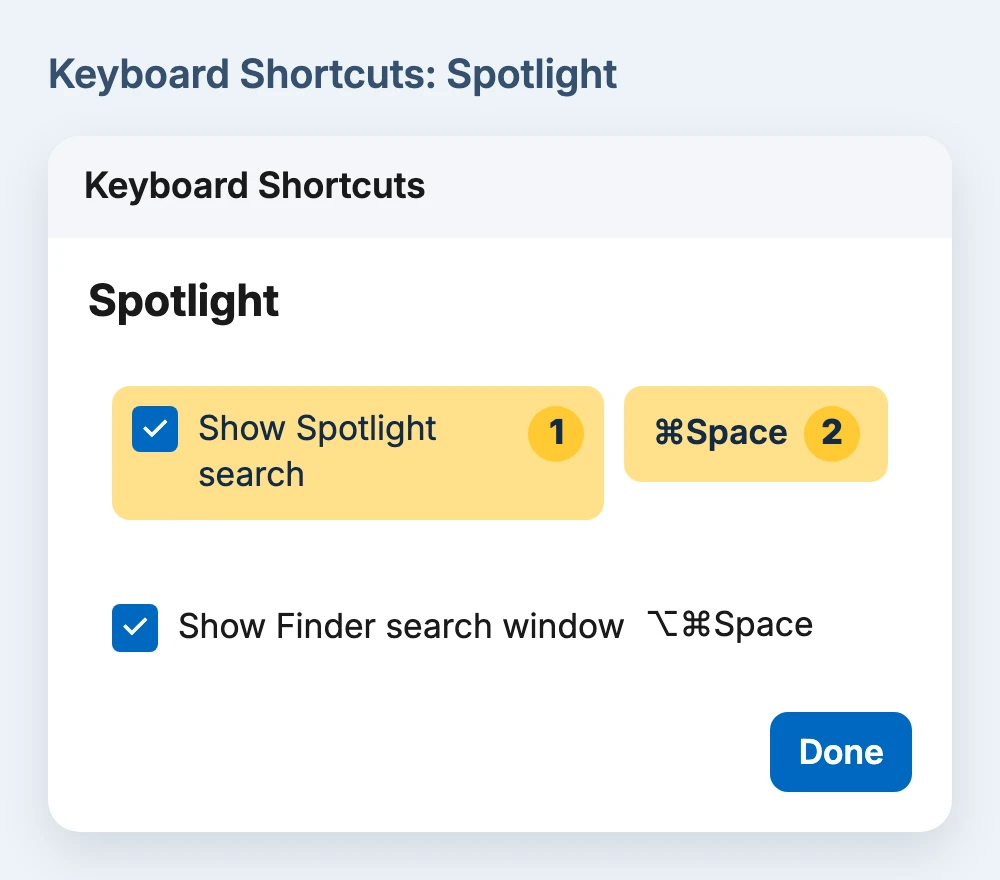
Check the key combination beside that row. If it isn't Command-Space, double-click the current combination and press Command + Space to assign it. Click Done when finished, then test from Finder.
With System Preferences, use Keyboard > Shortcuts > Spotlight instead. The older settings control the same shortcut through a different menu. The assigned keys don't depend on which processor your Mac has.
Press the combination again. The Spotlight search field should appear. If a warning indicates a conflict, don't keep re-entering the same keys. Find the competing assignment in the next section.
Apple explains changing assignments and recognizing conflicts in its shortcut instructions. Temporarily assigning an unused key combination can help you check whether Spotlight responds.
3. Remove a competing language or app shortcut
Still in Keyboard Shortcuts, check Input Sources. On some setups, Command-Space was assigned to switching typing languages. If pressing it changes the input menu instead of opening search, the shortcut is already doing another job.
Decide which action keeps Command-Space and assign different keys to the other one. If you type in several languages, keep a usable switching shortcut. That way, you can open search and still switch languages when you need to.
Check installed launchers and key-remapping utilities. Alfred or Raycast can use Command-Space when configured that way. Change the app's hotkey, or quit it through its menu for a temporary comparison.
Retest in Finder. If quitting one utility restores the shortcut, give that app a different hotkey before reopening it. Repeated restarts leave the conflict in place whenever both apps launch.
If only one work app blocks the combination, inspect its keyboard preferences and the App Shortcuts list in macOS. Change the specific conflicting entry rather than resetting every customized shortcut on the computer.
A shortcut that opens typed Siri on a newer macOS release is another behavior entirely. The Command-Space and Siri guide covers the voice-activation change. It doesn't mean both keyboard keys have failed.
4. Check the keys and the selected keyboard
Open a text document and press Space by itself. Then select some text and try Command + C followed by Command + V. Use harmless sample text. These checks compare the spacebar with a familiar Command shortcut.
Compare the left and right Command keys if your keyboard has both. Record whether only one works. Failure across several Command shortcuts calls for a key or modifier check, rather than another Spotlight setting.
Reconnect an external keyboard through its normal connection, or test a direct cable where supported. Compare the MacBook's built-in keyboard. If the built-in keyboard works, check the external keyboard's connection or assigned keys.
Open System Settings > Keyboard > Keyboard Shortcuts > Modifier Keys. Select the affected keyboard from the keyboard menu if shown. Check that its Command key is assigned the Command action, rather than another key's action or No Action.
Correct any key assignment you didn't intend to change, then test again. Windows-style keyboards use different printed labels. Follow the macOS assignment instead of assuming that the key beside Alt always has the same action.
I'd change one key assignment at a time if you've customized the keyboard for accessibility. That keeps another useful shortcut from changing while you're trying to repair Spotlight. Write down any assignment you plan to restore later.
5. Restart and report what still fails
Save work and choose Apple menu > Restart after repairing assignments and quitting conflicting utilities. Try Finder before your usual apps. If the shortcut stops working when you reopen one utility, check that utility's hotkey again.
Check compatible updates at System Settings > General > Software Update if the assigned keys are correct but still don't open Spotlight. Older releases use System Preferences > Software Update. Keep your search settings while testing.
Ask Apple Support about Spotlight if neither the icon nor the shortcut opens it. For Space and Command failures across apps, request keyboard troubleshooting. Include your Mac model, macOS release and second-keyboard comparison.
Describe the exact result: nothing happens, languages switch, another launcher opens or a search field appears without results. That tells support which fix to work on, instead of treating every case as a search-index problem.
The Short Version
Enable Show Spotlight search and assign Command-Space. Remove conflicting language or launcher hotkeys, then check modifier mapping and another keyboard. Consider the index when search opens but results are missing.
Checked November 27, 2026.
 If you have any business, I can build it online