An ASTRO A20 transmitter left in console mode can leave PC audio missing or routed incorrectly. On A20 Gen 2, press the transmitter button until its light is white, then select the A20 in Windows sound settings.
When game sound works but chat doesn't, check flip-to-mute and the voice input. A headset that won't connect needs transmitter and pairing checks first. The newer A20 X has different hardware.
In this guide
1. Match the headset generation and PC connection
Check the headset and transmitter's product names. The white-light mode and pairing sequence here are for A20 Gen 2. The original A20 has a different transmitter; A20 X has its own setup guide.
Plug the Gen 2 transmitter directly into the PC and turn on the headset. Press the transmitter button until its light becomes white. Green indicates Xbox mode and blue indicates PlayStation mode on the corresponding version.
Logitech says a white transmitter light means PC mode. Set PC mode before spending time adjusting individual game settings.
The headset's charging cable supplies power; its wireless transmitter carries the audio. A charging light means the battery is receiving power; it doesn't tell you that Windows is sending audio through the transmitter.
Try a direct PC USB port if the transmitter is connected through a dock or hub. If it appears directly but disappears through the hub, keep it connected directly while checking audio. If it never appears, compare another available USB port.
For the original A20 Gen 1, put its transmitter in PC Mode using its mode switch and follow that generation's quick-start guide. Don't use the Gen 2 button-hold sequence on a differently shaped transmitter.
2. Choose the A20 for Windows output and input
On Windows 11, open Start > Settings > System > Sound. Under Output, choose the A20 playback device. Under Input, choose the A20 microphone. Play a familiar audio file, then check microphone input separately.
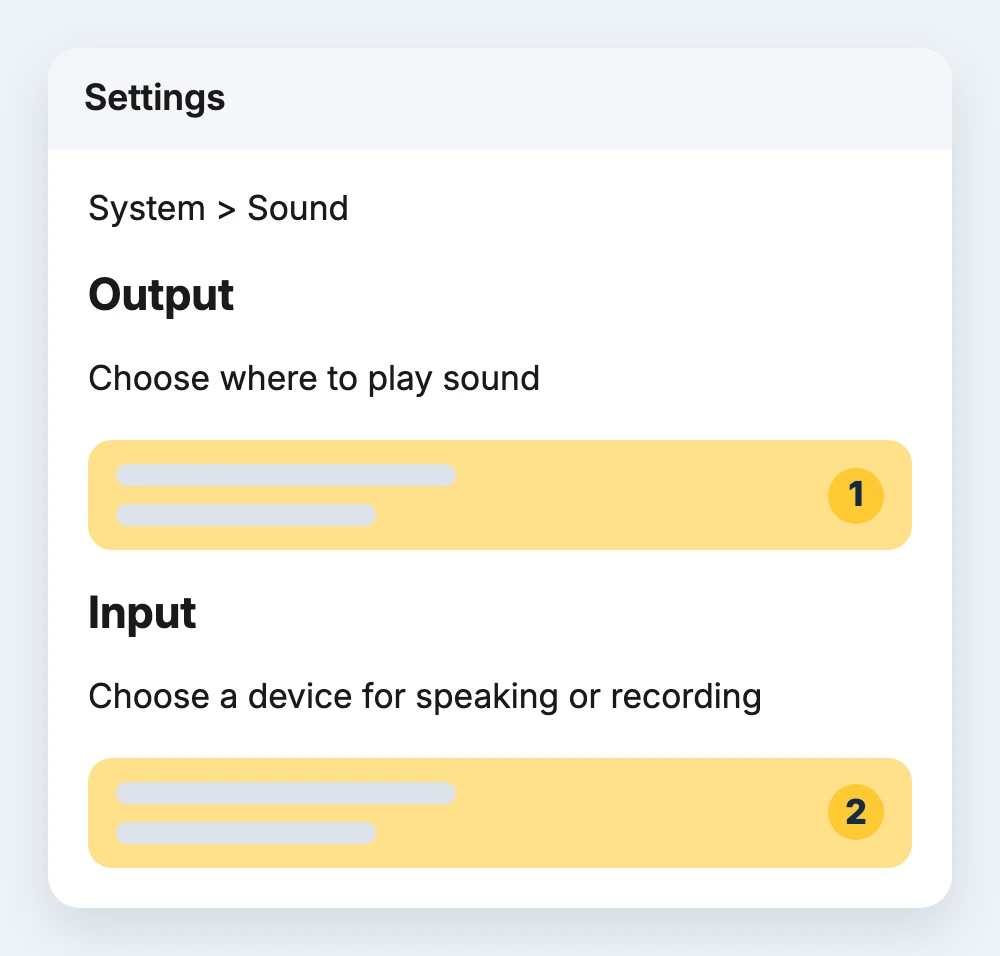
On Windows 10, open Start > Settings > System > Sound. Select the A20 devices under Choose your output device and Choose your input device. The names can differ with the headset generation and connection mode.
The original A20's quick-start guide uses ASTRO A20 Game for default playback and ASTRO A20 Voice for communications. Set A20 Voice as both the recording default and communications default too.
For those Gen 1 defaults, run mmsys.cpl from Windows+R. In Playback, use the right-click menus to set Game as Default Device and Voice as Default Communication Device.
In Recording, set the Voice microphone as both defaults using its right-click menu. Playback controls what you hear, while Recording controls your microphone, even when both tabs have a Voice entry.
In the game or calling app, open its sound controls and select the A20 for playback and voice input. An app set to monitor speakers or the laptop microphone can ignore the Windows default.
If only one game stays silent, check its output choice and volume. If no app plays through the headset, continue with headset controls and pairing before reinstalling a game.
3. Center the game and voice mix and lower the microphone
Raise the A20's master volume with the wheel on the right earpiece. Start at a comfortable level. Then check the Game and Voice balance controls, which can favor one audio stream enough to make the other seem missing.
On Gen 2, Game is the upper button beside the volume wheel; Voice is the lower button. Adjust toward the center mix and test game audio and a call again. Don't keep raising master volume to compensate for the wrong mix.
For a silent microphone, swing the boom down into its forward speaking position. Raising it into the vertical position mutes it. That physical mute can remain active even when Windows has selected the correct A20 input.
The Gen 2 headset controls cover master volume, game/voice balance and flip-to-mute. EQ modes change the sound profile; they aren't a repair for a microphone that isn't selected.
If lowering the boom restores voice, its physical mute caused the silence. If the microphone still fails while game sound works, test it in Windows before pairing again. A microphone-only fault differs from a lost wireless link.
4. Test microphone access before changing the wireless link
In Windows 11 Sound settings, select the A20 input and use Start test. Speak at your normal volume, stop the test and play it back where offered. The result should contain your voice rather than just room noise or silence.
For Windows 10, select the A20 under Input and speak while watching Test your microphone. A moving level shows that the selected microphone is sending sound into Windows. It doesn't confirm the calling app has selected it too.
On Windows 11, open Settings > Privacy & security > Microphone. Enable Microphone access, Let apps access your microphone, and Let desktop apps access your microphone for the relevant app type.
On Windows 10, use Settings > Privacy > Microphone. Permit device recording and access for the affected app, including the desktop-app control when relevant. Relaunch the calling program, then repeat its input test.
If Windows hears you but the app doesn't, follow the Windows microphone permission checks for the app. Microsoft's microphone repair instructions distinguish app access from device selection.
5. Pair Gen 2 again when the headset isn't linked
For A20 Gen 2, hold the USB transmitter's button for 3 to 5 seconds to enter pairing mode. Its light flashes rapidly. With the headset powered off, hold the headset power button for 5 seconds to put it into pairing mode too.
Wait for the devices to finish pairing, then retest Windows sound. Use this sequence for a missing wireless connection; a single game's wrong input selection doesn't require pairing the headset again.
With ASTRO Command Center already installed, connect the Gen 2 headset to the PC by USB. Check its amber charging light and white PC transmitter mode. Open Command Center and follow an update prompt if offered.
Keep both devices connected while an offered firmware update completes. If Command Center doesn't detect the headset, give support the exact generation and connection details rather than installing software intended for another A20 model.
Ask Logitech Support to check the A20 Gen 2 transmitter/headset connection. Give them the light color, Windows device names, pairing result and what happened with each USB port. If the transmitter is missing, ask for a matching replacement.
For a different model, use the ASTRO A50 microphone guide only when the label actually says A50. Its base-station steps aren't interchangeable with an A20 USB transmitter.
The Short Version
Set Gen 2 to white PC mode, select its Windows output and input, and check game/voice balance and boom mute. Re-pair for a missing wireless link. Give support the generation and test results if it still fails.
Checked November 27, 2026.
 If you have any business, I can build it online