The Sims 4 runs on Mac through the EA app, so start there if an old Origin install or a Windows installer won't open. For an installed game that won't launch, repair its files before reinstalling everything.
An older Mac may lack Metal graphics support. A mod that causes a failure needs a compatible update. The Sims 3 also has a separate 64-bit Mac edition. Check which game you have and how it fails before changing files.
In this guide
1. Open the Mac version through the EA app
Install the current Mac EA app, sign in to your EA Account, and open Library. Find The Sims 4, select it, and use its download or play control. Origin has been replaced on both Mac and PC.
A boxed Windows disc can't install the Mac game. EA's PC-to-Mac instructions explain that a qualifying boxed game's code can be redeemed for access through the EA app instead.
The base game is free. Don't buy another copy just because the Mac can't open the installer you brought from a PC. Get the Mac download through the launcher, then check your existing account for packs.
Use the EA Account that holds your purchases. If the launcher works but packs are missing, check your account and add-ons. A game that closes as soon as you press Play needs different steps.
To check available packs, select The Sims 4 > Overview > Manage > Manage add-ons. Download the available content there. If the base game opens afterward, the Mac installation works and the remaining issue is the missing purchase.
2. Repair a game that returns to the launcher
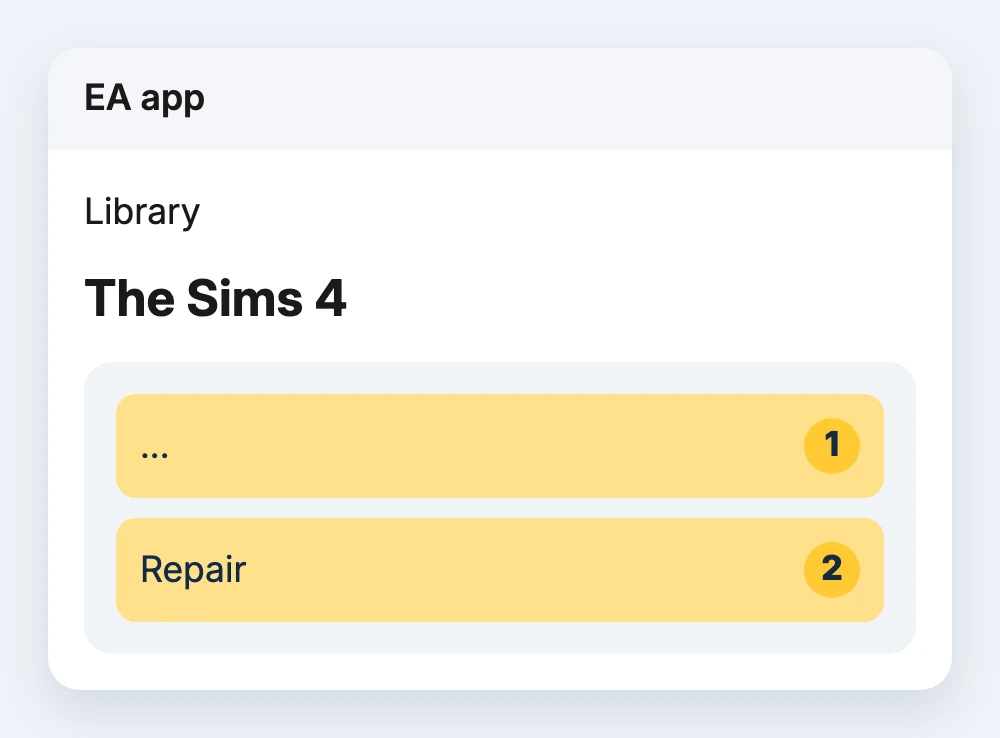
Quit the game. In the EA app, open Library, select the three-dot menu on The Sims 4 tile, and choose Repair. Let the repair finish before trying Play again.
This checks the installed game files. It's the right next step when the launcher sees the game but starting it fails, especially after an interrupted update. It doesn't tell you whether downloaded mods are compatible.
If the main menu appears, try a new game before loading the household you were playing. A failure tied to one save needs different help from a failure before the menu even appears.
I'd try Repair before a reinstall. It can recover the installation without downloading the entire game again. If it fails again, choose the cache or mod steps to match what appears in the launcher or game.
3. Clear the launcher cache for a stuck download
Use this route when the EA app can't finish downloading or keeps showing preparation rather than launching the game. In the Mac menu bar, select Help > App Recovery, then Clear Cache.
The Mac may ask for permission for EALaunchHelper. Enter the password used to sign in to the Mac, rather than your EA Account password. Reopen the launcher afterward and check the download again.
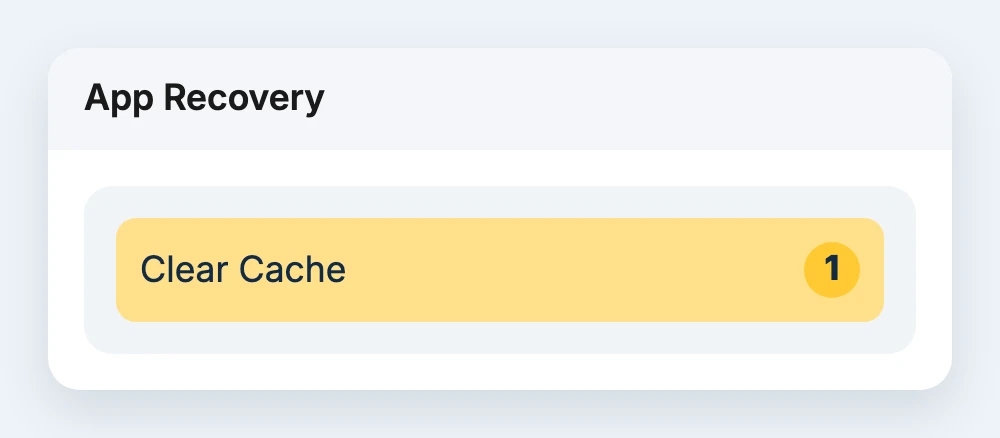
The cache holds temporary launcher data. Clearing it can get a stuck launcher moving again, but it can't add graphics support to your Mac or fix an outdated mod.
Once the download advances, let it finish, then open the game. If it still fails, record the precise error and whether another launcher game has the same problem. That difference tells EA Help whether to check the launcher.
4. Remove incompatible mods without damaging a save
A game that stopped working after an update may have an old mod. Quit the game, then open Documents > Electronic Arts > The Sims 4 > Mods in Finder. Move the mods to a separate folder you can keep track of.
Back up your Sims folder before changing its contents. Start the game without the mods and check whether it still fails.
When testing an existing household, exit without saving. Saving while custom content is missing can remove that content from your saved game.
If removing mods restores gameplay, add them back in small groups and start the game after each group. When the failure returns, split that group into smaller groups until you've identified the mod that causes it.
Get a compatible update from that mod's creator or leave it out. Replacing game files won't make an old mod compatible. If the game fails even without mods, move on to the Mac requirements rather than moving those files back and forth.
5. Check the Mac's requirements and the Sims edition
Open Apple menu > About This Mac and note the model, macOS version and memory. The EA app needs macOS Catalina or later. The Sims 4 also needs Metal graphics support; an operating-system update alone can't add missing hardware support.
The listed minimum is 4 GB of memory, at least 25 GB of free storage and another 1 GB for saves and custom content. You'll need more room for additional packs and files; that minimum doesn't cover your whole library.
The discontinued Legacy Edition is no longer a fallback for an older Mac. Check the game's Mac requirements before spending time on another download.
For The Sims 3, use its 64-bit & Metal Mac edition. Catalina and newer can't run the older 32-bit application. Repairing The Sims 4 won't change which Sims 3 edition is installed.
For broader trouble with Mac downloads, check whether other apps install successfully too. That page covers a separate App Store account failure.
Get help for a persistent launch failure
If a compatible Mac still won't run the game after repair and a mod-free check, open EA Help for The Sims 4 and choose the issue for launching or downloading. Include the error text and say when it fails.
Send the Mac model, macOS version, EA app version and whether a new game opens. For Sims 3, name the 64-bit edition. Those details prevent support from sending Windows-only repairs for a Mac problem.
A game designed only for Windows needs its own platform check. Our Mac game compatibility guide explains that situation using a different game's supported platforms.
For a Mac app that closes unexpectedly beyond Sims, follow the native app troubleshooting steps as well. Repeated crashes across unrelated apps call for Mac troubleshooting, rather than more changes to your Sims saves.
The Short Version
Use the Mac EA app, repair an installed Sims 4 game, and clear the launcher cache for download problems. Test updated mods separately. Check Metal support and use the 64-bit Mac edition for Sims 3.
Checked November 27, 2026.
 If you have any business, I can build it online