Samsung's blue Downloading screen is Download mode, used for repairs. If it opened accidentally, hold Volume Down and Power or Side together for about seven seconds to restart. The full message includes Do not turn off target.
If a technician's computer is sending software to your phone, leave that transfer alone. A phone that returns to the same screen after restarting needs its buttons checked, then repair if they aren't being pressed.
In this guide
1. Restart an accidentally opened Download mode screen
Samsung says the warning applies while a technician is actively using Download mode for a repair. On a phone that entered the screen by mistake, the Download mode instructions allow a restart.
Hold Volume Down + Power, or Volume Down + Side on a newer Galaxy, together for about seven seconds. Release them when the device restarts. The display should go dark before the Samsung logo appears.
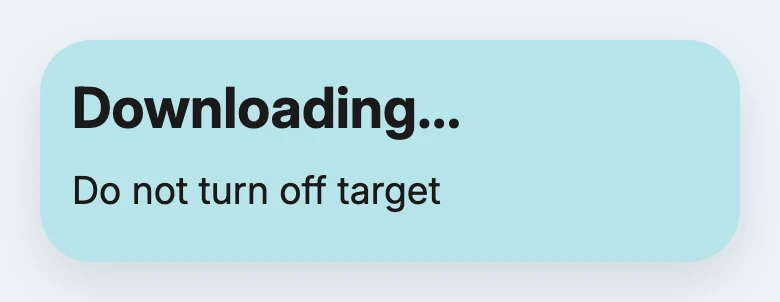
On an older Galaxy, Power is the button you use to turn the phone on. Newer models call it the Side button. Use the lower half of the volume rocker, even on models where both controls are on the same edge.
This restarts your phone; it doesn't perform a factory reset. You don't need to select an erase option or connect an unfamiliar flashing utility just to leave an accidentally opened repair screen.
Watch for the lock screen. If the Samsung logo appears but the phone goes straight back to Download mode, Android hasn't started normally. Follow the next section if that keeps happening.
2. Remove anything pressing the buttons
Take off the protective case and set the phone down without leaning it against its buttons. Check that both volume controls and the Power or Side button move freely and spring back after a gentle press.
A case can look correctly fitted while holding a button down. That can send the phone back into Download mode as it starts. Try the restart once with the case removed, keeping your fingers off the controls after the screen goes dark.
If Android now opens, leave the case off while checking the fit. A replacement case should leave the buttons free. Putting the same tight case straight back on could bring the fault back during the next restart.
A damaged or jammed button needs service. Don't pry at the switch or push a tool into the gap. Tell the repair center which button doesn't move normally and whether the phone starts without its case.
For a Galaxy that reaches Android but restarts later during ordinary use, the Samsung restart-loop checks cover that separate behavior. Download mode on every start needs the repair route here.
3. Separate Download mode from an update in progress
Use the quick restart if you pressed a button accidentally at startup. If the screen appeared during a computer repair or software installation, speak to the person running it. Tell them which action brought up the blue screen.
Check the computer's repair window before disconnecting anything. If a technician is transferring software, ask them to complete or stop the job through their repair procedure. The warning has a purpose during that transfer.
A normal update can also expose Download mode, so a blue background alone doesn't tell you whether work is still happening. Write down the full text on the phone and any progress message or error on the computer.
I wouldn't download an Odin package to experiment with a phone that still has a repair option. Installing unsupported software can damage the device, and choosing a package by a similar model name isn't a reliable recovery plan.
If an update failed, give support its installation method and the error text. That helps support choose how to recover your Galaxy. A failed installation needs more than the accidental-entry fix.
4. Use the correct exit for a different recovery screen
Android Recovery is a text menu with selectable actions. It isn't the large Downloading message. Move the highlight with Volume Up or Volume Down to Reboot system now. Confirm that selection by pressing Power.
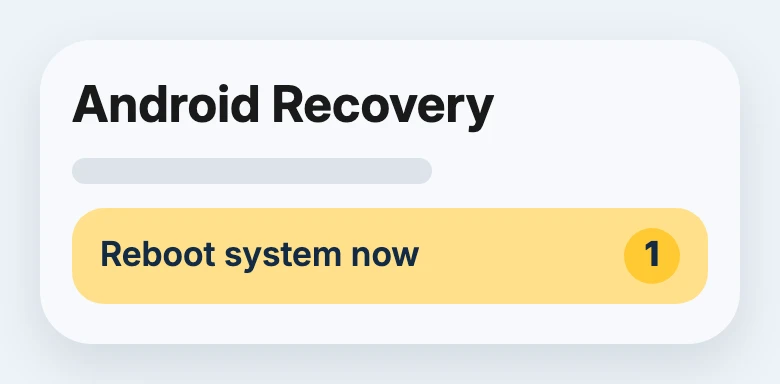
Leave Wipe data/factory reset alone. That is an erasing action, and it isn't needed to select the restart command. Read the highlighted line before confirming it with the Power button.
A phone showing Safe mode in a corner has already started Android with downloaded apps disabled. Use Restart from its power menu. If Safe mode returns every time, a stuck Volume Down button may need repair.
These screens can look alarming, but they call for different actions. A photo of the full message is more useful to a repair center than describing all three as a blue screen.
For a phone that is frozen inside Android without either repair screen, Google's frozen-device checks address apps, updates, and storage. They don't replace the model's Download mode exit.
5. Arrange service when the same screen keeps returning
Use Samsung Support's Request service route for your region or a Samsung walk-in service center. Ask them to check why your Galaxy keeps starting in Download mode even after you've removed its case and restarted it with the buttons.
Have the model number, the screen photo, and the repair or update history ready. Include any small error text in the display's top area. Don't reduce a specific firmware error to just the large Downloading label.
If Android opens again before the appointment, save a backup while access is available. If it never opens, say that your files aren't backed up and ask what a proposed recovery will erase before authorizing it.
The Samsung support contact guide explains which device details to gather. If the phone keeps returning to Download mode, ask what repair it needs rather than continuing to restart it.
The Short Version
For accidental Download mode, hold Volume Down and Power or Side together for about seven seconds. Remove a case that presses the buttons if it returns. Leave an active repair transfer alone, and arrange service for a persistent loop.
Checked November 27, 2026.
 If you have any business, I can build it online