An unsupported Mac running Sequoia can lose mouse input after an update removes OpenCore Legacy Patcher's USB patches. Connect a USB hub with external input devices, then restore root patches once the Mac is usable.
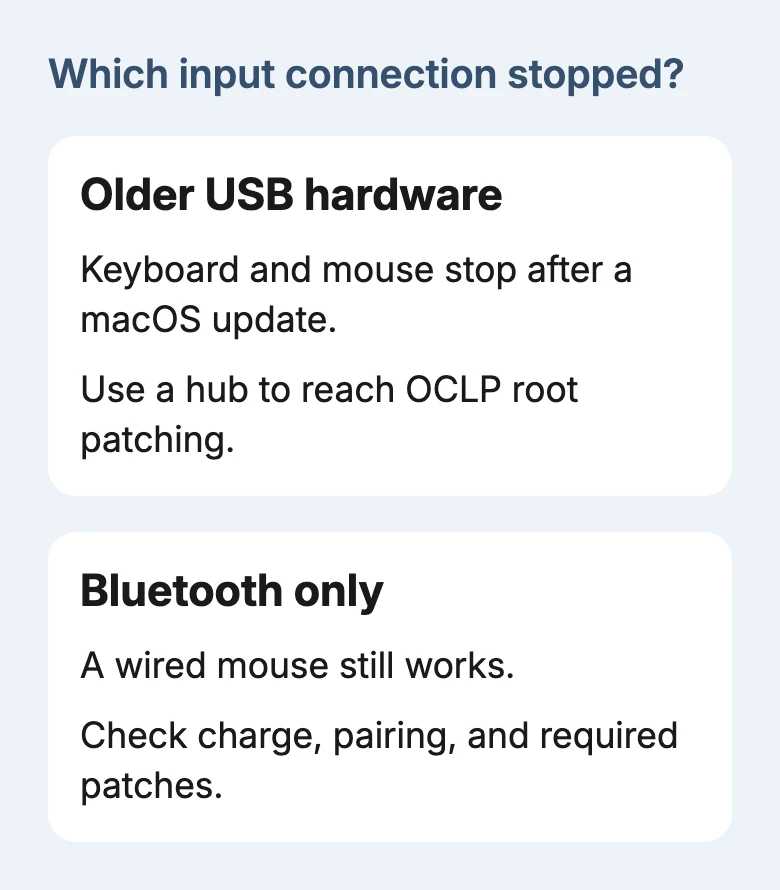
That repair fits legacy USB 1.1 hardware. A Bluetooth-only failure or one broken mouse needs a different check, so start by checking how your mouse connects and whether your Mac is affected.
In this guide
1. Check whether the missing USB driver fits this Mac
USB 1.1 drivers were removed from macOS starting with Ventura. On affected unsupported Macs, Sequoia needs OpenCore Legacy Patcher, usually shortened to OCLP, to restore those drivers with patches that change macOS system files.
This fits a mouse that stops working immediately after an update. Failure of the keyboard or trackpad alongside the mouse also fits: a MacBook's built-in input devices can use that same old USB hardware.
Check the model against the affected groups in the patcher's hardware troubleshooting page:
- MacBook: Mid 2010 and older, listed as MacBook5,1 through MacBook7,1.
- MacBook Air: Late 2010 and older, MacBookAir2,1 through MacBookAir3,x.
- MacBook Pro: Mid 2010 and older, MacBookPro4,1 through MacBookPro7,x, excluding the Mid 2010 15-inch and 17-inch MacBookPro6,x models.
- iMac: Late 2009 and older, iMac7,1 through iMac10,x, excluding the Late 2009 27-inch Core i5/i7 iMac11,1.
- Mac mini: Mid 2011 and older, Macmini3,1 through Macmini5,x.
- Mac Pro: Mid 2010 and older, MacPro3,1 through MacPro5,1.
If your model isn't in that list, don't assume a missing USB 1.1 patch explains it. Test a second mouse and another port. If a wired mouse works while Bluetooth doesn't, continue with section 4's wireless checks.
2. Get input back through a USB hub
Connect a USB hub between the Mac and an external USB keyboard and mouse. The patcher's instructions use a hub to make the connection work in USB 2.0 mode while the old USB drivers are missing.
On a MacBook, borrow an external keyboard as well as a mouse. The hub doesn't repair a built-in keyboard or trackpad. It lets you sign in with the external devices and restore the drivers for the built-in ones.
Try moving the pointer and entering text before starting repairs. If both work through the hub but not directly, keep the hub connected until the patches have been installed and the Mac has restarted.
Some hubs don't work for this workaround, especially on newer macOS. If the keyboard and mouse still don't respond, try them with another hub. A hub's charging light only confirms power, so test actual typing and pointer movement.
I'd borrow a hub and wired input devices before buying a replacement mouse for this symptom. A working temporary connection gets you to the repair, and avoids replacing hardware that may only be missing its driver.
3. Reapply the root patches and restart
Once you can sign in, open OpenCore-Patcher. Use a patcher version that supports the Sequoia version on your Mac, then select Post-Install Root Patch. Review the detected patches, choose Start Root Patching, and follow the prompts.
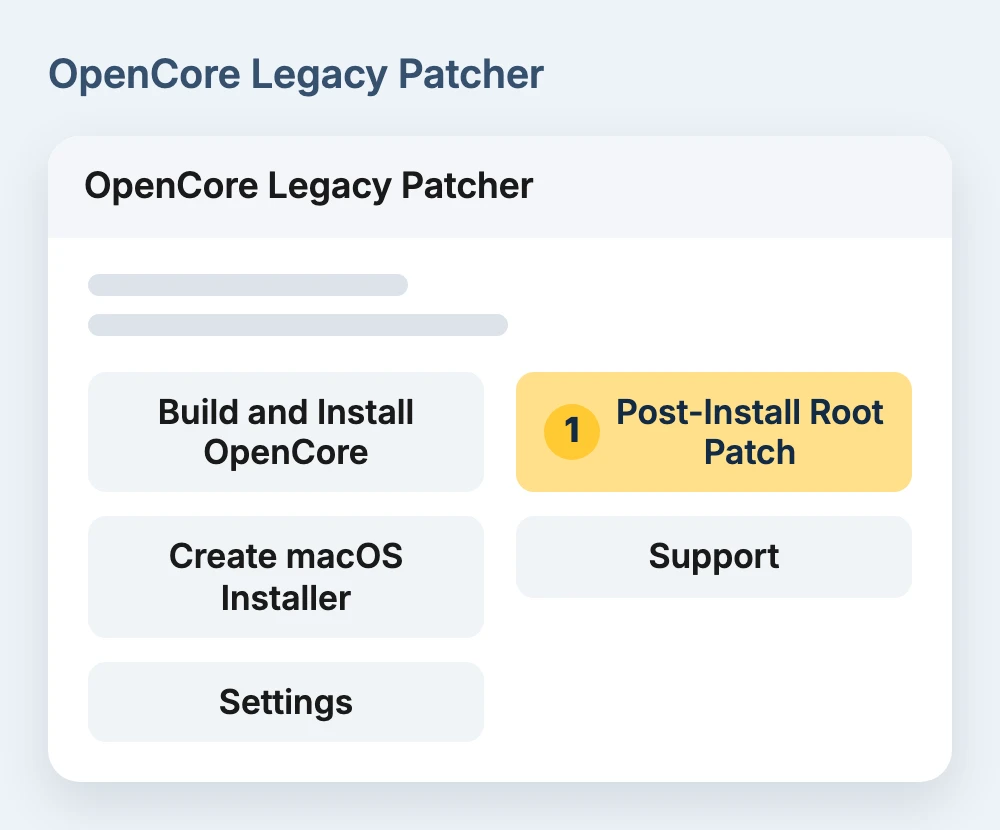
This step differs from Build and Install OpenCore, which updates the software that starts the Mac. Root patches restore hardware support inside macOS. Rebuilding the bootloader alone doesn't reinstall the missing USB driver.
Keep a current backup before changing system patches. Leave the hub and external input devices connected while patching runs, then restart when prompted. Afterward, test the built-in devices or the mouse connected directly to the Mac.
If the keyboard and mouse work without the hub, the driver repair has done its job. Keep the temporary equipment available for the next update, because macOS updates remove root patches and they need to be installed again.
If the patcher reports that required downloads are missing, get online to finish those downloads. Some systems need a Kernel Debug Kit or MetallibSupportPkg, extra files used to make their older hardware work with the installed system.
The patcher can install Wi-Fi support first so the remaining files can be downloaded. In that case, reconnect to the network after restarting and run root patching again. Ethernet is another route when Wi-Fi isn't available yet.
4. Treat a Bluetooth-only failure separately
For a Magic Mouse that isn't responding while the keyboard and trackpad work, turn its power switch off and back on. Check its charge and open System Settings > Bluetooth using the working input device.
Apple recommends reconnecting rechargeable accessories with their charging cable. A Magic Mouse can't be used while it's charging, so disconnect the cable before testing movement.
A working wired mouse points toward Bluetooth, pairing, or the wireless accessory. Some unsupported Macs also need root patches for Bluetooth. Check which hardware the patcher detects before installing unrelated mouse utilities.
The Mac Bluetooth keyboard and mouse guide covers wireless connection symptoms. Its Tahoe-specific discussion isn't a reason to change Sequoia's security or FileVault settings for a USB failure.
If one external mouse fails on every computer you try, focus on that mouse. If only this Mac loses several input devices after an update, tell the patcher's support team how they connect and whether root patches are installed.
5. Use remote access only if it was enabled earlier
The patcher's alternative for a Software Update failure is Remote Login, enabled in System Settings > General > Sharing before the update. It allows a second computer to connect to the Mac over SSH, a remote Terminal connection.
If you can already connect that way, the patcher's command to restore root patches is:
/Applications/OpenCore-Patcher.app/Contents/MacOS/OpenCore-Patcher --patch_sys_volFollow the patching output and restart after it completes. This route doesn't apply to a Mac booted into the USB installer, and it can't turn on Remote Login after input has already failed.
If the hub route and root patches still don't restore input, use the OpenCore Legacy Patcher support guidance. Include the Mac model, Sequoia version, patcher version, and whether input works through a hub.
If you'd rather return to supported software, the macOS downgrade guide explains the backup and erase decisions involved. Choose an OS your particular Mac supports rather than assuming Sequoia is supported on older hardware.
The Short Version
For legacy USB failures, use a hub with external input devices, restore OCLP root patches, and restart. Check accessories for Bluetooth-only trouble. Remote patching requires Remote Login to have been enabled earlier.
Checked November 27, 2026.
 If you have any business, I can build it online