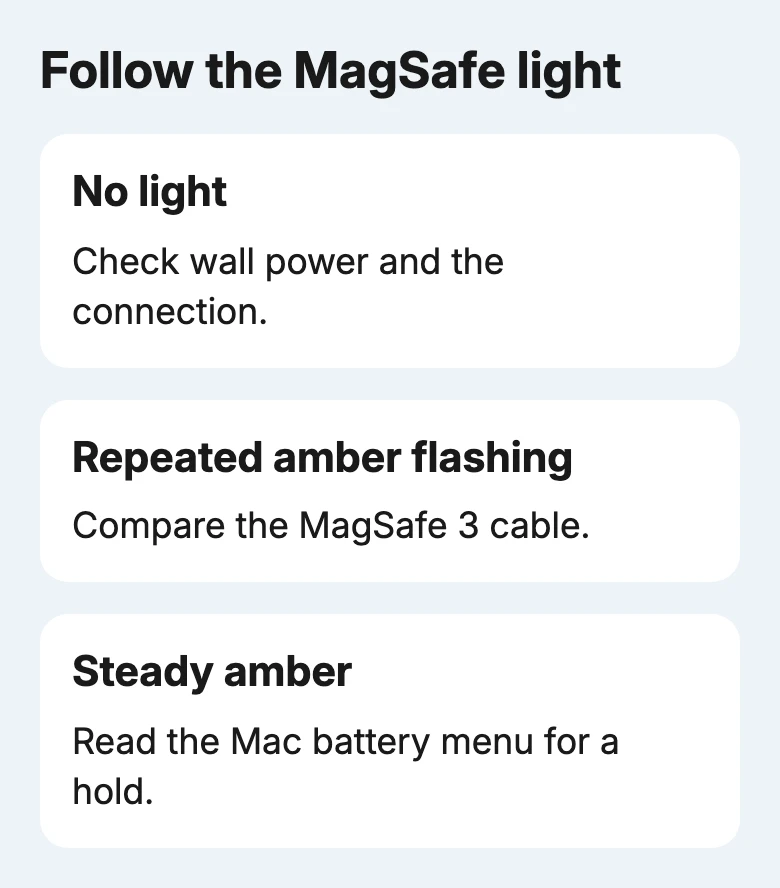
An unlit MagSafe connector needs a power check first. Unplug the adapter for 60 seconds, then reconnect it to a working outlet. Repeated amber flashing on MagSafe 3 needs a cable check; steady amber can mean a charging hold.
Each light pattern calls for a different fix. Start with the light and the Mac's battery message to distinguish a failed charger from battery management pausing the charge.
In this guide
1. Match the connector and read the battery message
Check whether your Mac uses MagSafe 3, MagSafe 2, or the older T-style or L-style MagSafe connector. MagSafe 3 has a separate USB-C cable and power adapter. The older adapters have an attached charging cable.
MagSafe and MagSafe 2 adapters don't fit MagSafe 3. An older MagSafe adapter can work with MagSafe 2 through the correct converter, but that doesn't make it compatible with a newer Mac's charging port.
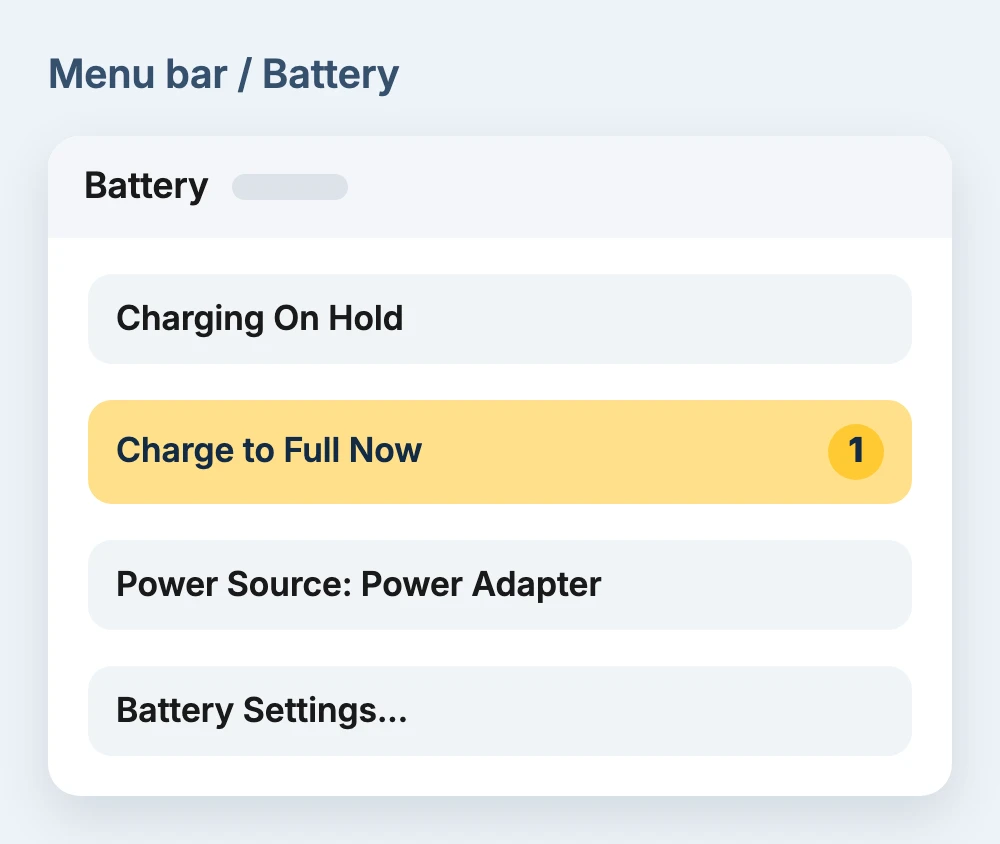
Open the menu bar's battery icon. Look for whether the Mac is using the power adapter, charging, or holding its charge. Compare the message with the battery percentage rather than treating every pause as a failed connection.
The Mac charging-status guide explains the menu and light together. A green light normally means a full battery. Steady amber can mean charging or a charging hold; repeated amber flashing on MagSafe 3 is a different symptom.
If the Mac is running but the percentage falls during heavy work, compare the adapter's wattage with the adapter recommended for that Mac model. A power source can run the computer without providing enough spare power to refill the battery.
2. Restore power at the outlet and adapter
Disconnect wall power for 60 seconds. Check that a lamp runs from that outlet, then attach the charger again. Seat the removable wall plug firmly in the adapter and connect the MagSafe end squarely to the Mac.
Apple's MagSafe troubleshooting steps explain that electrical noise can trigger the adapter's protection and switch it off. If charging starts after that 60-second pause, try an outlet on a different circuit if the problem returns.
That result points toward the adapter switching off at its power source. It doesn't mean the Mac's battery needs replacing. If it repeatedly stops at a working outlet, have the adapter checked rather than unplugging it again.
If a compatible spare Apple wall plug or Power Adapter Extension Cable is available, try it. If swapping that part restores charging, the original removable plug or AC cord needs replacement. Stop using the faulty part.
Disconnect an adapter with damage, discoloration, or sparks coming from anywhere other than the plug blades. A brief spark at the blades can happen when connecting electrical equipment; damage elsewhere needs service.
3. Clean and reconnect a flashing MagSafe 3 cable
Disconnect the USB-C to MagSafe 3 cable from both the Mac and the adapter. Unplug the adapter from the outlet too. Check the magnetic port and connector for debris that prevents them from sitting flat.
Wipe the MagSafe 3 port and connector with a dry cloth. Check the adapter's USB-C socket and the cable's USB-C end too. Keep every connector dry and clear before reconnecting it.
Restart the Mac. Reconnect the adapter to the outlet, attach the cable to the adapter, and then attach MagSafe to the Mac. Watch whether the light becomes steady and check the battery menu again.
If repeated amber flashing continues, try another compatible MagSafe 3 cable. On a Mac supporting USB-C charging, compare a suitable USB-C charger and charging cable connected directly to a supported port.
If USB-C fills the battery while MagSafe continues flashing, focus on the MagSafe connection. The original cable may have a software compatibility problem, so install any relevant update before blaming the battery.
For MagSafe 2 and earlier, inspect where the attached thin cable meets the brick and magnetic connector. If the cable separates at either end, stop using that adapter and bring the whole adapter and attached cable for a check.
4. Check whether charging is deliberately on hold
Open System Settings > Battery on a recent macOS version. Read the charging message and battery health information. Optimized Battery Charging can postpone reaching 100%, reducing how long the battery sits at full charge.
If the battery menu offers Charge to Full Now, use it to finish charging before a trip. Don't expect that command to appear in every state or on every macOS version.
Apple silicon Macs on macOS Tahoe 26.4 or later can also use Charge Limit. A Charged to [%] Limit status means the selected cap was reached; reconnecting MagSafe won't change it.
For a Mac losing charge unusually fast even after it fills, use the MacBook battery-drain checks. Charging hardware and high power use can produce similar percentage changes while needing different repairs.
If the menu says Service Recommended, include that information when booking service. Changing charging settings won't repair a battery that needs a hardware assessment.
5. Let the adapter cool, then restart the right way
Put the adapter on a hard, ventilated surface. An adapter can become warm normally, but it can switch itself off when it gets too hot. Disconnect MagSafe and allow the adapter to cool before handling and reconnecting it.
Avoid bedding, cushions and anything covering the brick. If charging returns after cooling but stops again in open air, have the adapter checked. Tell the repair staff that charging stops as the adapter warms.
Shut down the Mac and close its display for 30 seconds. Open it and try charging again. Save open documents before shutdown to avoid losing unfinished changes.
A Mac with Apple silicon resets its power controller automatically. Restart it, or shut it down before powering it up again. Skip Intel keyboard resets on this hardware.
For an Intel notebook, check whether it has the T2 chip before choosing its reset.
Intel notebooks equipped with T2
Shut down the T2-equipped Intel notebook. Hold left Control, left Option and right Shift for seven seconds. Add the power button for seven more seconds, release everything, wait a few seconds and start the Mac.
Earlier Intel notebooks
Shut down an Intel notebook that has a built-in battery but no T2 chip. Hold left Shift + Control + Option and the power button for ten seconds. Release them and press power to start.
For an older removable-battery Mac, ask Apple Support for the reset procedure matching that model before removing its battery.
6. Update software and bring the complete setup for service
On current macOS versions, open System Settings > General > Software Update. Older versions use System Preferences > Software Update. Install an available update when the Mac has a reliable power supply and enough battery to complete it.
Updates can improve communication between the Mac and its adapter. I'd compare a compatible cable before buying a battery, especially when USB-C charging already works and only MagSafe fails.
For persistent failure, book a check at an Apple Store or Apple Authorized Service Provider. Bring the Mac, adapter and charging cable together. Ask for a comparison with a working compatible adapter and a charging-port check.
Report the light pattern, battery-menu wording, adapter wattage and whether USB-C charging works. Those details help separate a cable or adapter replacement from a Mac port or battery repair.
The Short Version
Check the light and battery menu. Unplug the adapter for 60 seconds. For flashing MagSafe 3, wipe dry and reconnect, then compare another cable. Treat a charging hold separately; bring the setup for service if charging still fails.
Checked November 29, 2026.
 If you have any business, I can build it online