Sleep can disappear from the Windows 11 power menu when it's hidden, an administrator disables it, or the PC can't use standby. Start with the Sleep checkbox in Power Options; if it's absent too, check which sleep states Windows can use.
In this guide
1. Restore the Sleep entry in Power Options
Search Start for Control Panel and open it. In category view, select System and Security > Power Options, then Choose what the power buttons do on the left.
Select Change settings that are currently unavailable. Under Shutdown settings, look for Sleep and its description Show in Power menu. Check it, then select Save changes.
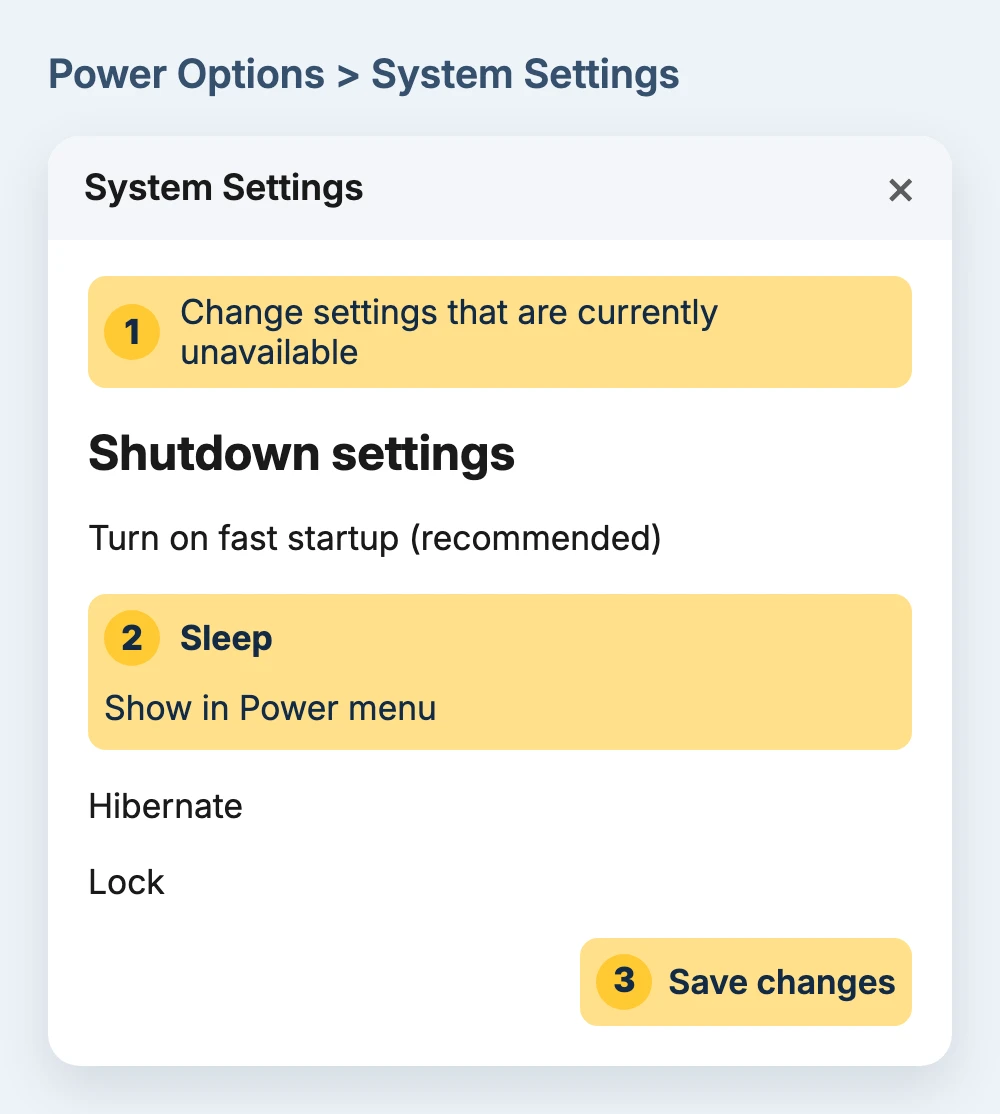
Reopen Start > Power. If Sleep appears, select it after saving your work. Check that the PC goes to sleep and wakes again. Seeing the command in the menu is only the first part.
A dimmed checkbox before selecting the unavailable-settings link is different from a checkbox that doesn't exist. A dimmed checkbox may just need administrator permission. If the checkbox is missing, check the available sleep states next.
The power-button and lid settings on this page are separate choices. Changing what the lid does won't necessarily put the Sleep command back into Start, even though both settings concern sleeping.
If the option won't stay checked on a work PC, skip to the policy section. Repeating the checkbox change won't override a setting your organization reapplies.
2. Read what Windows says the hardware supports
Right-click Start, select Terminal (Admin), approve the permission prompt, and enter this read-only command:
powercfg /aIt lists the sleep states available on the computer and explains why other states aren't available. The report leaves your power settings unchanged.
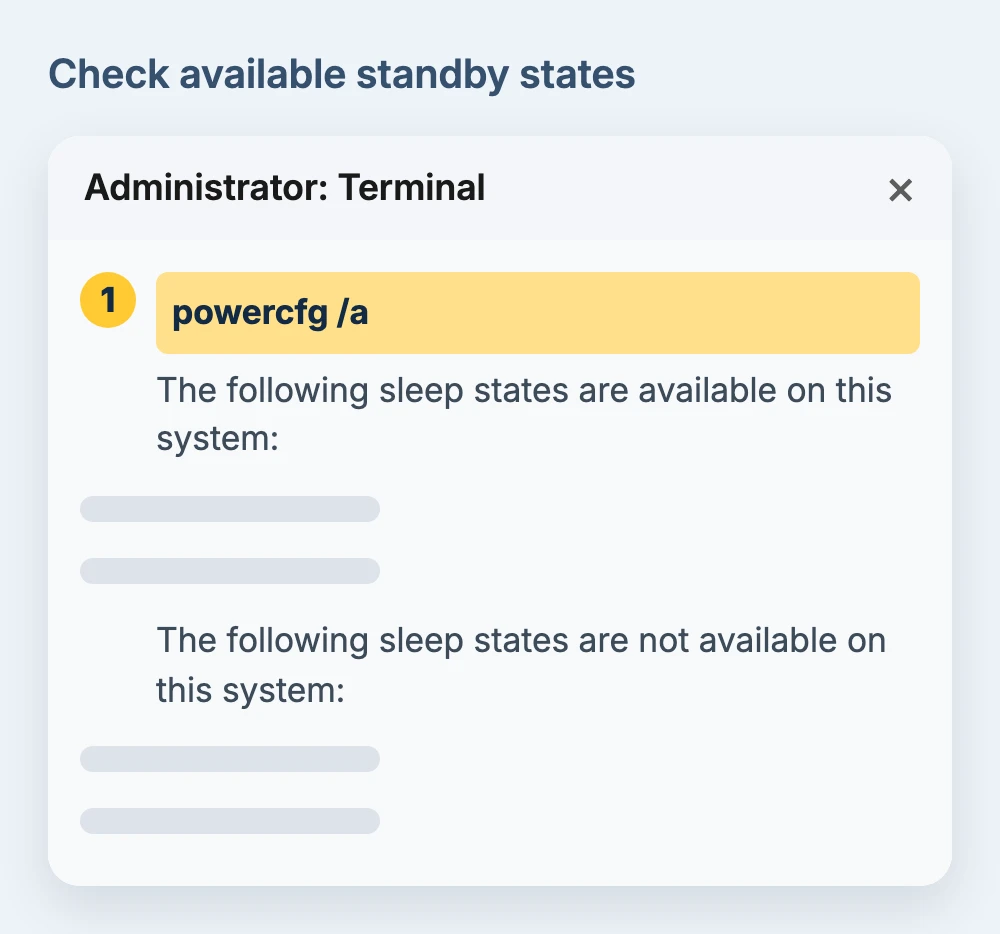
Look for an available standby state. Some PCs use Standby (S3). Others use Standby (S0 Low Power Idle), usually called Modern Standby. The absence of S3 alone doesn't mean a Modern Standby laptop has lost sleep.
Read the reason printed for the unavailable states instead of expecting identical results across different PCs. Your hardware and firmware, the built-in software that controls it, determine which sleep states the model supports.
Microsoft's powercfg command reference describes /a as the report for available sleep states and the reasons states are unavailable.
If standby is available but the menu entry is missing, focus on the checkbox or policy. If the report says firmware or a component prevents standby, take that exact reason to the next step.
This command answers a different question from what keeps an already working PC awake. When the Sleep button exists but the machine refuses to stay asleep, use the PC won't go to sleep checks instead.
3. Correct the component named in the report
If powercfg points to a driver problem, open Windows Update and run its update check. Then look under Advanced options > Optional updates for the matching driver. Restart before running powercfg again.
For laptop-specific drivers, use the computer maker's support page and exact model. A graphics package for a similar-looking laptop isn't enough; match both the hardware and the Windows release.
For a graphics-related report, open Device Manager > Display adapters. If it lists Microsoft Basic Display Adapter, check the maker's graphics package. That entry identifies the basic Windows display driver.
The Windows driver update steps cover both Windows Update and the device maker's package. Use either method to update the component named in the report, rather than replacing unrelated drivers.
If the report names firmware support, check the model's documentation and BIOS update notes. Ask the manufacturer which standby states are supported on your model before changing firmware options.
Don't use a registry recipe to force S3 onto a Modern Standby computer. A missing traditional state can be part of the model's design, and exposing a menu item doesn't supply hardware support.
Look for a changed powercfg report followed by a working Sleep command. If the report doesn't change, keep its exact reason for support rather than cycling through driver downloads.
4. Restore a Sleep command hidden by policy
On Windows 11 Pro, Enterprise, or Education, a policy can hide Sleep even when the hardware supports it. Microsoft lists it as Show sleep in the power options menu.
On a personally managed Pro PC, press Windows+R, enter gpedit.msc, and open Computer Configuration > Administrative Templates > Windows Components > File Explorer.
Open Show sleep in the power options menu. Disabled hides the command. Enabled shows it when the hardware supports sleep. Not Configured leaves the choice to the Power Options control panel.
If you previously changed this policy yourself, set it to Not Configured, apply the change, and check Power Options again. Restart, then check the Start menu again.
Windows 11 Home leaves out the Local Group Policy Editor. Don't install an unofficial editor just to follow these steps. Check the normal Power Options page and use the hardware report when Home has no Sleep entry.
On a computer managed through school or work, ask IT to check ShowSleepOption and the available sleep states. An administrator can tell whether the missing command is intentional and change the setting through the system that manages it.
When the menu still has no Sleep option
Send your PC maker the model, Windows version, and complete powercfg /a output. Mention whether the Sleep checkbox exists and the date it disappeared, including recent driver, Windows, or BIOS updates.
Ask which standby state the model supports and what is preventing that state now. If the model supports standby and no policy hides it, ask for a check of that model's drivers and firmware.
Until then, save your work and use Shut down when leaving the computer. A dark display alone doesn't confirm that the system has entered sleep.
The Short Version
Enable Sleep under Power Options first. If it's absent there, read powercfg /a, follow its driver or firmware reason, and check the menu policy on managed or Pro PCs. Modern Standby doesn't need an available S3 state.
Checked November 29, 2026.
 If you have any business, I can build it online