NETIO.sys on a Windows 10 blue screen points to a crash involving Windows' network input and output code. Start with a recently changed network driver or network-related app, rather than downloading a replacement NETIO.sys file.
The file name shows where the crash happened, but doesn't always identify the product that caused it. Keep the stop code too, and check whether a Wi-Fi driver update, VPN installation or security-program change came just before the crashes.
In this guide
1. Keep the crash details with its trigger
Photograph the entire blue screen when you can catch it before restart. Keep both What failed: NETIO.sys and the stop-code text. They describe different parts of the crash and are useful together.
Note any driver update, new network adapter, VPN or network-program installation before the first failure. Describe whether it happens while browsing, downloading or waking from sleep.
If you just added an external network adapter, power the PC off, remove that adapter, then restart. A stable session without it makes that device or its driver the next thing to check, rather than every installed program.
For a DRIVER_IRQL_NOT_LESS_OR_EQUAL crash, the driver-crash guide explains how the named driver changes the repair route.
If the crash comes back, continue with the next checks even if restarting helped for a while. Compare the activity that previously triggered it; leaving an idle desktop open doesn't test a fault that happens during a download.
2. Roll back the network driver if the update started it
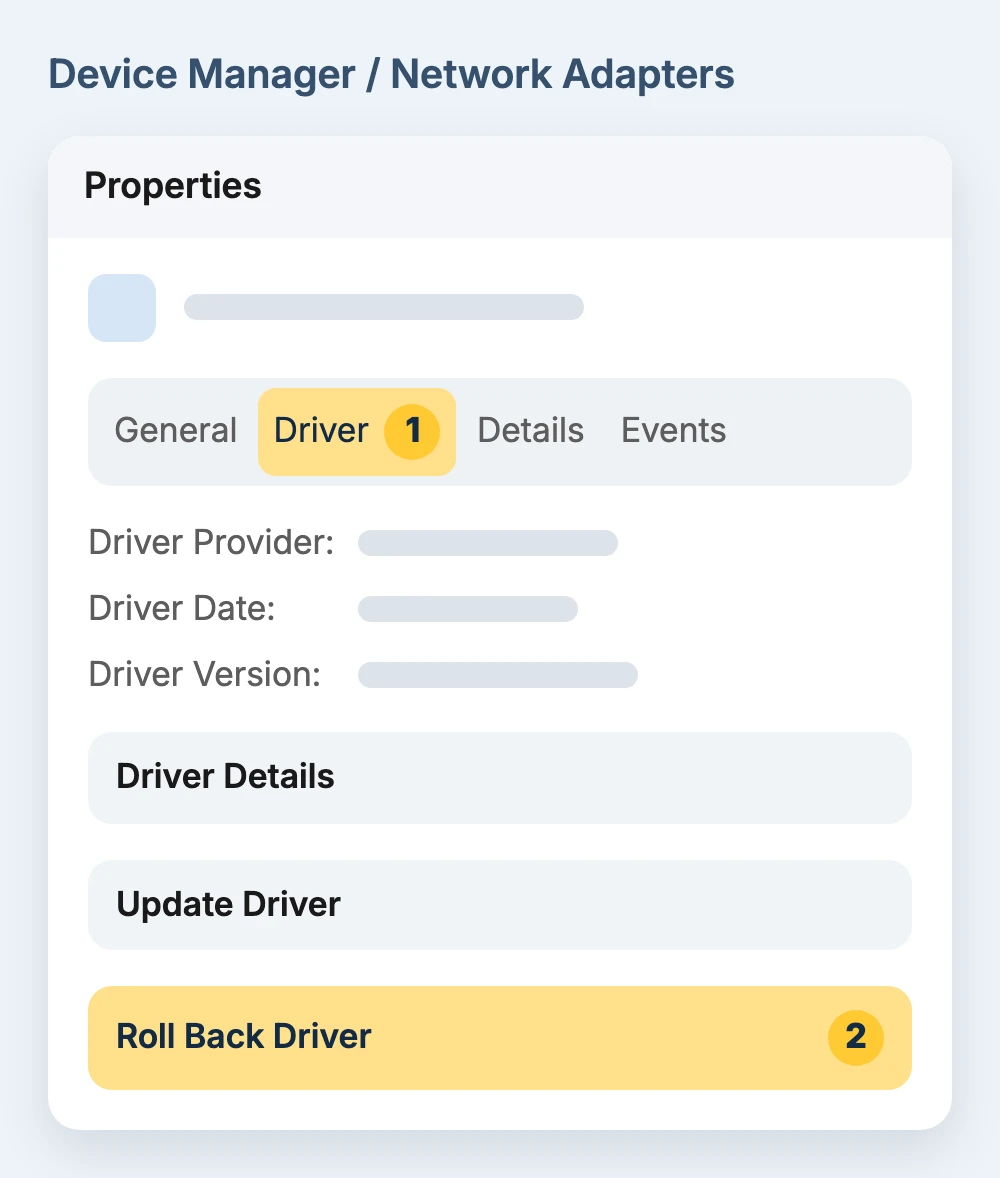
Right-click Start and choose Device Manager. Expand the Network adapters category. Choose the Wi-Fi or Ethernet adapter involved, open Properties, and select its Driver tab.
Select Roll Back Driver if available, choose the reason, and confirm. This change needs an administrator sign-in. Restart when requested, then retry the network activity that used to trigger the blue screen.
Microsoft's driver rollback instructions recommend returning to the earlier driver when trouble began after an update. If the crashes stop, keep the earlier version while reporting the problem with the newer one.
If Roll Back Driver can't be selected, skip rollback. Don't remove random driver files to force it. Get a supported package directly from your computer maker or the adapter's manufacturer instead.
Read the full device name before choosing a package. A laptop model can ship with different wireless adapters, so the laptop's product family alone may not identify the correct driver.
If a USB adapter and built-in Wi-Fi are both listed, change only the device you're checking. That keeps a useful connection available and makes it possible to tell which change affected the crash.
3. Install a supported update for that adapter
Open Settings > Update & Security > Windows Update and check what updates your Windows 10 installation is eligible to receive. For a driver update, use the driver options available in Windows or download the manufacturer's support package.
Regular Windows 10 support has ended. Your Windows edition and any extended support coverage determine which updates remain available. Don't assume an ordinary Windows 10 PC still gets the same updates as Windows 11.
A manufacturer package must match the adapter, Windows version and system type. If another computer is needed to download it, copy the installer across on a USB drive and keep that copy before changing the current driver.
In Device Manager, right-click the adapter and choose Update driver. Choose Search automatically for drivers to let Windows search. A package downloaded from the manufacturer may have its own installer or instructions instead.
The best-driver message doesn't mean that every network-related crash has been fixed. It means Windows didn't find a different driver through that search. Restart after an installation when requested and repeat the original activity.
If the blue screen names a different Wi-Fi module too, use that device's route. The bcmdhd63.sys repair guide covers the Broadcom-specific case rather than treating every network crash as the same adapter.
4. Review a recently installed VPN or network program
If the first crash followed a VPN or third-party security installation, check that product's support page for a Windows 10 update. Network software can install drivers as well as the app window you see.
Update the product first when its maker supplies a compatible fix. If it still crashes, use the maker's uninstall procedure to remove the recently added product, restart, and compare the same activity before reinstalling anything.
For workplace software, ask IT to make that change. Removing a required VPN or security agent can prevent work access, so the person managing it should handle the comparison and replacement package.
Check that the uninstall actually finished. If the crash persists after the product has actually been removed, keep that failed result for support. Repeatedly toggling its visible protection switch adds little.
I'd give support a short timeline of the driver and app changes. It helps them choose the next driver check without having to work through a list of unrelated registry-cleaning attempts.
5. Use Safe Mode when normal Windows won't stay open
From a working sign-in screen, hold Shift while choosing Power > Restart. In recovery, open Troubleshoot > Advanced options > Startup Settings > Restart.
After that restart, press F4 (or 4) to enter Safe Mode. It loads a limited selection of drivers and services. For encrypted devices, recovery may request a BitLocker key. Keep that key within reach.
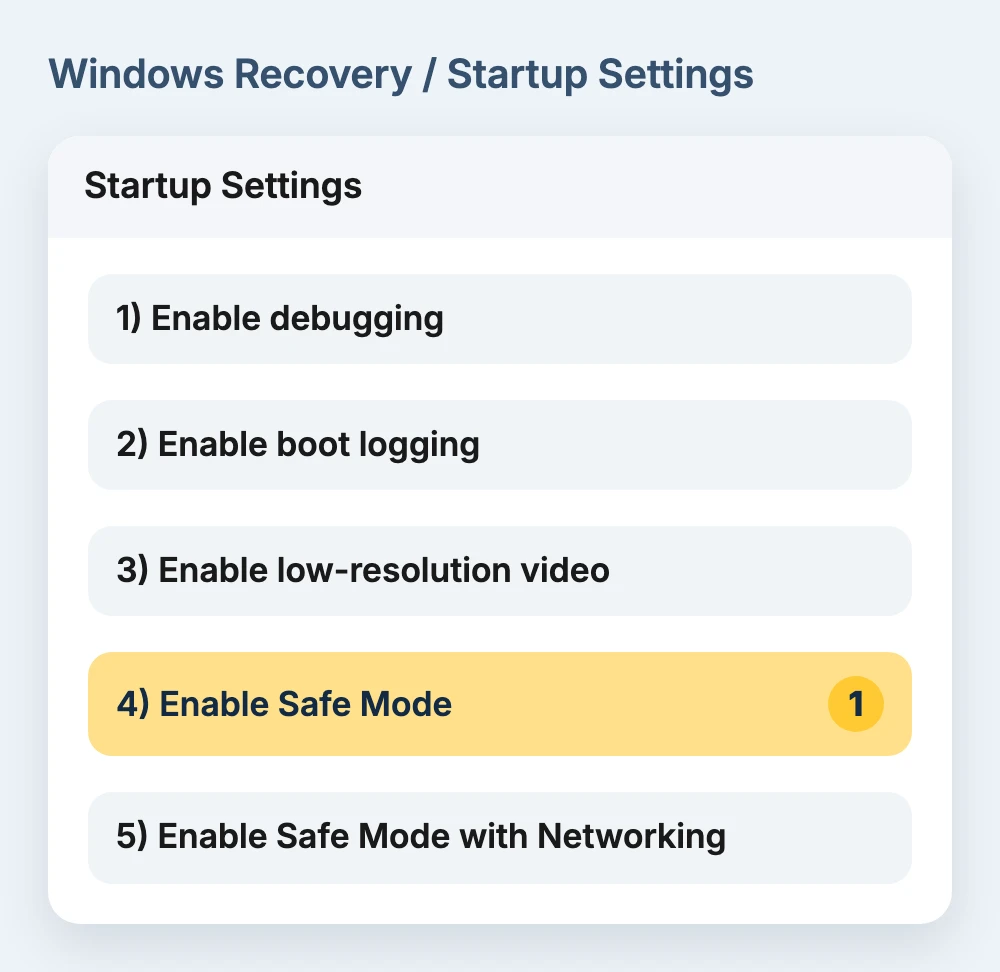
Safe Mode with Networking adds network drivers and services. Use plain Safe Mode to see how the PC behaves without those extras when network activity triggers the crash. Prepare any needed driver installer before entering it.
If the PC stays stable there, turn your attention to drivers and services absent from Safe Mode. That still doesn't pinpoint the driver that crashed. Use the session to undo the recent change, then restart normally and check again.
6. Give repeated crashes a proper driver review
If NETIO.sys crashes continue after these checks, request a crash-dump review from IT or your computer manufacturer. That's Windows' saved record of the failure, and it can show more than the short blue-screen message.
Windows often saves small crash files in C:\Windows\Minidump when configured to do so. Tell support if that folder is empty instead of downloading a tool that promises to replace system files automatically.
Provide the stop code, adapter model, driver version and crash trigger. Include the results from rollback, another adapter or network-program removal. Ask which driver the dump identifies before considering a reset.
The Short Version
Record the stop code alongside NETIO.sys. Review recent network-driver and software changes, using Safe Mode if startup is unstable. Have recurring crash dumps checked before replacing system files or resetting Windows.
Checked November 29, 2026.
 If you have any business, I can build it online