AirPods Max buttons can seem broken when a setting changes what a press does or which listening modes it selects. Check the affected control first, then restart the headphones if neither control responds normally.
A Crown that won't turn or click needs different treatment from one that changes volume but won't end a call. AirPods Max 2 also has a camera setting that can temporarily take over normal controls in a supported camera app.
In this guide
1. Match the press to what the headphones are doing
Wear the headphones, connect them to your device, and start audio from the device's own playback controls. Then try the Digital Crown, the round control on the right headphone, separately from the listening mode button.
For both AirPods Max generations, a single Crown press pauses or resumes music. Two clicks skip to the next track, and three return to the previous track. Turning the Crown changes volume.
If turning works but clicking doesn't, report those as separate results. If clicking works in music but behaves differently during a call, check the call settings in the next section before treating it as a physical fault.
The listening mode button has another job. A normal press changes listening modes. Max 1 offers Transparency and Noise Cancellation; Max 2 can also use Adaptive Audio, depending on the modes you've selected.
I'd make this simple music comparison before removing the pairing. It tells you whether both controls are unresponsive or whether one particular action is different from what you expected.
If playback won't reach the headphones at all, start with the AirPods Max connection steps. Button testing is easier to interpret once audio is actually playing through them.
2. Restore the call action or volume direction
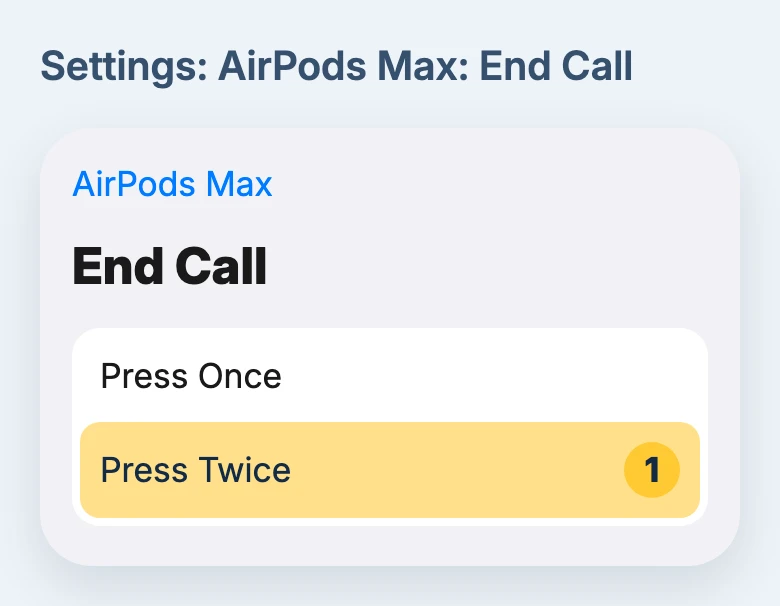
By default, pressing the Crown once during a call mutes or unmutes it, while double-clicking ends it. Those actions can be swapped. If a single press no longer hangs up, check whether that setting has changed.
With the headphones connected, open Settings on the iPhone or iPad, then tap the connected AirPods' name. Open End Call or Mute & Unmute. If those options aren't on the main page, open Controls & Gestures first.
Choose Press Once or Press Twice for the action you want. The other action switches automatically. Make a call and check the chosen behavior, rather than testing a call action while music is playing.
On a Mac, open System Settings and choose the AirPods entry from its sidebar. Find End Call or Mute & Unmute, opening Controls & Gestures first if that group appears, then choose the press you want for that action.
For a Crown that turns volume the opposite way from what you expect, use Digital Crown in the iPhone or iPad settings. On Mac, look for Increase Volume by Rotating Digital Crown. That option may also be inside Controls & Gestures.
These settings help when the controls respond but do something you don't expect. If the volume never changes in either direction and Crown presses never register, skip to the restart section instead of repeatedly changing the preference.
3. Check selected modes and Max 2 camera controls
Open the connected AirPods' settings and check which modes are selected for the listening mode button. Select the modes you want it to cycle through, then put the headphones on and press the button while audio is playing.
Apple's AirPods Max settings guide lists the mode choices and the Controls & Gestures layout. Choose from your generation's options. Max 1 won't show every Max 2 feature.
On AirPods Max 2, check Camera Remote if controls behave differently only inside a supported camera app. On the connected iPhone, open Settings > your AirPods' name > Camera Remote, using Controls & Gestures first if shown.
With Camera Remote set to Press Once, normal media gestures temporarily stop working inside a supported camera app. With Press and Hold, the camera app temporarily takes over the gestures for listening modes and Siri.
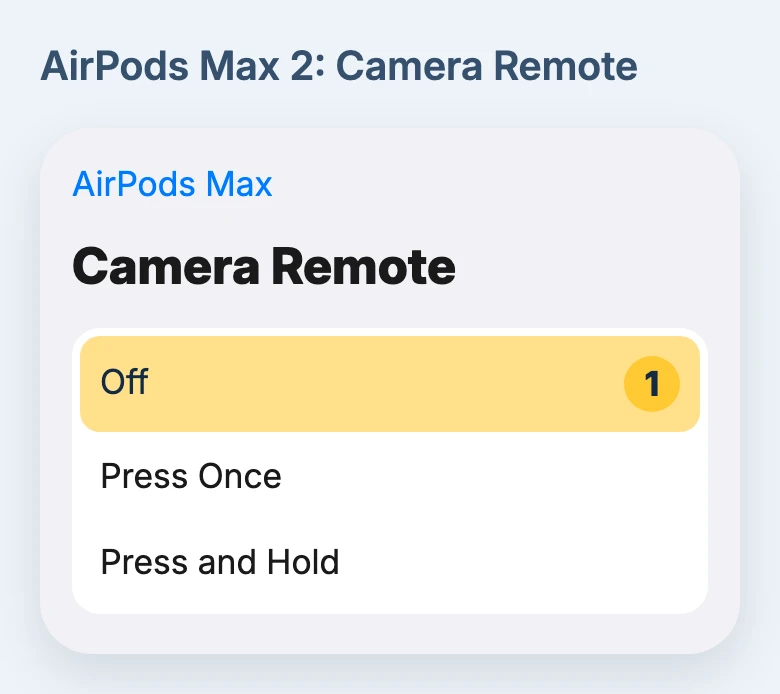
Choose Off to turn that camera control off, then try the normal action again. This setting applies to Max 2; it isn't a repair step for a Max 1 button that has stopped clicking.
If audio pauses as soon as you move or remove the headphones, that can be head detection rather than a button press. The ear-cushion and sensor checks cover that different symptom.
4. Restart the headphones without resetting them
Charge the headphones to 50 percent or higher before restarting or resetting. If they won't charge, you can still try a reset, as the reset instructions explain. Use the proper charging connection for your model.
Hold both controls: Digital Crown plus listening mode button. At the first amber flash from the status light, release both immediately. This restarts the headphones; continuing to hold them performs a factory reset.
After the restart, connect and play audio again. Try the same failed action, such as one Crown press to pause. If that works, keep the pairing and return to listening.
If only one app still ignores playback commands while another responds, take that result to the app's support team. Tell them that volume and playback still work in another app so they know which app ignores the commands.
5. Reset once, then request a control repair
If restarting doesn't help, keep holding both controls for about 15 seconds. The light should flash amber first, then white. White is the reset result; stopping at the first amber flash only restarts them.
Reconnect the headphones to your iPhone, iPad, Mac, or other device afterward. Test playback, volume, and the listening mode button individually so you can describe exactly what still fails.
Don't force a jammed Crown, add lubricant, or pry the controls out. Arrange a repair for a control that won't physically move, especially after a spill or a drop.
If the reset light sequence never appears or a control stays dead afterward, contact Apple Support for AirPods Max service. Give the generation, connector type, failed actions, charging behavior, and whether the light ever reached white.
Ask for an inspection of the Digital Crown or listening mode button, whichever failed. Describing the failed control helps the technician assess it without repeating pairing checks.
The Short Version
Compare music, calls, and listening modes separately. Check call preferences and Max 2 Camera Remote for specific failures. Release at amber to restart, or hold through white to reset. If a control still fails, arrange service.
Checked November 29, 2026.
 If you have any business, I can build it online